6 Best JSON Editor Libraries for Angular in 2026 (Components & Tools)
Angular developers need JSON editor components for displaying API responses, letting users edit config, or generating forms from schema. The libraries below cover all three scenarios with varying bundle sizes and Angular version compatibility.
1. ngx-json-editor
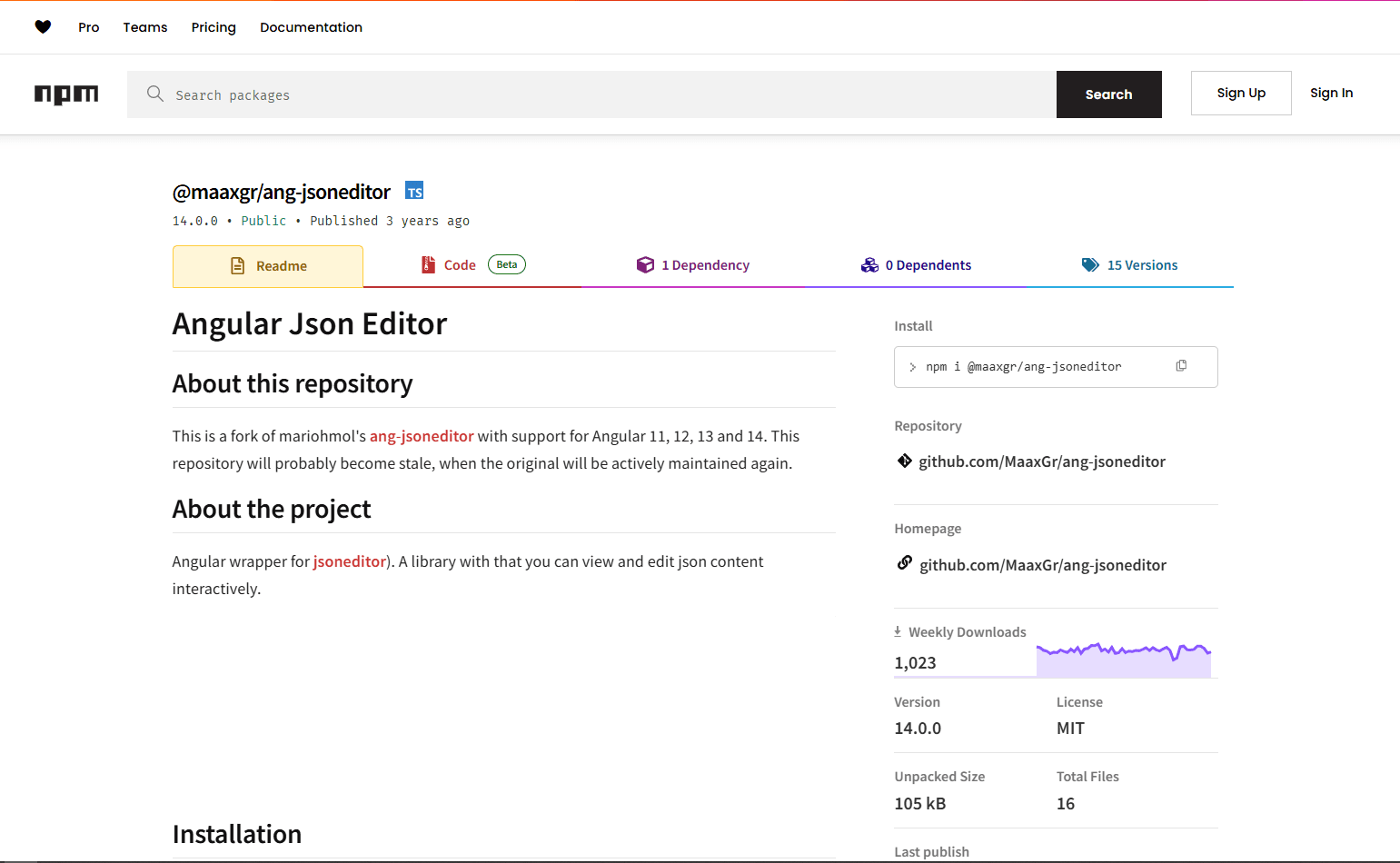
ngx-json-editor is an Angular wrapper around the JSON Editor library. Tree view, code view, and text mode in one component.
Install:
npm install @maaxgr/ang-jsoneditor
Basic usage:
import { NgJsonEditorModule } from '@maaxgr/ang-jsoneditor';

@Component({
  standalone: true,
  imports: [NgJsonEditorModule],
  template: `
    <json-editor
      [options]="editorOptions"
      [(data)]="jsonData">
    </json-editor>
  `
})
export class MyComponent {
  jsonData = { name: 'Alice', roles: ['admin'] };
  editorOptions = { modes: ['tree', 'code'], mode: 'tree' };
}
Angular compatibility: Works with Angular 14+. Supports standalone components.
Bundle size: ~200KB minified
SSR compatible: No. Requires browser APIs. Use dynamic imports for Angular Universal.
Best for: Most Angular projects that need both tree view and code editing. Good balance of features and bundle size.
Not great for: Read-only display (too heavy). Very large JSON files (performance degrades above 5MB).
2. Monaco Editor for Angular
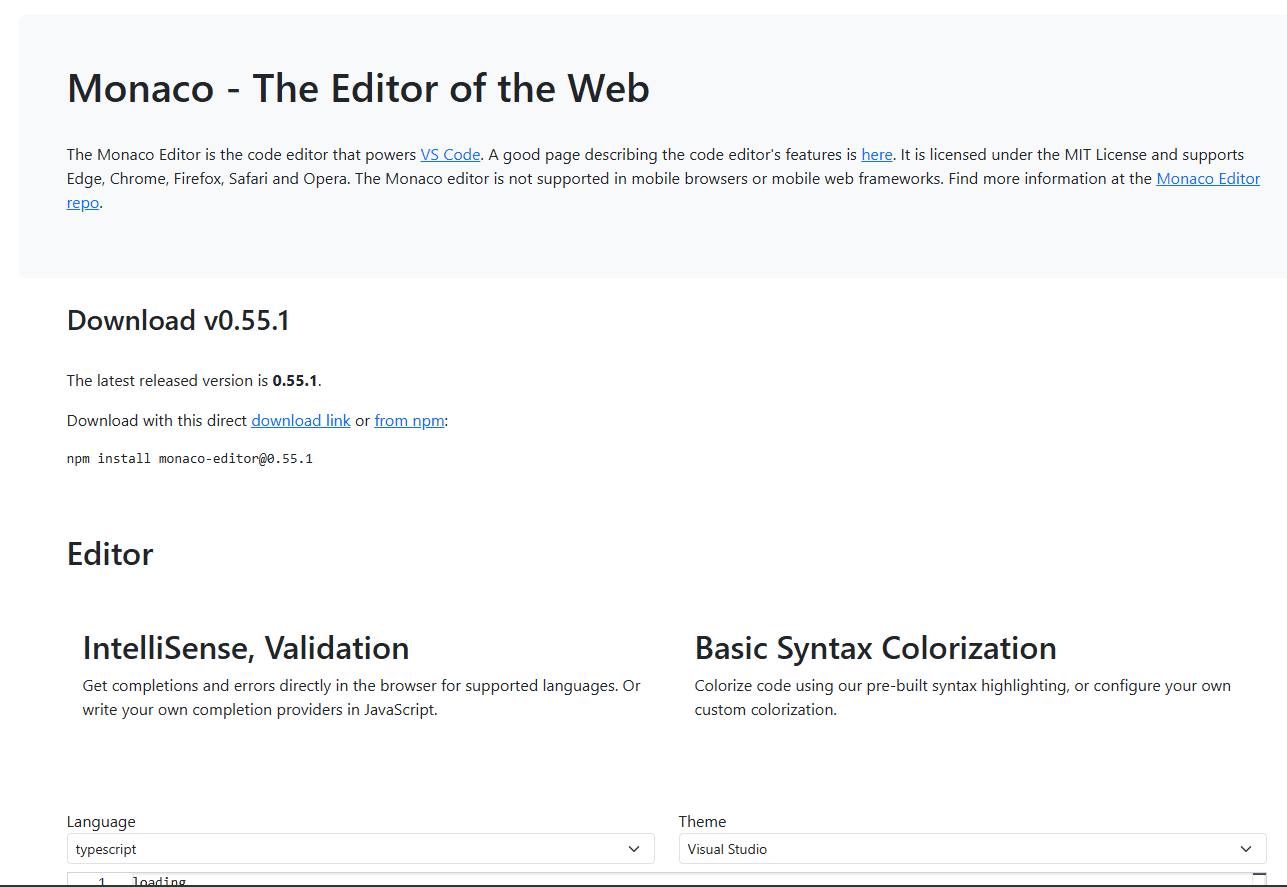
ngx-monaco-editor-v2 wraps Monaco Editor (the VS Code editor) for Angular. IntelliSense, error highlighting, schema validation.
Install:
npm install ngx-monaco-editor-v2 monaco-editor
Add Monaco assets to angular.json:
{
  "assets": [
    {
      "glob": "**/*",
      "input": "node_modules/monaco-editor",
      "output": "assets/monaco-editor"
    }
  ]
}
Basic usage:
import { MonacoEditorModule } from 'ngx-monaco-editor-v2';

@Component({
  standalone: true,
  imports: [MonacoEditorModule, FormsModule],
  template: `
    <ngx-monaco-editor
      [options]="editorOptions"
      [(ngModel)]="jsonContent">
    </ngx-monaco-editor>
  `
})
export class MyComponent {
  jsonContent = '{"hello": "world"}';
  editorOptions = { theme: 'vs-dark', language: 'json' };
}
Angular compatibility: Works with Angular 14+. Supports standalone components and reactive forms with ngModel.
Bundle size: 2-3MB (loads from assets, not in main bundle but users still download it)
SSR compatible: No. Requires browser APIs and web workers. Use dynamic imports for Angular Universal.
Best for: Developer-facing tools where users expect VS Code experience. API testing interfaces, config editors for technical users.
Not great for: Consumer-facing apps where bundle size matters. The 2-3MB download is too heavy for most public products.
3. JSON Forms
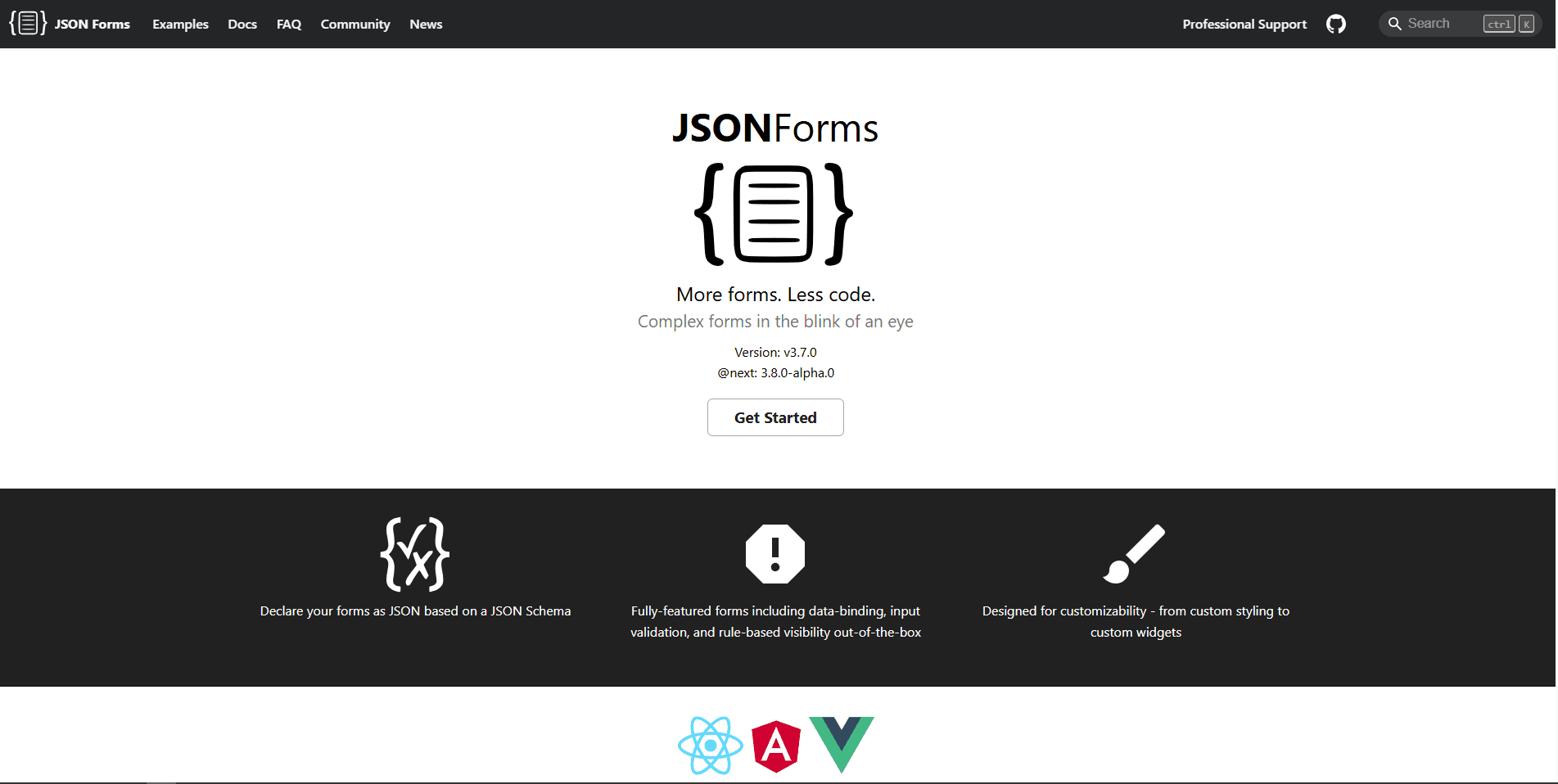
JSON Forms generates form UI from JSON Schema. Users interact with a form, you receive validated JSON.
Install:
npm install @jsonforms/core @jsonforms/angular @jsonforms/angular-material
Requires: Angular Material (@angular/material)
Basic usage:
import { JsonFormsModule } from '@jsonforms/angular';
import { JsonFormsAngularMaterialModule } from '@jsonforms/angular-material';

@Component({
  standalone: true,
  imports: [JsonFormsModule, JsonFormsAngularMaterialModule],
  template: `
    <jsonforms
      [data]="data"
      [schema]="schema"
      (dataChange)="onDataChange($event)">
    </jsonforms>
  `
})
export class MyComponent {
  data = { name: '', email: '' };
  schema = {
    type: 'object',
    properties: {
      name: { type: 'string', minLength: 1 },
      email: { type: 'string', format: 'email' }
    },
    required: ['name', 'email']
  };

  onDataChange(event: any) {
    this.data = event;
  }
}
Angular compatibility: Works with Angular 14+. Requires Angular Material or Bootstrap.
Bundle size: ~300KB (plus Angular Material ~500KB if not already using it)
SSR compatible: Yes. Works with Angular Universal.
Best for: Non-technical users who need to produce valid JSON through forms. Settings pages, configuration wizards, CMS editors.
Not great for: Users who need to see or edit raw JSON. This hides JSON completely behind a form interface.
4. ngx-json-viewer
ngx-json-viewer is a minimal component for displaying JSON in an expandable tree. Read-only, no editing.
Install:
npm install ngx-json-viewer
Basic usage:
import { NgxJsonViewerModule } from 'ngx-json-viewer';

@Component({
  standalone: true,
  imports: [NgxJsonViewerModule],
  template: `<ngx-json-viewer [json]="apiResponse" [expanded]="true"></ngx-json-viewer>`
})
export class MyComponent {
  apiResponse = { status: 'success', data: [1, 2, 3] };
}
Angular compatibility: Works with Angular 12+. Supports standalone components.
Bundle size: ~10KB minified
SSR compatible: Yes. Pure display component with no browser-specific APIs.
Best for: Read-only JSON display. API response viewers, debug panels, log displays.
Not great for: Any editing. This is purely for display.
5. Ace Editor for Angular
ngx-ace-wrapper wraps Ace Editor for Angular. Lighter than Monaco, better legacy browser support.
Install:
npm install ace-builds ngx-ace-wrapper
Basic usage:
import { AceModule } from 'ngx-ace-wrapper';

@Component({
  standalone: true,
  imports: [AceModule],
  template: `
    <ace
      mode="json"
      theme="monokai"
      [(value)]="jsonContent">
    </ace>
  `
})
export class MyComponent {
  jsonContent = '{"hello": "world"}';
}
Angular compatibility: Works with Angular 12+. Supports standalone components and two-way binding.
Bundle size: ~500KB minified
SSR compatible: No. Requires browser APIs. Use dynamic imports for Angular Universal.
Best for: Code editor experience lighter than Monaco. Good for legacy browser support where Monaco might have issues.
Not great for: Advanced features like IntelliSense or schema-based autocomplete. Ace doesn't provide those.
6. Vanilla JSON Editor
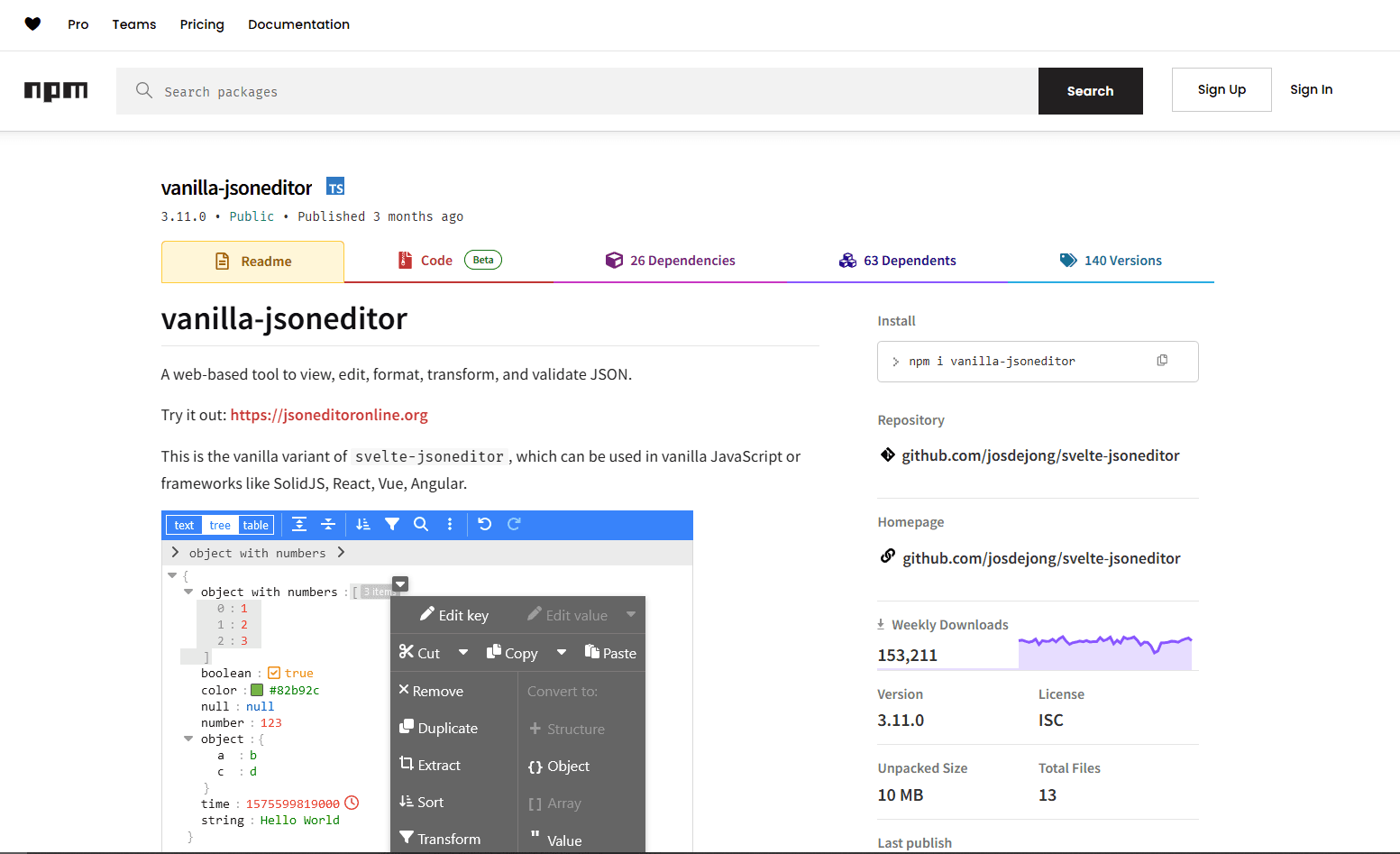
Vanilla JSON Editor is the modern successor to JSON Editor. No official Angular wrapper, but integration is straightforward.
Install:
npm install vanilla-jsoneditor
Basic usage (create wrapper component):
import { Component, ElementRef, Input, OnInit, OnDestroy, ViewChild } from '@angular/core';
import { JSONEditor } from 'vanilla-jsoneditor';

@Component({
  selector: 'app-json-editor',
  standalone: true,
  template: '<div #editorContainer></div>',
  styles: [':host { display: block; height: 400px; }']
})
export class JsonEditorComponent implements OnInit, OnDestroy {
  @ViewChild('editorContainer', { static: true }) container!: ElementRef;
  @Input() content: any = {};

  private editor!: JSONEditor;

  ngOnInit() {
    this.editor = new JSONEditor({
      target: this.container.nativeElement,
      props: { content: { json: this.content }, mode: 'tree' }
    });
  }

  ngOnDestroy() {
    this.editor?.destroy();
  }
}
Angular compatibility: Works with Angular 14+. Requires manual wrapper component.
Bundle size: ~150KB minified
SSR compatible: No. Requires browser APIs. Use dynamic imports for Angular Universal.
Best for: Latest features and improvements not yet in ngx-json-editor. Full control over integration.
Not great for: Quick integration. Requires more setup code than libraries with official Angular wrappers.
Library Comparison
| Library | Angular Compatibility | Bundle Size | SSR Safe? | Best For |
|---|---|---|---|---|
| ngx-json-editor | 14+ | ~200KB | No | Most Angular projects |
| Monaco Editor | 14+ | 2-3MB | No | Developer tools, VS Code feel |
| JSON Forms | 14+ | ~300KB | Yes | Non-technical users, forms |
| ngx-json-viewer | 12+ | ~10KB | Yes | Read-only display |
| Ace Editor | 12+ | ~500KB | No | Legacy browser support |
| Vanilla JSON Editor | 14+ | ~150KB | No | Latest features, full control |
Recommendation
For most Angular projects: ngx-json-editor. For developer tools where users expect VS Code: Monaco Editor. For non-technical users editing config: JSON Forms. For read-only display: ngx-json-viewer. Don't use Monaco if users just need to view data. The bundle cost isn't worth it.
Frequently Asked Questions
What's the best JSON editor component for Angular 17+?
ngx-json-editor works with Angular 17 and provides both tree view and code editing. Install with npm install @maaxgr/ang-jsoneditor. It supports standalone components, which is the recommended approach in Angular 17. For read-only display, use ngx-json-viewer at ~10KB. For developer tools, Monaco Editor provides VS Code experience but adds 2-3MB to your bundle.
Can I use Monaco Editor in an Angular project?
Yes. Use ngx-monaco-editor-v2: npm install ngx-monaco-editor-v2 monaco-editor. Add Monaco assets to angular.json assets array. Monaco doesn't work with SSR, so use dynamic imports for Angular Universal projects. Monaco provides IntelliSense, schema validation, and the full VS Code editing experience. Best for developer-facing tools, not consumer apps due to bundle size.
Is there an Angular JSON form generator from schema?
Yes. JSON Forms generates form UI from JSON Schema: npm install @jsonforms/core @jsonforms/angular @jsonforms/angular-material. It requires Angular Material or Bootstrap. Users interact with a form, you receive validated JSON. Best for non-technical users who need to produce valid JSON without understanding the format. Works with Angular Universal and SSR.
How do I add JSON syntax highlighting to an Angular app?
For code editor with syntax highlighting, use Monaco Editor (2-3MB) or Ace Editor (~500KB). For tree view with colored types, use ngx-json-editor (~200KB) or ngx-json-viewer (~10KB, read-only). Monaco provides the best highlighting with IntelliSense. Ace is lighter. ngx-json-viewer is lightest but read-only. Choose based on whether users need editing and your bundle size constraints.
Do Angular JSON editor libraries work with Angular reactive forms?
ngx-json-editor and Monaco Editor (via ngx-monaco-editor-v2) support ngModel for two-way binding. You can wrap them in reactive forms using ControlValueAccessor. JSON Forms has its own form handling that outputs validated JSON. ngx-json-viewer is read-only so no form integration needed. For reactive forms integration, ngx-json-editor is the easiest option with built-in two-way binding support.
Read More
All Articles
How JSON Powers Everything: APIs, Web Apps & Real-Time Data (2026)
Discover how JSON powers modern web applications, REST APIs, and real-time systems. Learn why JSON became the universal data format for web development, mobile apps, and cloud services.
How to Add Image in JSON: URL, Base64 & File Path Methods (2026)
Add images to JSON using URLs, base64 encoding, or file paths. Complete guide with code examples, size optimization tips, and best practices for each method in web and mobile apps.
How to Merge GPX Files: Free Tool + Python + GPSBabel Guide (2026)
Merge multiple GPX files into one using free online tool, Python, or GPSBabel. Complete guide for combining GPS tracks, waypoints, and routes from Garmin, Strava, Komoot, and other devices.