How to Format JSON in Notepad++: Simple Step-by-Step Guide
Minified JSON files present as single-line text blocks where hundreds of key-value pairs, nested objects, and arrays merge into unreadable strings. API responses arrive this way deliberately to reduce bandwidth. Configuration exports compress whitespace for storage efficiency. The result: finding a specific value requires squinting at curly braces and commas for ten minutes when proper formatting would make it obvious instantly.
Notepad transforms into a capable JSON formatter through a two-minute plugin installation. A single keyboard shortcut then converts any compressed JSON into clean, indented, readable text.
This guide covers complete setup from initial Notepad installation through formatting workflow and troubleshooting. No coding experience required. Installation capability and menu navigation suffice.
Understanding JSON Structure and Formatting Impact
JSON Fundamentals
JSON (JavaScript Object Notation) provides standardized data organization using key-value pairs readable by both humans and machines.
Basic example:
{
  "name": "Imad",
  "age": 24,
  "isStudent": true
}
Structure breakdown: quoted keys on left, values on right, colon separators, commas between pairs.
JSON appears throughout modern software ecosystems. API responses return JSON data. Configuration files for VS Code, ESLint, and Firebase use JSON format. Web technology workflows encounter it constantly.
Minification Problem
Network transmission and automated systems typically minify JSON, stripping whitespace and line breaks to conserve bandwidth.
Previous example minified:
{"name":"Imad","age":24,"isStudent":true}
Three fields remain manageable. JSON files with hundreds of keys, nested objects, and arrays collapse into single-line text practically impossible to read or edit manually.
Formatted JSON Benefits
Formatting adds line breaks and indentation for visible structure:
{
  "name": "Imad",
  "age": 24,
  "isStudent": true
}
Data remains identical. Content unchanged. Structure becomes scannable. Error spotting accelerates. Editing proceeds without accidental breaking.
Practical Impact
Readable JSON saves measurable time because clear structure makes missing commas, mismatched brackets, and broken quotes much easier to spot. It also makes collaboration smoother when you are sharing config files or debugging API responses, since everyone can understand the same data quickly.
Notepad Advantages for JSON Formatting
Enhanced Text Editor Capabilities
Windows default Notepad users will find Notepad a substantial upgrade. It stays free and lightweight while adding features that make structured data work practical.
Syntax highlighting supports 80+ languages, and the plugin system extends functionality without requiring online services. Notepad runs entirely offline, launches quickly even on older hardware, and does not require accounts or remote connections.
JSON-Specific Strengths
Base installation provides JSON syntax highlighting, so keys, values, brackets, and strings display in different colors and the structure becomes easier to follow.
With the right plugin installed (covered next), you can format an entire JSON file in one action, then fold and unfold nested sections to focus on the part you are editing.
Local Processing Advantage
Online JSON formatters work adequately for quick one off tasks, but sensitive data and repeatedly edited files benefit from local processing. Notepad keeps the entire workflow on your machine and avoids uploading JSON to third party servers.
Installing Notepad (New Users)
Existing Notepad installations can skip to plugin section.
Step 1: Official Download
Navigate to https://notepad-plus-plus.org/downloads/ for latest version. Most recent release appears at top of list.
Step 2: Installer Selection
Multiple download options available. Most users require 64-bit installer.
File named pattern:
npp.[version].Installer.x64.exeOlder systems have 32-bit option available. 64-bit covers vast majority of modern Windows machines.
Step 3: Installation Process
Double-click downloaded file. Windows may request administrator permission (approve if prompted).
Default settings function correctly. Click Next through screens, then Install. Complete process: under one minute.
Step 4: Launch Application
Notepad should open automatically post-installation. If not, locate in Start menu or desktop.
Clean editing window with top toolbar appears. JSON workspace ready.
Installing JSTool Plugin
Notepad lacks native JSON formatting. Plugin requirement: JSTool. Lightweight, reliable, task-specific functionality.
Plugin System Overview
Plugins function as small add-ons extending Notepad capabilities. Available plugins include file comparison tools, auto-save features, XML processing, and JSON/JavaScript formatting.
Plugin system built directly into Notepad. Installation simplified.
JSTool Installation Steps
1. Open Plugins Admin
Top menu: Plugins → Plugins Admin
Window listing available plugins opens.
2. Search JSTool
Type "JSTool" in top search box.
Results show plugin with JSON and JavaScript formatting description.
3. Install
Check box next to JSTool. Click Install button (bottom right corner).
4. Restart Notepad
Program requests restart for plugin loading. Click Yes.
Notepad reopens with JSTool ready.
Complete installation. No manual file downloads. No ZIP extraction. No config file editing. Plugins Admin handles everything.
Missing Plugins Admin Solution
Older or portable Notepad++ versions may lack Plugins Admin in menu.
Resolution: Download standard installer version from official site. Reinstall. Installer version always includes Plugins Admin.
JSON Formatting Workflow
JSTool installation complete. Formatting requires approximately three seconds.
Step 1: File Opening
File → Open (or Ctrl+O)
Navigate to .json file. Open.
Raw, unformatted text displays in editor.
Step 2: JSTool Formatting
Top menu: Plugins → JSTool → JSFormat
Alternatively, keyboard shortcut: Ctrl+Alt+M
Keyboard shortcut recommended for routine use. Becomes automatic after repetition.
Visual Transformation
Unformatted JSON example:
{"name":"Alex","age":30,"hobbies":["reading","cycling"],"address":{"city":"Berlin","zip":"10115"}}
After Ctrl+Alt+M:
{
  "name": "Alex",
  "age": 30,
  "hobbies": [
    "reading",
    "cycling"
  ],
  "address": {
    "city": "Berlin",
    "zip": "10115"
  }
}
Proper indentation applied. Nested objects clearly visible. Data readable at glance. Content unchanged. Visual reorganization only.
Saving Formatted Output
After formatting, press Ctrl+S to save the file. Notepad overwrites the current file with the formatted version, so if you want to keep the original minified copy, use File → Save As and save the formatted output under a new name.
Advanced JSON Navigation Techniques
Once basic formatting is done, a few built in Notepad features make large JSON files much easier to work with.
Code Folding
After formatting, small minus icons appear in the left margin next to opening braces and brackets. Click the minus to collapse a section to a single line, and click the plus to expand it again. This is especially useful for JSON with many nested objects because you can hide irrelevant parts and reduce scrolling while you edit.
Search Functionality
Use Ctrl+F to open Find, then search for any key name, value, or fragment to jump straight to matching locations. For replacements, Ctrl+H opens Find and Replace, but be careful: replacing text that includes structural characters like quotes, commas, brackets, or braces can break JSON quickly.
Syntax Highlighting
Notepad should automatically detect JSON files and apply color coding.
Keys, string values, numbers, booleans, and structural characters receive distinct colors. Hierarchy becomes easier to follow visually.
Files opening without colors (plain black text): Language menu → scroll to J → select JSON. Forces JSON file treatment and correct highlighting application.
Troubleshooting Common Issues
JSTool Missing from Plugins Menu
Post-installation JSTool absence: restart Notepad completely. Close all instances. Reopen.
Still missing: Notepad version likely too old for current JSTool version. Update Notepad to latest release typically resolves issue.
JSON Formatting Fails (No Operation Occurs)
Almost always indicates invalid JSON. JSTool only formats well-formed JSON.
Syntax errors prevent processing: missing comma, extra trailing comma, unquoted key, mismatched brackets.
Error tracking checklist:
All string keys and values wrapped in double quotes? JSON requires double quotes, not single quotes.
Commas between every key-value pair, but not after last one in object or array?
Every opening brace
{[Visual spotting difficulty: temporarily paste JSON into online validator like JSONLint. Points to exact error line.
File Opens as Plain Text Without Highlighting
Notepad fails to recognize JSON files (extension .txt or unexpected format).
Manual language setting: Language menu → navigate to J → click JSON.
Syntax highlighting applies immediately.
Notepad Versus Alternative Approaches
Notepad not sole JSON formatting option. Comparative analysis against alternatives:
Online JSON Formatters
Tools like JSONFormatter.org or JSONLint excel at quick, one off formatting. Paste JSON, click a button, and you get formatted output with no installation.
The tradeoff is privacy. These tools involve sending data to a third party service, so use them only for public data or throwaway test responses. If the JSON contains API keys, user data, or internal configuration, keep it local and format it in Notepad instead.
VS Code
VS Code includes built-in JSON formatting. Open .json file, right-click, select Format Document. Functions beautifully without plugins.
Existing VS Code users as primary editor: minimal reason for Notepad switching specifically for JSON. Preference for lighter tool with faster start, or machines lacking VS Code installation: Notepad fills gap effectively.
Dedicated JSON Editors
Applications built specifically for JSON viewing and editing offer tree views, search, and validation. Nice for constant JSON work. Most users find them excessive. Notepad with JSTool covers 90% of typical requirements.
Production Use Cases
API Response Debugging
API testing returning minified response blobs: copy into Notepad, execute Ctrl+Alt+M. Wall of text becomes readable structure. Field location: seconds instead of minutes.
Frequency: multiple times weekly. Especially valuable for deeply nested responses with object arrays. Without formatting, visual parsing nearly impossible.
Configuration File Editing
JSON configuration usage widespread: VS Code settings, ESLint configs, Firebase project files, package.json for Node projects, GitHub Actions workflows.
Quick edits benefit from Notepad fast opening and minimal friction.
Data Export Review
Database or service JSON exports: formatting in Notepad enables rapid structure verification and unexpected value spotting. Particularly useful when preparing data for import into another system requiring correctness confirmation.
Team Collaboration
Sharing JSON snippets in messages or email: formatting first improves colleague experience. Nobody wants 500-character single-line JSON blob interpretation challenge. Format, copy, paste.
Additional Capabilities
Minifying JSON (Reverse Operation)
JSTool performs opposite of formatting. Nicely formatted JSON requiring compression back to single line (URL embedding or file size reduction): Plugins → JSTool → JSMin.
Strips all unnecessary whitespace and line breaks.
Large File Handling
Notepad handles files up to several hundred megabytes adequately. More than sufficient for most encountered JSON files.
Truly massive files (gigabytes): specialized tool may be necessary. Day-to-day work: Notepad performs reliably.
Two-File Comparison
Compare plugin installation from Plugins Admin: opens two JSON files side by side showing exact differences.
Format both files first for meaningful line-by-line comparison. Excellent for debugging configuration changes when specific modifications unknown.
Formatting Workflow Value
JSON formatting represents small skill with immediate payoff. Notepad setup with JSTool: couple minutes investment. Unreadable data to clean structure: one keyboard shortcut.
Setup time: minutes. Time savings over weeks and months of JSON file work: hours. Everything stays local on machine. No sensitive data pasting into random websites.
Comfortable Notepad users: explore additional plugins. Compare plugin for file diffing. XML Tools for XML processing. Both worth installing.
Outgrowing Notepad for complex editing tasks: VS Code represents natural progression step.
Related resources:
- Explore more JSON editors for Windows beyond Notepad
- Learn how to convert JSON to CSV in Notepad++
- Need to merge or split JSON files? Try JSON Merger and JSON Splitter tools
Read More
All Articles
How to Add an Image in JSON: A Comprehensive Guide
Learn how to add an image to a JSON object using URLs, file paths, or base64 encoding. This guide provides examples and best practices for each method.
How to Create a JSON File in Java: Beginner to Advanced Guide
Learn how to create a JSON file in Java step by step using popular libraries like org.json and Gson. This detailed guide covers JSON creation, file writing, real-world examples, and best practices for beginners and developers alike.
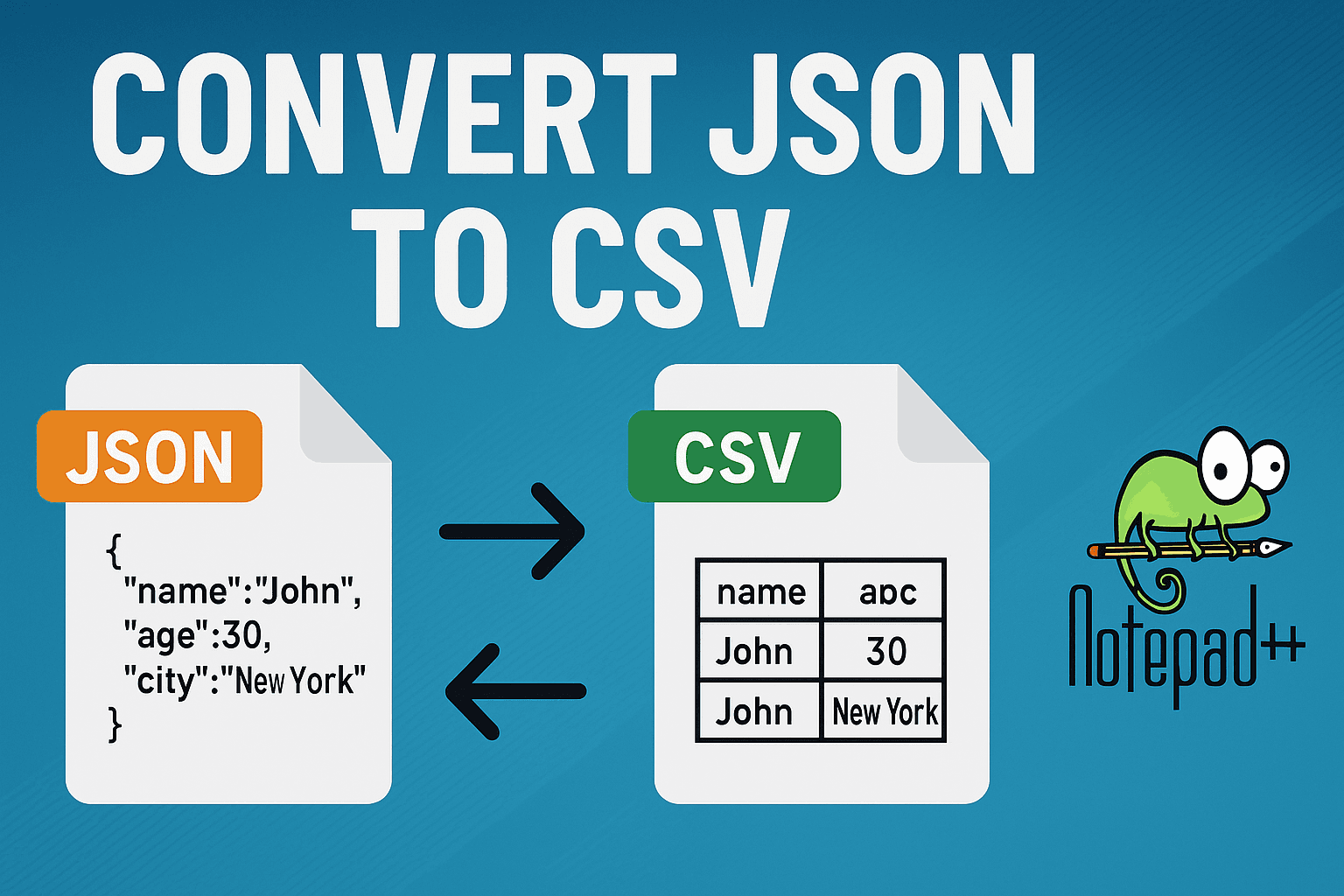
Convert JSON to CSV in Notepad++: Step-by-Step Guide
Learn how to convert JSON to CSV in Notepad++ using simple methods, including manual conversion, the JSON Viewer plugin, and Python scripts. A complete, beginner-friendly tutorial with clear examples and tips.