9 Best Free JSON Editors for Windows in 2026 (Ranked & Reviewed)
A single misplaced comma in a 500-line JSON configuration file can break an entire API integration. Finding that comma without proper tooling turns a five-minute fix into an hour-long debugging session.
Windows users have access to sophisticated JSON editors that go far beyond basic text manipulation. Intelligent syntax validation catches errors before they reach production. Visual tree navigation makes deeply nested structures comprehensible. High-performance parsers handle multi-gigabyte data exports without system slowdowns.
Nine production-ready editors evaluated here were tested against real-world requirements: debugging API responses, managing application configurations, and analyzing large datasets. Testing included validation accuracy checks, file size limit verification, and performance benchmarking across different data structures.
Selection criteria focused on practical scenarios. Enterprise developers need schema validation and version control integration, data analysts require tools that open 100 MB files instantly, and DevOps engineers want portable utilities that run without installation. Each editor below serves a distinct use case rather than competing for a single "best" designation.
Critical Features for Production JSON Editing
Professional JSON editing requires specific capabilities that separate functional tools from time-wasting alternatives.
Syntax Highlighting & Error Detection
Color-coded differentiation between keys, values, strings, and numbers enables rapid structure scanning.
Real-time validation prevents deployment failures. The editor should highlight malformed syntax immediately, pointing to the exact line and character where errors occur.
This catches issues like trailing commas, unescaped characters, or mismatched brackets before they cause 400 errors in production.
Visual Navigation for Complex Data
Tree view transforms nested data exploration. A 2,000-line API response with 8 levels of nesting becomes navigable when sections collapse and expand interactively.
This matters when debugging webhook payloads or analyzing configuration hierarchies.
Performance Under Load
File size handling reveals editor architecture quality. Tools that freeze at 10 MB won't survive real-world analytics exports or log aggregations that routinely exceed 100 MB.
Memory efficiency and parsing speed determine whether an editor works for occasional validation or daily production use.
Advanced Capabilities
Schema validation against JSON Schema specifications ensures data contracts.
Plugin ecosystems extend functionality for format conversion, key sorting, and integration with external validation services.
Find-and-replace with regex support becomes essential when updating dozens of configuration values simultaneously.
All tools reviewed here offer free versions or tiers suitable for professional use.
The 9 Best Free JSON Editors for Windows in 2025
1. Visual Studio Code (VS Code)
Microsoft's VS Code dominates the developer tools category for good reason. Comprehensive JSON capabilities ship in the base installation without requiring third party extensions.
Core JSON Features
- Instant syntax error detection with line specific diagnostics
- Auto formatting via Alt + Shift + F keyboard shortcut
- IntelliSense autocomplete that predicts nested structures
- Built in JSON Schema validation support
Why It Leads for Professional Use
The extension marketplace transforms VS Code into a specialized JSON workstation. Prettier enforces consistent formatting across teams, which matters when multiple developers touch the same configuration files. JSON Tools adds sorting, minification, and format conversion (JSON to XML, YAML, CSV). JSON Schema Store provides autocomplete suggestions based on 600+ public schemas, including package.json, tsconfig.json, and AWS CloudFormation templates.
Performance Considerations
VS Code runs on Electron architecture, consuming 200-300 MB RAM at idle. This exceeds lightweight alternatives but remains acceptable on modern Windows systems. For occasional validation tasks, the resource footprint may feel excessive, but for developers already using VS Code for programming, adding JSON workflows introduces zero additional overhead.
Real World Scenario
When debugging a failed API integration, VS Code's schema validation immediately flagged a missing "required" field that the API documentation hadn't clearly marked, saving two hours of trial and error testing.
Download: Download VS Code Free and open source
2. Notepad with JSON Plugin
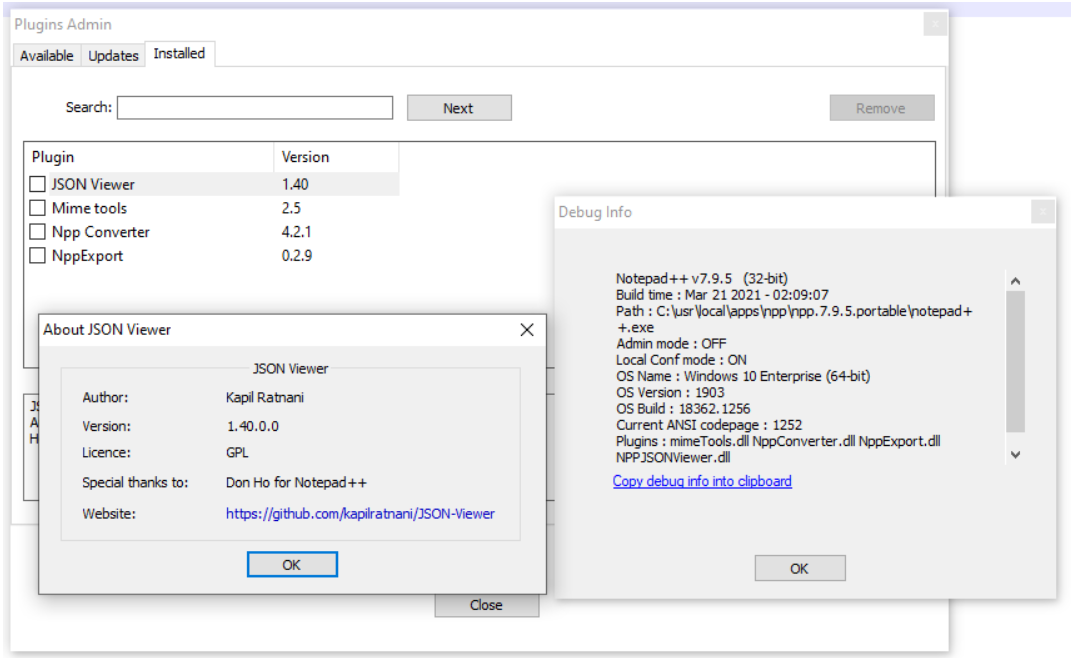
Notepad delivers sub second launch times and minimal resource consumption, optimized for speed over feature complexity.
Plugin Setup (30 seconds)
- Navigate to Plugins > Plugins Admin
- Search for JSTool or JSON Viewer
- Click Install and restart
JSTool transforms minified JSON (single line API responses) into indented, readable format with basic validation. JSON Viewer adds a collapsible tree panel for visual navigation of nested structures.
Performance Profile
- Launch time: Under 1 second on standard hardware
- Memory footprint: 20-40 MB (compare to VS Code's 200-300 MB)
- File size handling: Responsive up to 50 MB
The minimalist architecture sacrifices advanced validation and schema support, but for quick formatting of API responses or configuration files the tradeoff favors speed.
Portability advantage: Notepad runs from USB drives without installation, which helps in enterprise environments with restricted software policies or when working across multiple client workstations. Extract it to a folder, launch the executable, and use the editor without administrator privileges.
Use case: Systems administrators managing JSON configuration files across server fleets benefit from portable validation tools that do not require installation on each system.
Download: Download Notepad++ Free and open source
3. JSONedit
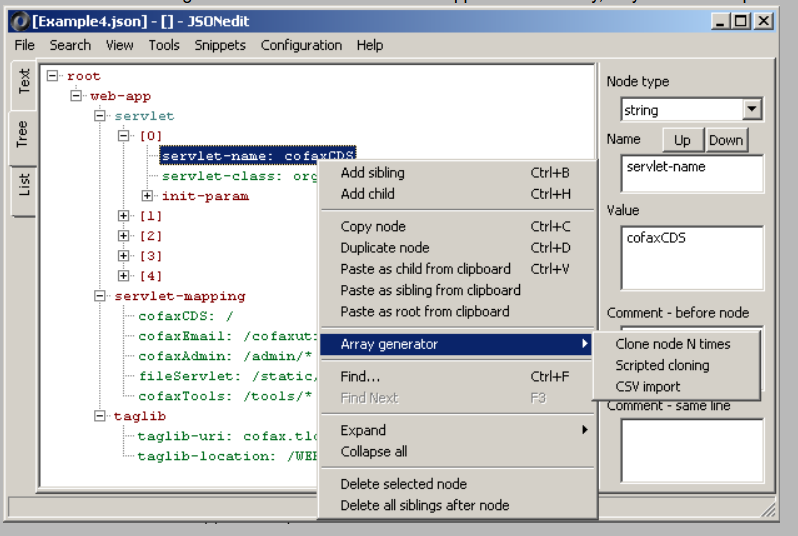
JSONedit represents purpose-built software. It's a 1 MB executable focused exclusively on JSON manipulation without feature bloat.
Interface design: Split pane layout with a raw text editor on the left and an interactive tree view on the right. Edits in the text panel update the tree in real time, and clicking tree nodes jumps to the corresponding text location, which helps you visualize how text changes affect the underlying structure.
Syntax highlighting uses basic color coding sufficient for structure identification.
Zero installation requirement: Extract the ZIP archive and launch the executable directly. No registry entries, no installer, and no administrative access required, which matters for consultants working on client machines, temporary workstations, or locked down corporate environments.
Performance limitations:
- File size ceiling: Approximately 50 MB before performance degradation
- Validation depth: Basic syntax checking only (no schema support)
- No plugin architecture for extended functionality
Ideal scenario: Editing application configuration files (typically 10 to 500 KB) on secured systems where software installation requires IT approval processes that take days.
Download: Download JSONedit Free, portable app
4. Online JSON Editor by CodeBeautify
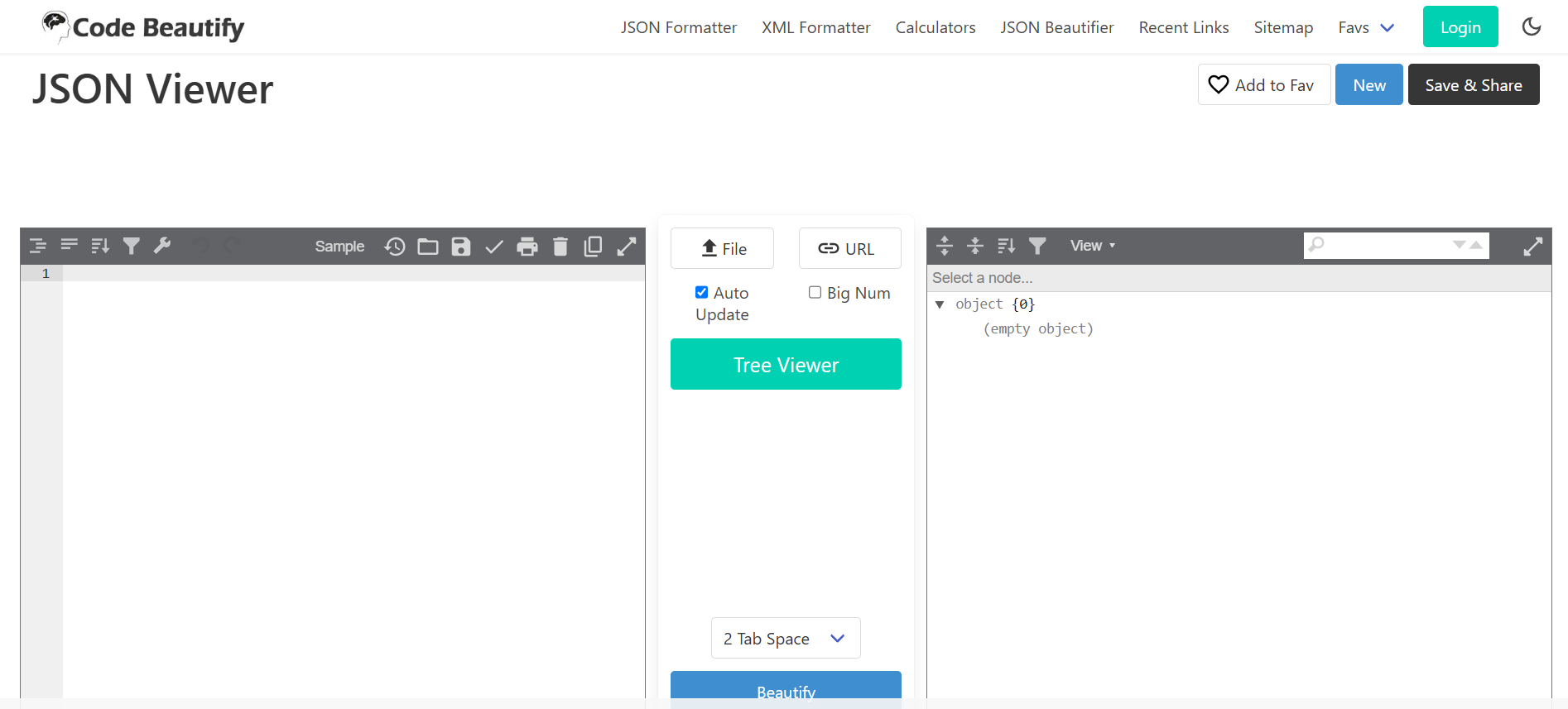
Browser based JSON tools eliminate software installation for quick validation tasks, which is useful when working from shared computers or mobile devices.
Workflow: Paste JSON into the input panel (or upload via file picker). The tool immediately parses, formats, and displays both raw text and a collapsible tree visualization, and validation errors highlight instantly with line references.
Built in transformations include:
- Beautify (format with indentation)
- Minify (remove whitespace for smaller payload size)
- Convert to XML, YAML, CSV, or TSV
- Direct download of modified output
Critical limitations: Web tools are not a safe place for sensitive data. Never paste API keys, authentication tokens, or PII into a third party validator. Performance also drops quickly beyond about 2 to 3 MB because parsing happens client side in the browser, and the tool requires an internet connection.
Best use case: Validating small JSON snippets received via email or chat before implementing in code, and sharing formatted examples with teammates during collaborative debugging.
Check it out: Try CodeBeautify JSON Editor Free online tool
5. Atom
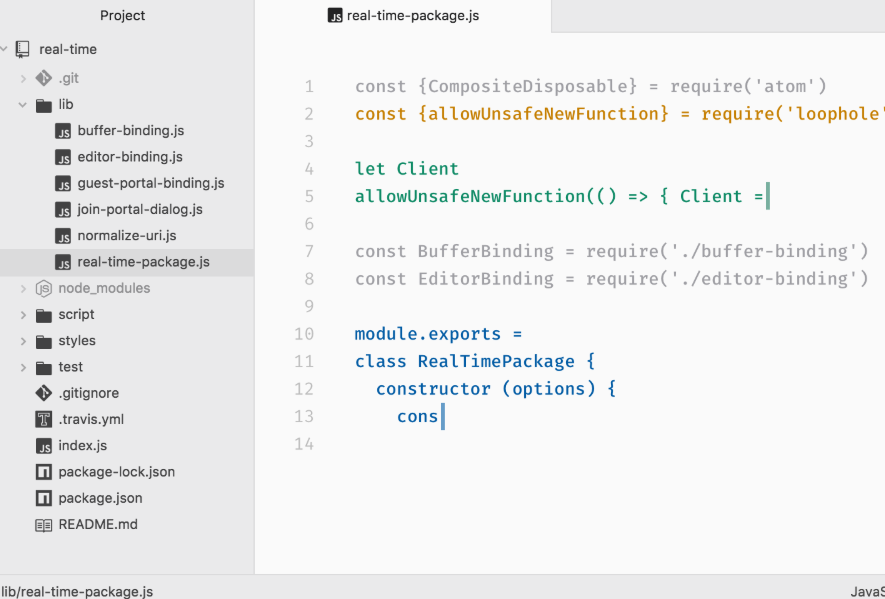
GitHub's Atom editor transitioned from official corporate backing to a community maintained status after Microsoft's 2022 sunset announcement. Active forks continue development and security updates.
Current JSON capabilities include built in syntax highlighting, plus a package manager for tree views, schema validation, and advanced linting extensions. Atom is also highly customizable, with control over interface elements, keybindings, and editor behavior.
Performance reality: Atom runs on Electron (like VS Code) but with slower optimization.
- Launch time: 3 to 5 seconds (compare to VS Code's 1 to 2 seconds)
- Large file handling: Noticeable lag beyond about 5 MB
- Memory usage: Roughly 250 to 350 MB
When Atom makes sense: Existing users with established configurations can keep working without disruption, and the built in git integration helps teams managing JSON configuration files under version control. New users comparing Atom and VS Code will usually find VS Code faster, more actively developed, and supported by a larger plugin ecosystem.
Download: Download Atom Free and open source with a growing community
6. Sublime Text (Free Version)
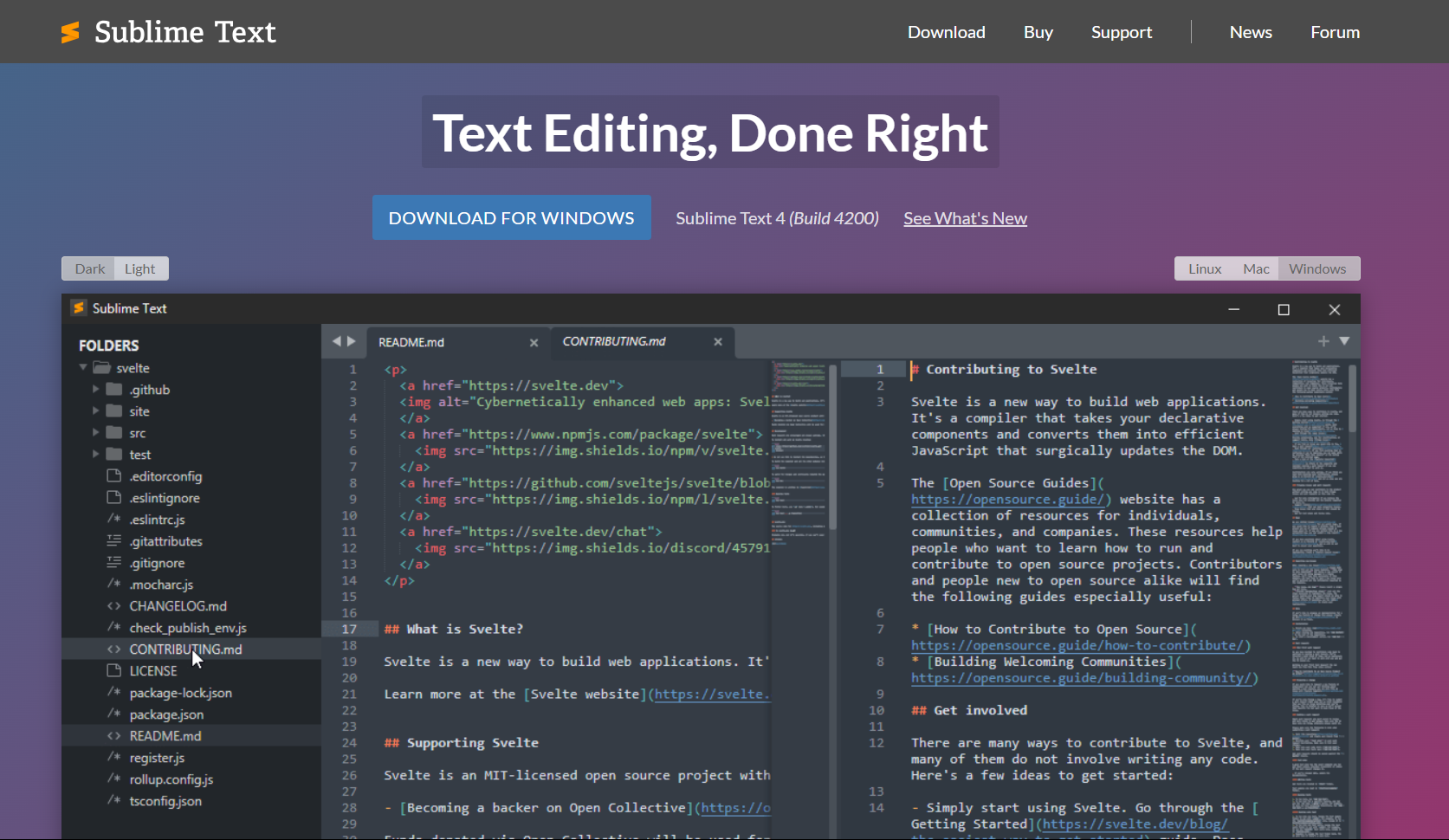
Sublime Text delivers unmatched raw performance through optimized native code architecture rather than an Electron framework.
Performance benchmarks:
- Launch time: Under 0.5 seconds
- 100 MB file opening: Responsive (most editors freeze)
- Multi cursor editing: Zero lag even with 50+ simultaneous cursors
JSON specific features: Syntax highlighting and code folding are included by default. The Pretty JSON package (free via Package Control) enables instant formatting via keyboard shortcut, and the Goto Anything feature (Ctrl + P) jumps to specific lines or searches for key names across multi file projects.
Multi cursor mastery: Select all instances of a JSON key (Ctrl + D repeatedly) and edit them simultaneously. Updating 20 configuration values takes seconds instead of minutes, which is especially useful when you need to update the same key across large config files.
Licensing model: The free version contains full functionality. An occasional pop up requests a license purchase but never blocks features or saves. For long term heavy users, purchasing the $99 license (one time, no subscription) removes prompts and supports development.
Tradeoff: There is no built in tree view for visual JSON navigation, so users who want a collapsible structure explorer will prefer other editors.
Download: Download Sublime Text Free version with occasional purchase prompts
7. Json Genie (Windows App)
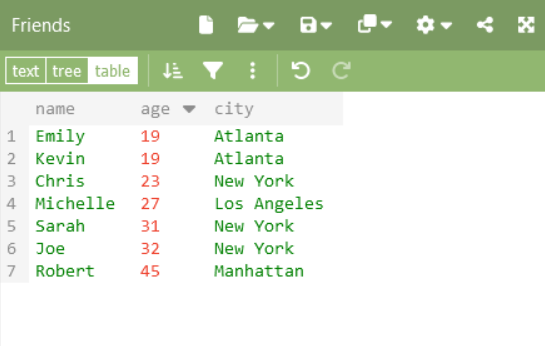
Json Genie targets non technical users who need JSON file access without learning syntax rules or text editing conventions.
Visual first design: It is a pure tree interface with no raw text panel cluttering the view. You navigate by expanding nodes and edit values directly, so brackets, commas, and syntax rules stay out of the way.
Target audience:
- Non developers editing application configuration files (game settings, tool preferences)
- Project managers reviewing JSON data exports without a technical background
- Anyone uncomfortable with code style text editing
Limitations:
- Basic feature set with no schema validation and no plugin ecosystem
- The interface is functional but dated compared to modern applications
Not recommended for:
- Developers seeking speed (text editing is usually faster than clicking through trees)
- Users managing complex nested structures that require bulk operations
Appropriate scenario: A marketing manager needs to update campaign configuration parameters in a JSON file, and clicking through a tree is easier than learning JSON syntax.
Download: Download JSON Genie Free Windows app for basic JSON editing
8. Online JSON Viewer by JSONFormatter.org
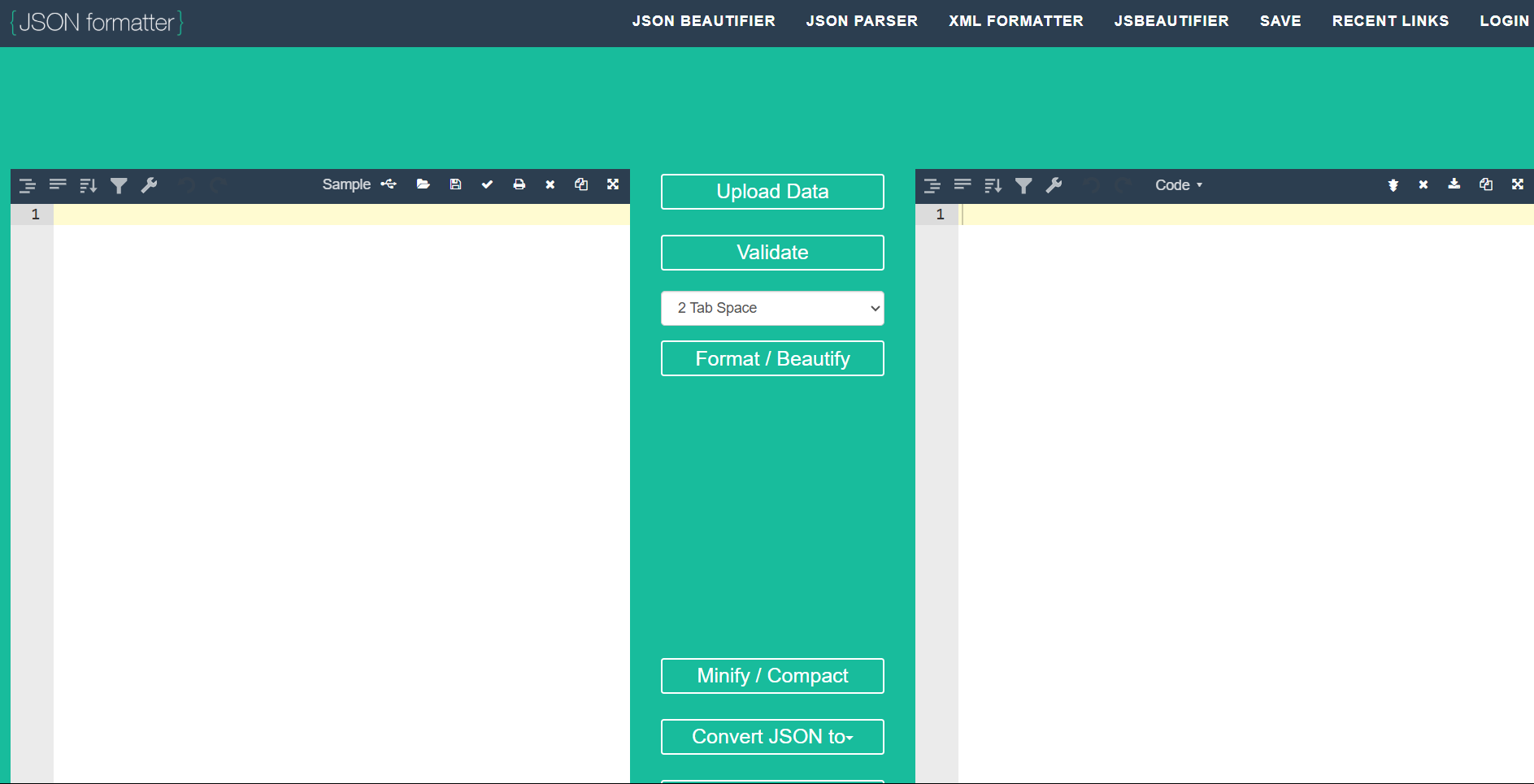
JSONFormatter.org optimizes for speed of access with almost zero setup. You can open the site, paste JSON, and get formatted output with error highlighting plus a collapsible tree view, without creating an account or configuring anything.
It also supports direct file upload, which avoids copy paste when you are validating JSON saved from debugging sessions. Validation is fast for small files (under about 1 MB), but performance degrades beyond roughly 2 to 3 MB because parsing happens in the browser.
Standard online tool limitations: It requires an internet connection, and it is not appropriate for sensitive JSON. Avoid pasting credentials, authentication tokens, or PII into any web based validator.
Optimal use: Validating small JSON snippets before inserting them into request bodies or configuration files, and confirming that a third party API response looks structurally correct before you write parsing logic.
Check it out: Check JSON Formatter Free browser based JSON validation and formatting
9. Dadroit JSON Viewer
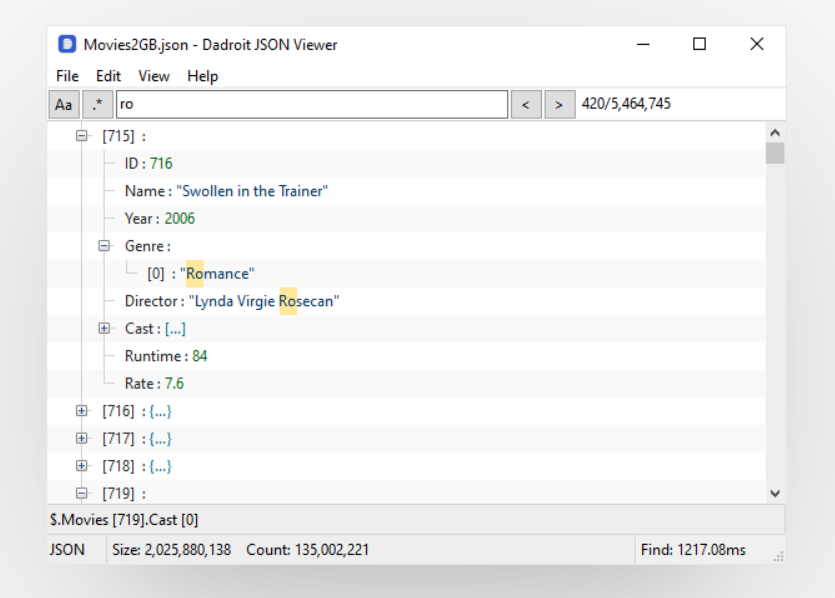
Most JSON editors fail catastrophically beyond 20 to 30 MB file sizes. Dadroit specializes in the opposite extreme, parsing and navigating multi gigabyte JSON datasets.
Performance architecture: It uses a streaming parser design that loads files in chunks instead of reading the entire file into memory.
Real world test results:
- 2 GB analytics log export: Loaded in 5 seconds
- VS Code: Failed to open (memory limit exceeded)
- Notepad: Froze indefinitely
Tree navigation, search, and filtering operations remain responsive even with gigabyte scale files.
Editing limitations: Dadroit prioritizes viewing and analysis over modification. Editing exists, but it is not as comfortable as a full code editor, and the interface focuses on data inspection rather than polish.
Target users:
- Data engineers analyzing JSON exports from databases, APIs, or ETL pipelines
- DevOps teams troubleshooting application logs stored in JSON format
- QA engineers validating large test data sets or API response collections
Specific scenario: Investigating why a data import failed requires parsing a 1.5 GB JSON file containing 2 million records. Dadroit can filter down to the problematic subset within seconds, which is effectively impossible in most general purpose editors.
Free for personal use. Commercial licensing is available for enterprise environments.
Download: Check Dadroit Free JSON viewer for large files
JSON Editor Comparison Table (2025)
| Editor | Tree View | Real Time Validation | Offline Support | Plugin Support | Best For |
|---|---|---|---|---|---|
| VS Code | Yes | Yes | Yes | Yes | Developers and power users |
| Notepad + Plugin | Yes | Partial (with plugin) | Yes | Yes | Lightweight, fast editing |
| JSONedit | Yes | Partial (basic) | Yes | No | Offline, simple editing |
| CodeBeautify (Online) | Yes | Yes | No | No | Quick copy paste tasks |
| Atom | Yes (with plugin) | Yes (with plugin) | Yes | Yes | Custom setups and open source fans |
| Sublime Text (Free) | No | Partial (basic) | Yes | Yes | Speed focused coders |
| Json Genie (Windows App) | Yes | Partial (limited) | Yes | No | Beginners and casual users |
| JSONFormatter.org Viewer | Yes | Yes | No | No | Fast validation in browser |
| Dadroit JSON Viewer | Yes | Partial (view only) | Yes | No | Handling huge JSON files |
Professional JSON Workflow Optimization
A few small habits reduce debugging time and prevent production errors when JSON is part of the workflow.
Memorize Formatter Shortcuts
If you edit JSON regularly, keep a couple shortcuts in muscle memory:
- VS Code: Alt + Shift + F reformats the entire file
- Notepad++ (JSTool): Ctrl + Alt + M pretty prints JSON
Minified API responses become readable in under a second. If you process dozens of payloads a day, this alone adds up to real time saved.
Security Protocol for Sensitive Data
Avoid pasting production credentials into any browser based tool. JSON configuration files frequently contain API keys, authentication tokens, database connection strings, OAuth secrets, and customer PII, and a single careless paste into an online validator can expose that data. For anything sensitive, use an offline editor.
Portable Editor Strategy
Keep a USB based copy of JSONedit or Notepad Portable for locked down client systems or temporary workstations. This avoids delays waiting for IT approval, and it lets you validate or edit JSON without leaving installs behind.
Visual Debugging Technique
Deeply nested JSON quickly becomes hard to understand in raw text. A tree view changes that: collapse irrelevant sections and expand only the path you are investigating, which is especially useful for webhook payloads and large API responses. Practical example: an error nested inside response.data.errors[0].detail.message can take minutes to find by scrolling, but only a few clicks in a structured view.
Choosing the Right Editor for Your Use Case
Selection depends on what you actually do with JSON, not a universal "best" ranking.
For daily development work, VS Code offers the deepest feature set, including schema validation, team wide formatting consistency via Prettier, and tight git integration.
For speed critical tasks, Notepad with a JSON plugin launches instantly and covers quick formatting and basic validation without heavy resource usage.
For large file analysis, Dadroit stands out for multi gigabyte file handling, and it is the most realistic option when general purpose editors fail to open the data.
For locked down environments, JSONedit or Notepad Portable can run without installation or admin access.
For quick validation, browser based tools like CodeBeautify can be convenient, but treat them as off limits for sensitive data.
Try 2 to 3 editors that match your main workflow. All tools reviewed here offer free tiers that are sufficient for professional use.
Using a Mac? See our guide to the best JSON editors for Mac for macOS friendly options.
Related guides:
Read More
All Articles
Best JSON Editors for Eclipse in 2026 (Plugins, Setup & Tips)
Eclipse JSON support is surprisingly bad out of the box. After wrestling with 5 different plugins, here is what actually works for Java devs. From basic syntax highlighting to full schema validation without breaking your IDE.
6 Best JSON Editors for Linux in 2026 (Free Tools, Ranked)
Linux users often get overlooked when it comes to GUI JSON editors. After testing everything from jq to full IDEs, here are 6 tools that actually make sense, whether you live in the terminal or need a proper interface.

3 Best JSON Editors for Mac (Free & Paid Options for 2025)
Looking for a JSON editor on macOS that feels fast and stays out of the way? This guide covers three options that balance speed, validation, and everyday usability.