Convert JSON to CSV in Notepad++: Step-by-Step Guide
Imad Uddin
Full Stack Developer
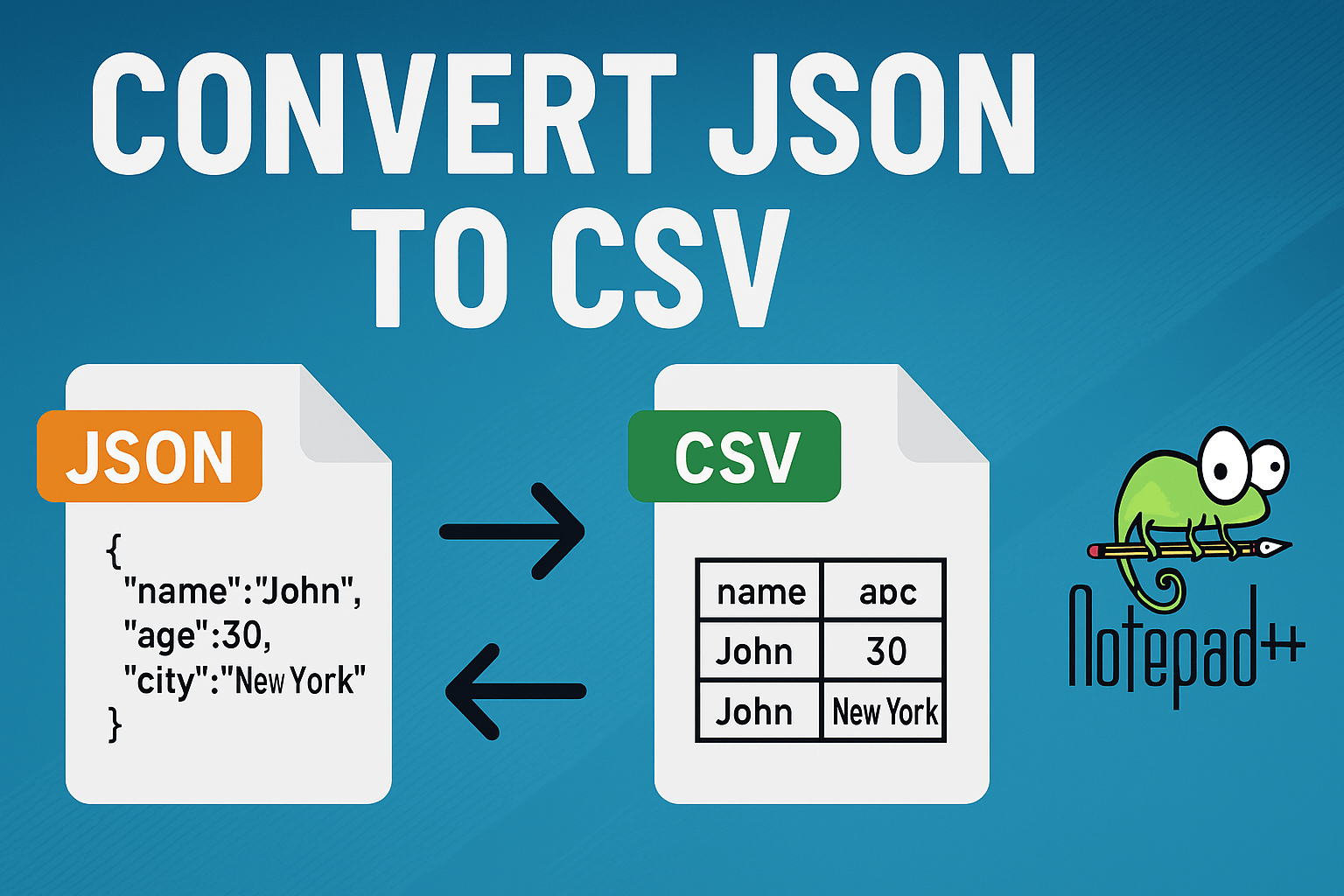
Exact problem encountered previously. Someone sent JSON file containing few hundred records. Needed data in spreadsheet for quick analysis.
Avoided installing dedicated converter tool. Definitely avoided copying values manually.
Notepad++ already open on machine. Must be way to make it work.
Multiple solid methods exist for converting JSON to CSV using Notepad++.
Manual approach (good for small files or learning). Plugin method. Most powerful option involves short Python script.
All three methods covered. Pick one fitting specific situation.
Quick Refresher: JSON vs CSV
Already familiar with format differences? Skip ahead.
Unclear why converting one to other? Short explanation follows.
JSON (JavaScript Object Notation) stores data in structured, hierarchical format using key-value pairs.
Incredibly common in web development, APIs, and configuration files.
Simple JSON example:
[
  {
    "name": "Alice",
    "age": 25,
    "city": "New York"
  },
  {
    "name": "Bob",
    "age": 30,
    "city": "San Francisco"
  }
]
Array of two objects, each with three fields. Easy to read, but not great for spreadsheets.
CSV (Comma Separated Values) represents flat, tabular format.
Each row equals record. Columns separated by commas.
Same data in CSV format:
name,age,city
Alice,25,New York
Bob,30,San Francisco
CSV files open directly in Excel, Google Sheets, or any spreadsheet tool.
Easier to import into databases, reporting tools, and visualization software.
Usually why people want this conversion.
Why Convert JSON to CSV?
Most common reason: data needed in spreadsheet format.
Manager wants to see numbers in Excel. Importing records into database accepting CSV uploads. Feeding data into visualization tool not supporting JSON.
Whatever the reason, conversion straightforward for flat JSON (arrays of objects with consistent keys).
Gets trickier with deeply nested structures. We'll cover that too.
What You'll Need
Just Notepad++. Don't have it yet? Grab from Notepad++ website.
Free. Lightweight. Installs in under a minute.
Method 2: Also need JSON Viewer plugin (installed from within Notepad++).
Method 3: Need Python installed on machine.
Method 1: Manual Conversion in Notepad++
This approach works best for small JSON files where you can see the full structure at a glance. It's also a great way to understand exactly what's happening during the conversion, which helps if you're new to working with these formats.
Step 1: Open Your JSON File
Launch Notepad++ and open your JSON file through File > Open. If you're just practicing, create a new file and paste in the example JSON from above. Save it with a .json extension so Notepad++ applies syntax highlighting.
Step 2: Look at the Structure
Before you start converting, take a second to understand what you're working with. You need to identify:
- What keys exist in each object (these become your CSV column headers)
- Whether all objects have the same keys (if they don't, you'll need to account for missing values)
- Whether any values contain commas (if so, you'll need to wrap them in quotes)
For our example, the keys are name, age, and city. All objects have the same three keys. No commas inside the values.
Step 3: Build the CSV Header Row
Open a new tab in Notepad++ and type out the header row using the keys from your JSON:
name,age,city
Step 4: Add the Data Rows
Now go back to your JSON file and pull out the values for each object. Write them as comma separated rows:
name,age,city
Alice,25,New York
Bob,30,San Francisco
Step 5: Use Find and Replace to Speed Things Up
If your file has more than a handful of records, doing this completely by hand gets tedious fast. Notepad++'s Find and Replace (Ctrl + H) can help. You can use regex mode to strip out JSON syntax like brackets, braces, quotes, and key names, leaving you with just the values.
For example, you could search for
"name": ""age": "city": "Step 6: Save as CSV
Once your data looks clean, save the file with a .csv extension. Open it in Excel or Google Sheets to verify everything lined up correctly.
This method is simple and doesn't require any additional tools. The downside is obvious though: it doesn't scale. Once you're dealing with hundreds of records or nested data, you'll want one of the methods below.
Method 2: Using the JSON Viewer Plugin
Notepad++ has a plugin ecosystem, and one of the most useful plugins for this task is JSON Viewer. It lets you visualize your JSON as a collapsible tree, and it includes a handy option to copy data in CSV format.
Step 1: Install the Plugin
Open Notepad++ and go to Plugins > Plugins Admin. Search for JSON Viewer in the list, check the box next to it, and click Install. Notepad++ will restart to complete the installation.
Step 2: Open and Validate Your JSON
Open your JSON file in Notepad++, then go to Plugins > JSON Viewer > Show JSON Viewer. A panel will appear on the side showing your data as an expandable tree. This is a good opportunity to confirm your JSON is valid. If the tree doesn't render, there's likely a syntax error somewhere in your file.
Step 3: Copy as CSV
Right click on the root node in the JSON Viewer panel. Depending on the plugin version, you should see an option like Copy Value or Copy as CSV. Select it, and the plugin will generate a CSV formatted version of your data.
Open a new tab in Notepad++, paste the result, and review it. The output usually looks clean for flat JSON arrays, but nested objects might need some manual cleanup.
Step 4: Save and Verify
Save the file with a .csv extension and open it in a spreadsheet app to make sure the columns and rows match what you expected.
This method is faster than manual conversion and gives you a visual way to browse your data before converting. The limitation is that it doesn't handle deeply nested structures well. If your JSON has objects inside objects or arrays inside arrays, the CSV output can get messy. For those cases, the Python approach is more reliable.
Method 3: Using a Python Script
For large files, complex structures, or situations where you need to do this conversion regularly, a Python script is the way to go. It takes a minute to set up and then handles everything automatically.
Step 1: Make Sure Python Is Installed
Open a terminal or command prompt and type:
python --version
If you see a version number, you're good. If not, download Python from python.org and install it. Make sure to check the "Add Python to PATH" option during installation.
Step 2: Write the Conversion Script
Create a new file in Notepad++ called convert_json_to_csv.py and paste in this script:
import json
import csv

json_file = 'data.json'
csv_file = 'data.csv'

with open(json_file, 'r') as f:
    data = json.load(f)

headers = list(data[0].keys())

with open(csv_file, 'w', newline='') as f:
    writer = csv.writer(f)
    writer.writerow(headers)
    for item in data:
        writer.writerow([item[header] for header in headers])

print(f"CSV file '{csv_file}' created successfully!")
Change
data.jsondata.csvStep 3: Run the Script
Open a terminal, navigate to the folder where your script and JSON file are saved, and run:
python convert_json_to_csv.py
The script reads the JSON, extracts the keys as column headers, writes each object as a row, and saves the result as a CSV file. It takes less than a second for most files.
Step 4: Open and Verify
Open the generated CSV file in Notepad++, Excel, or Google Sheets to confirm everything converted correctly.
Handling Nested JSON
The methods above work great for flat JSON (arrays of objects with simple key value pairs). But what happens when your JSON has nested objects? Something like this:
[
  {
    "name": "Alice",
    "address": {
      "city": "New York",
      "zip": "10001"
    }
  }
]
CSV is a flat format, so you can't directly represent nested structures. The common solution is to flatten the data by combining the parent key and child key with an underscore. So
address.cityaddress_cityaddress.zipaddress_zipHere's a helper function you can add to your Python script to handle this:
def flatten_json(item):
    flat = {}
    for key, value in item.items():
        if isinstance(value, dict):
            for subkey, subvalue in value.items():
                flat[f"{key}_{subkey}"] = subvalue
        else:
            flat[key] = value
    return flat
Then modify the main script to flatten each item before writing:
flat_data = [flatten_json(item) for item in data]
headers = list(flat_data[0].keys())
This handles one level of nesting. If your JSON is nested multiple levels deep, you'd need a recursive version of the flattening function, but for most practical cases one level is enough.
Tips That'll Save You Headaches
Always validate your JSON first. If your JSON is malformed, nothing else will work. Paste it into JSONLint or use the JSON Viewer plugin in Notepad++ to check for errors before attempting any conversion.
Watch out for commas in your data. If any of your values contain commas (like "San Francisco, CA"), they'll break your CSV formatting unless they're wrapped in quotes. The Python csv module handles this automatically, which is another reason to prefer the scripting approach for real data.
Use UTF-8 encoding. In Notepad++, go to Encoding > Encode in UTF-8 before saving your CSV. This prevents character encoding issues, especially if your data contains accented characters, special symbols, or non English text.
Back up your files. This goes without saying, but keep a copy of your original JSON file before you start converting. It's easy to accidentally overwrite something or lose data during cleanup.
Start small. If you're trying a new method, test it on a JSON file with 5 or 10 records first. Once you confirm it works, then run it on your full dataset.
Troubleshooting Common Problems
The JSON Viewer plugin isn't showing a tree. This almost always means your JSON has a syntax error. Check for missing commas, unmatched brackets, or trailing commas after the last item in an array. Paste your JSON into JSONLint to find the exact issue.
The Python script throws a KeyError. This means not all objects in your JSON array have the same keys. Some records might be missing a field. You can fix this by using
item.get(header, '')item[header]The CSV looks wrong when opened in Excel. Excel sometimes misinterprets CSV formatting, especially with fields that look like numbers or dates. Try opening the CSV through Excel's Data > From Text/CSV import wizard, which gives you more control over how columns are parsed.
Characters look garbled in the output. This is an encoding issue. Make sure both your JSON file and your CSV output are saved as UTF-8. In the Python script, you can explicitly specify encoding by adding
encoding='utf-8'open()Other Tools Worth Knowing About
Notepad++ is great for this kind of work, but it's not the only option. If you find yourself doing JSON to CSV conversions frequently, a few other tools are worth mentioning:
Online converters like ConvertCSV and JSON2CSV let you paste in JSON and get CSV output instantly. They're fast and convenient, but I wouldn't paste sensitive data into them.
Excel itself can import JSON files directly in newer versions (2019 and later) through the Data > Get Data menu. The Power Query editor is surprisingly capable at flattening nested structures.
jq is a command line tool for processing JSON. If you're comfortable in the terminal, you can pipe JSON through jq to extract and reshape data before converting to CSV. It's very powerful for complex transformations.
That said, for most straightforward conversions, Notepad++ with one of the three methods above will get the job done.
Wrapping Up
Converting JSON to CSV in Notepad++ is simpler than it might look at first. For a small file with a dozen records, the manual approach works fine. For something visual where you want to browse the structure first, the JSON Viewer plugin is handy. And for anything larger or more complex, a short Python script handles it cleanly and reliably.
The method you pick depends on the size of your file and how often you need to do this. If it's a one time thing, manual or plugin is fine. If it's something you'll do regularly, invest the five minutes to set up the Python script and you'll save yourself a lot of repetitive work going forward.
Related Tools and Guides:
JSON to Excel Converter if you need direct Excel output instead of CSV
How to Format JSON in Notepad++ for beautifying and organizing your JSON data
Best JSON Editors for Windows if you want to explore more editor options
Read More
All Articles
How to Add an Image in JSON: A Comprehensive Guide
Learn how to add an image to a JSON object using URLs, file paths, or base64 encoding. This guide provides examples and best practices for each method.
How to Format JSON in Notepad++: Simple Step-by-Step Guide
Learn how to format JSON in Notepad++ using easy, beginner-friendly steps. This guide covers plugin installation, formatting shortcuts, troubleshooting tips, and real-life examples for developers and non-tech users alike.
How to Create a JSON File in Java: Beginner to Advanced Guide
Learn how to create a JSON file in Java step by step using popular libraries like org.json and Gson. This detailed guide covers JSON creation, file writing, real-world examples, and best practices for beginners and developers alike.