7 Best JSON Extensions for VS Code in 2026 (Free & Powerful)
VS Code's built-in JSON support handles the basics. Formatting, validation, schema autocomplete. These extensions add what the built-in doesn't have: visual tree views, format conversion, large file handling, and key sorting.
1. Prettier
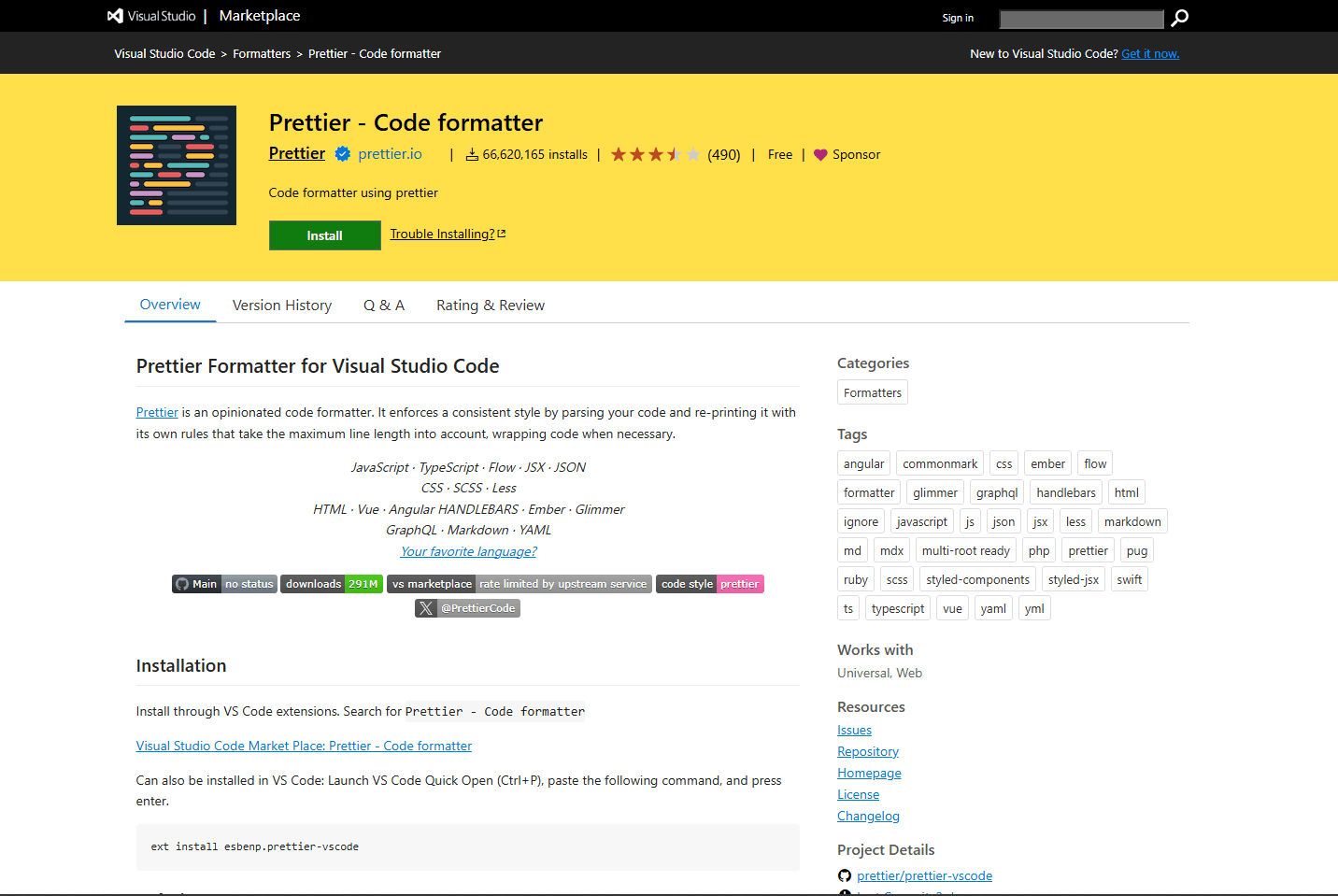
Prettier is a code formatter that works across JavaScript, TypeScript, HTML, CSS, and JSON. Most developers already have it installed.
How to install: Open Extensions panel (Ctrl + Shift + X), search "Prettier", install "Prettier - Code formatter" by Prettier.
What it adds: Consistent formatting across your entire project. If you have a .prettierrc config file, Prettier applies those rules automatically. Your teammates see the same JSON structure even if their editor settings differ.
Setup for format on save: Open settings.json (Ctrl + , then click the file icon in the top right). Add this:
{
  "editor.defaultFormatter": "esbenp.prettier-vscode",
  "editor.formatOnSave": true
}
Now every time you save a JSON file, Prettier formats it automatically. No manual formatting step.
What makes it different: Prettier works across multiple languages, not just JSON. If you're already using it for JavaScript or TypeScript, it handles JSON too. The built-in VS Code formatter only does JSON.
Conflicts: Prettier and JSON Tools both have formatting commands. If you install both, use Prettier for formatting and JSON Tools for minify/sort. Don't use both for the same task.
2. JSON Tools
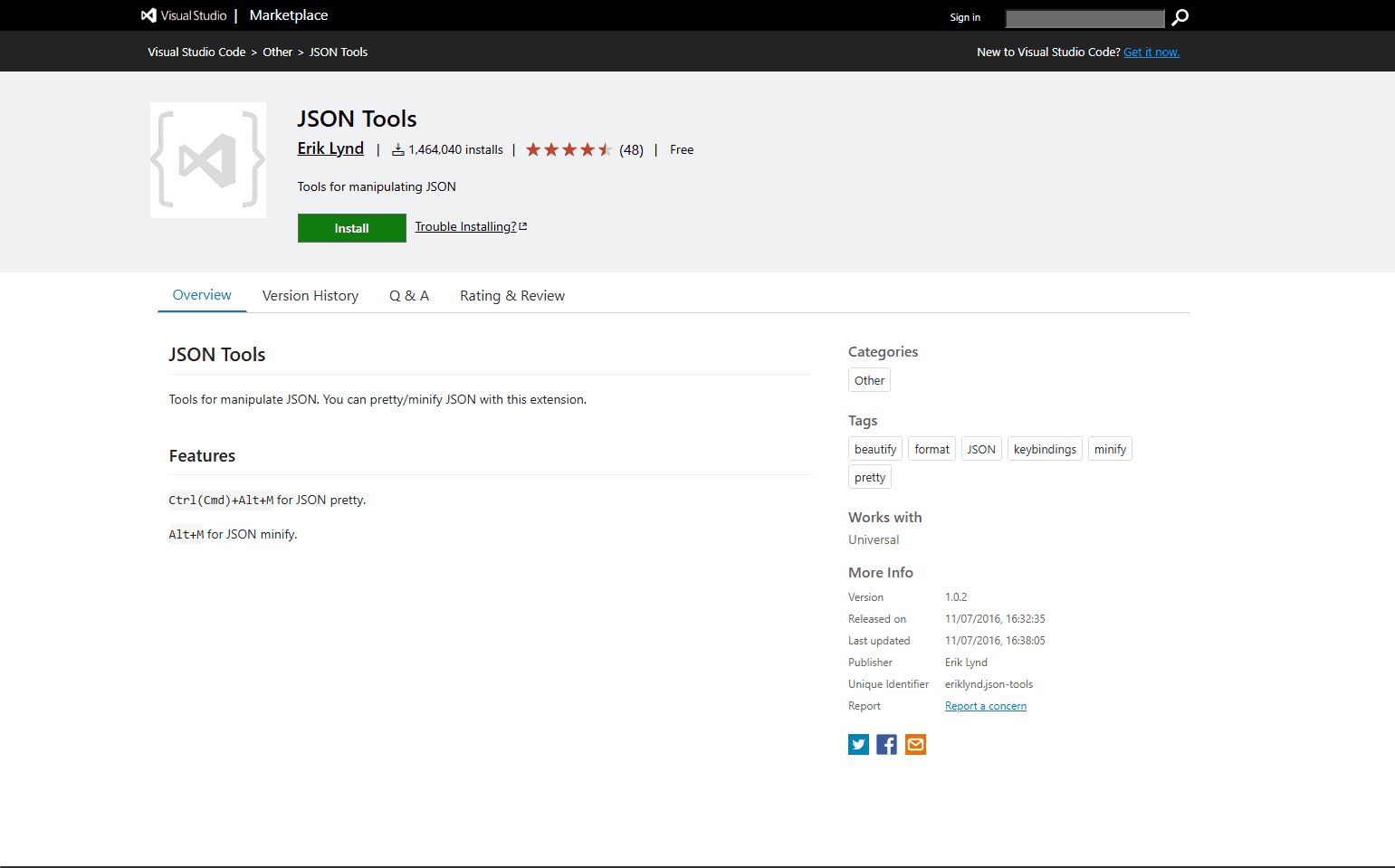
JSON Tools adds three commands VS Code doesn't have: minify, prettify, and sort keys alphabetically.
How to install: Extensions panel, search "JSON Tools", install by Erik Lynd.
How to use: Open Command Palette (Ctrl + Shift + P), type "JSON Tools", pick the command you need. Prettify formats minified JSON. Minify compresses JSON to one line. Sort alphabetizes object keys.
What makes it different: Key sorting. No other extension does this. Alphabetical key order makes Git diffs cleaner because key positions stay consistent. It also makes specific keys easier to find in large objects.
When to use minify: When you need to paste JSON into a compact config field or API request body. Or when you're debugging and want to see the full payload on one line.
Conflicts: JSON Tools and Prettier both format JSON. Use Prettier for automatic format-on-save. Use JSON Tools when you specifically need minify or sort. Don't run both formatters on the same file.
3. JSON Crack
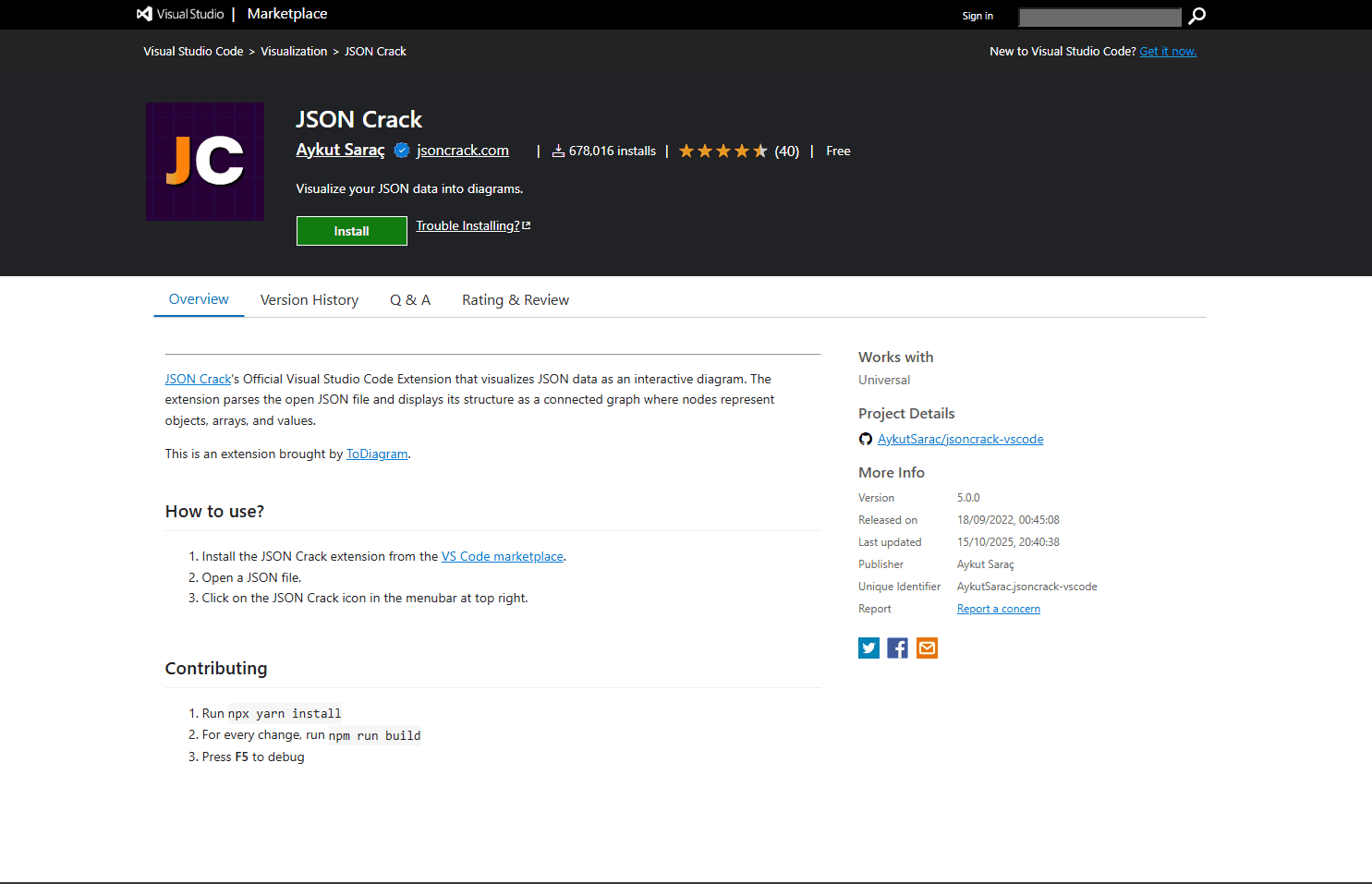
JSON Crack shows your JSON as a visual graph. Objects become boxes, arrays become lists, relationships become connecting lines.
How to install: Extensions panel, search "JSON Crack", install by Aykut Sarac.
How to use: Open a JSON file, open Command Palette, type "JSON Crack", select "Open JSON Crack". A new panel opens with the graph view. Click nodes to highlight the corresponding text in your editor. Zoom and pan to navigate.
What makes it different: This is the only extension that gives you a node-based graph view. VS Code's built-in code folding shows hierarchy through indentation. JSON Crack shows it spatially. For unfamiliar API responses where you need to understand the structure quickly, the graph view is faster than scrolling through nested brackets.
When it's useful: Complex nested structures with multiple levels. API responses you've never seen before. JSON where the hierarchy matters more than the values.
Performance limit: Files with thousands of nodes render slowly. For massive files, stick with code folding. For files in the hundreds to low thousands of lines, JSON Crack works well.
Conflicts: None. JSON Crack is purely visual. It doesn't format or edit.
4. JSON Hero
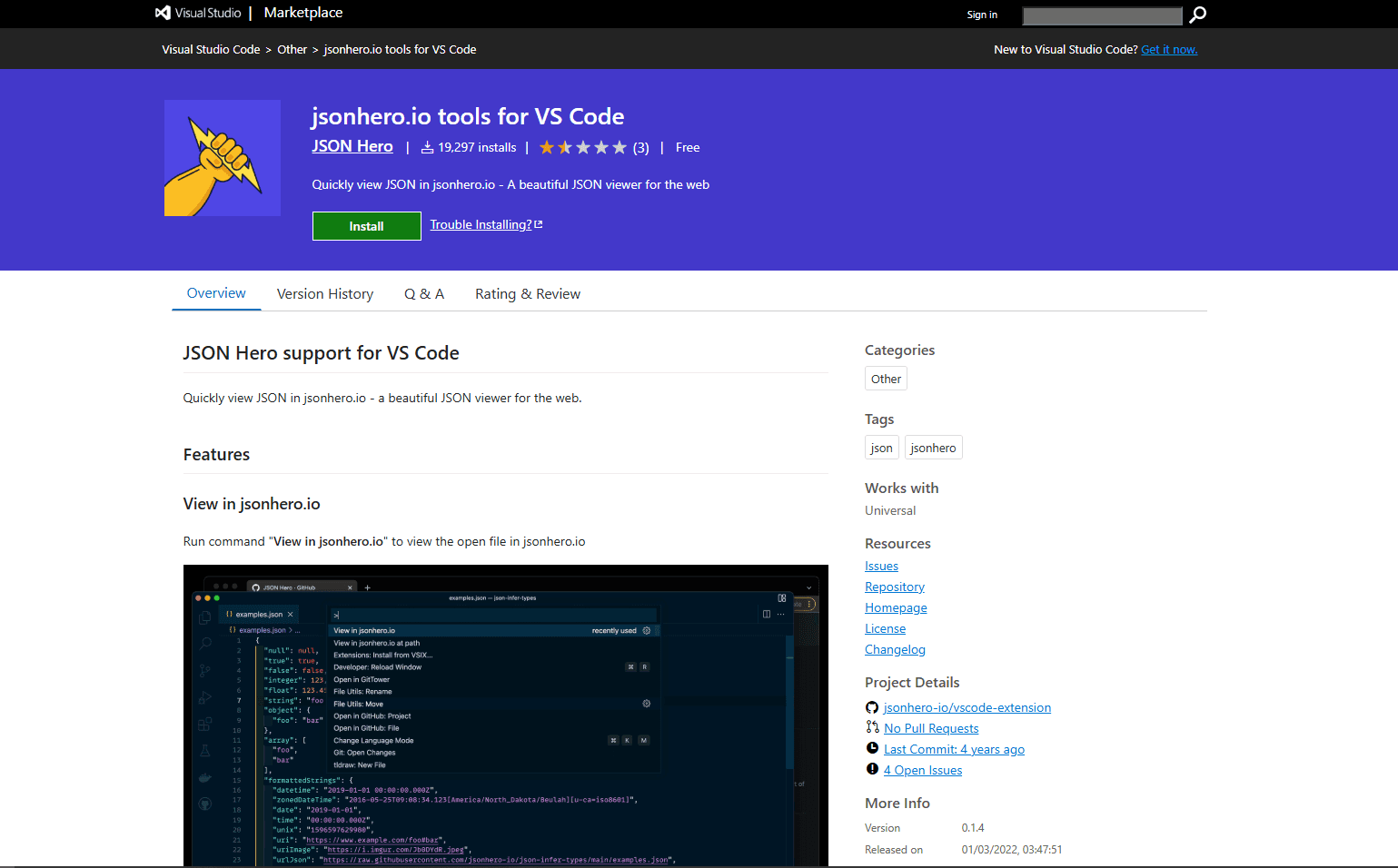
JSON Hero gives you a column-based explorer view like macOS Finder. Click a key in the left column, see its children in the next column.
How to install: Extensions panel, search "JSON Hero", install by JSON Hero.
How to use: Open a JSON file, click the JSON Hero icon in the sidebar or run "JSON Hero: Open" from Command Palette. The explorer view opens. Click through columns to drill down into nested data. Use the search box to find keys or values anywhere in the document.
What makes it different: Smart type detection. JSON Hero recognizes URLs, dates, colors, and images within your JSON values. A URL becomes a clickable link. A date shows in human-readable format. A color hex code shows a color preview. For API responses with timestamps or embedded media references, this is more useful than raw text.
Security warning: JSON Hero sends your JSON to their web service for processing. Don't use it with API keys, tokens, passwords, or personal data. For sensitive JSON, use JSON Crack or code folding instead.
Conflicts: JSON Hero and JSON Crack both provide tree views. Pick one. JSON Crack works offline and shows a graph. JSON Hero shows columns and detects types but requires internet.
5. JSON Schema Validation
VS Code validates JSON structure automatically. Missing commas, unclosed brackets, duplicate keys all get flagged. But it doesn't validate that your data matches an expected shape beyond automatic schema detection for package.json and tsconfig.json.
For custom schemas, use VS Code's built-in json.schemas setting. Open .vscode/settings.json in your project and add:
{
  "json.schemas": [
    {
      "fileMatch": ["config/*.json"],
      "url": "./schemas/config-schema.json"
    }
  ]
}
This tells VS Code to validate all JSON files in your config/ folder against your local schema file. You get autocomplete based on the schema, red underlines on invalid values, and hover documentation.
For advanced schema features (Draft 2019-09 or Draft 2020-12), install the YAML extension by Red Hat. It includes better JSON Schema support than the built-in validator.
How to install Red Hat YAML: Extensions panel, search "YAML", install by Red Hat. It handles both YAML and JSON schema validation.
What makes it different: The built-in validator covers most use cases. Red Hat's extension handles complex schema features that the built-in doesn't fully support. Only install it if you're using advanced schema features.
Conflicts: None. Schema validation doesn't conflict with formatting or tree view extensions.
6. JSON to CSV
JSON to CSV converts JSON arrays to CSV format for spreadsheets or data analysis tools.
How to install: Extensions panel, search "JSON to CSV", install by Khaeransori.
How to use: Select a JSON array in your editor. Open Command Palette, type "JSON to CSV", run the command. The extension generates CSV output. It flattens nested objects using dot notation (user.address.city).
What makes it different: This is the only extension that handles JSON to CSV conversion. Doing this manually is tedious. The extension handles the flattening logic automatically.
When it's useful: API responses or database exports in JSON that need to go into Excel, Google Sheets, or a BI tool. Or when you're building test fixtures from spreadsheet data (the extension also does CSV to JSON).
Conflicts: None. This is a conversion tool, not a formatter or viewer.
7. Fix JSON
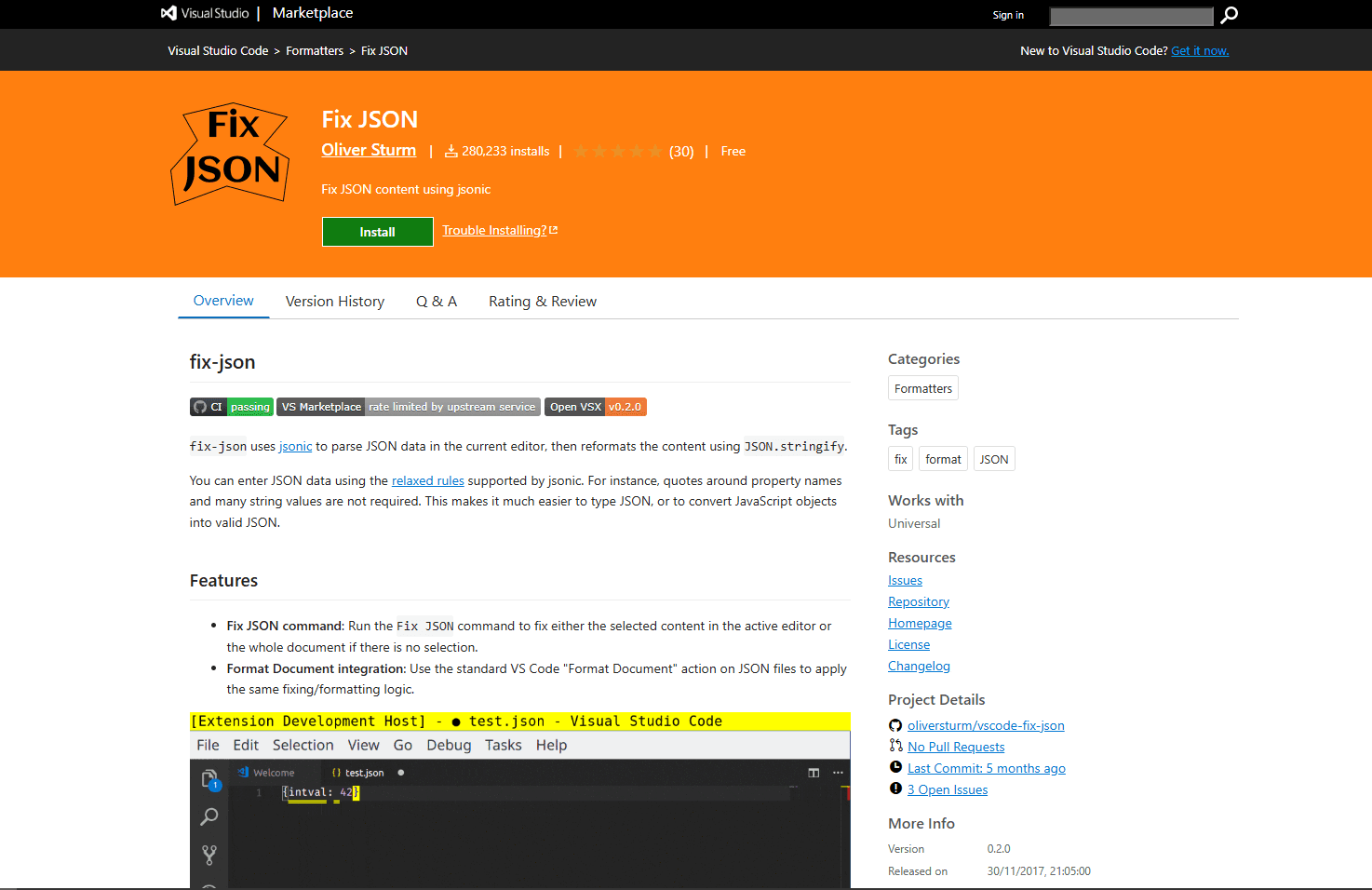
Fix JSON repairs common JSON errors automatically. Smart quotes instead of straight quotes. Trailing commas. Comments in JSON.
How to install: Extensions panel, search "Fix JSON", install by Oliver Sturm.
How to use: Open a broken JSON file. Open Command Palette, type "Fix JSON", run the command. The extension attempts to repair common issues.
What makes it different: This is the only extension that fixes malformed JSON. VS Code's validator tells you what's wrong. Fix JSON tries to fix it automatically.
When it's useful: JSON pasted from Stack Overflow, chat messages, or websites that has smart quotes or trailing commas. JSON with comments that need to be stripped. It's not magic. Severely broken JSON won't parse. But for everyday cleanup, it saves time.
Conflicts: None. This is a repair tool, not a formatter.
Extension Comparison
| Extension | What it adds | Conflicts with | Free? |
|---|---|---|---|
| Prettier | Project-wide formatting | JSON Tools (formatting) | Yes |
| JSON Tools | Minify, sort keys | Prettier (formatting) | Yes |
| JSON Crack | Visual graph view | JSON Hero (tree view) | Yes |
| JSON Hero | Column explorer, type detection | JSON Crack (tree view) | Yes |
| Schema Validation | Custom schema validation | None | Yes |
| JSON to CSV | Format conversion | None | Yes |
| Fix JSON | Repair malformed JSON | None | Yes |
Recommendation
Most developers only need Prettier plus VS Code's built-in support. Add JSON Crack if you regularly explore deeply nested APIs. Add JSON Tools if you need key sorting or minification shortcuts. Don't install all of them. Prettier and JSON Tools have overlapping formatting commands. JSON Crack and JSON Hero both provide tree views. Pick the ones you actually need.
Frequently Asked Questions
How do I auto-format JSON on save in VS Code?
Install Prettier, then open VS Code settings (Ctrl + ,). Search for "format on save" and enable it. Then search for "default formatter" and set it to Prettier. Now every time you save a JSON file, it formats automatically. You can also add this to settings.json: "editor.formatOnSave": true and "editor.defaultFormatter": "esbenp.prettier-vscode".
What's the best VS Code extension for viewing large JSON files?
VS Code handles files up to 10-20 MB reasonably well with code folding. Beyond that, performance degrades. For very large files (50 MB+), use Dadroit JSON Viewer on Windows or jq on the command line. Neither JSON Crack nor JSON Hero handles massive files well. Code folding is your best option within VS Code for large files.
How do I validate JSON against a schema in VS Code?
VS Code has built-in schema validation. Open .vscode/settings.json in your project and add a json.schemas entry pointing to your schema file. VS Code will validate matching files automatically and provide autocomplete based on the schema. For advanced schema features, install the YAML extension by Red Hat, which includes better JSON Schema support.
Does VS Code have a JSON tree view built in?
No. VS Code has code folding, which lets you collapse objects and arrays, but not a visual tree view. For tree views, install JSON Crack (graph view, works offline) or JSON Hero (column view, requires internet). JSON Crack is better for offline work and sensitive data.
How do I sort JSON keys alphabetically in VS Code?
Install JSON Tools. Open your JSON file, open Command Palette (Ctrl + Shift + P), type "JSON Tools: Sort", run the command. Your object keys sort alphabetically. This is useful for keeping Git diffs clean and making specific keys easier to find in large objects. No other extension does this.
Related Reading
These guides help when VS Code is not the only editor in your workflow, or when teammates use different tools across Windows, macOS, and Linux:
- Best JSON editors for Windows
- Best JSON editors for Mac
- Best JSON editors for Linux
- Best JSON plugins for Sublime Text
- Best JSON plugins for Notepad++
Need to combine multiple JSON files first? Use the JSON merger tool.
Read More
All Articles
How JSON Powers Everything: APIs, Web Apps & Real-Time Data (2026)
Discover how JSON powers modern web applications, REST APIs, and real-time systems. Learn why JSON became the universal data format for web development, mobile apps, and cloud services.

How to Add Image in JSON: URL, Base64 & File Path Methods (2026)
Add images to JSON using URLs, base64 encoding, or file paths. Complete guide with code examples, size optimization tips, and best practices for each method in web and mobile apps.

How to Merge GPX Files: Free Tool + Python + GPSBabel Guide (2026)
Merge multiple GPX files into one using free online tool, Python, or GPSBabel. Complete guide for combining GPS tracks, waypoints, and routes from Garmin, Strava, Komoot, and other devices.