4 Best JSON Plugins for Notepad++ in 2026 (Setup & Comparison)

Notepad opens JSON files and highlights syntax without any extra setup. What it does not do: format minified JSON, show a tree view, or catch validation errors. These four plugins add all of that.
What Notepad Does for JSON Without Plugins
Notepad recognizes .json files automatically and applies syntax highlighting. Keywords, strings, numbers, and brackets get different colors. This makes structure easier to read than plain text.
If your file doesn't auto-detect as JSON, set it manually. Go to Language → J → JSON. The syntax highlighting applies immediately. This works for files with non-standard extensions or when you paste JSON into a new tab.
That's where the built-in support ends. No formatting. No validation. No tree navigation. For those features, you need plugins.
Before Installing Plugins: Check Your Notepad Version
Plugins Admin (the built-in plugin installer) appeared in Notepad version 7.6. If you're running an older version, the Plugins menu won't have a "Plugins Admin" option.
How to check your version: Open Notepad, go to the question mark menu (?) → About Notepad. The version number appears at the top of the popup.
If you're on version 7.5 or older: Download the latest Notepad from the official site. The installer updates your existing installation without removing your settings or files. After updating, Plugins Admin appears in the Plugins menu.
1. JSTool
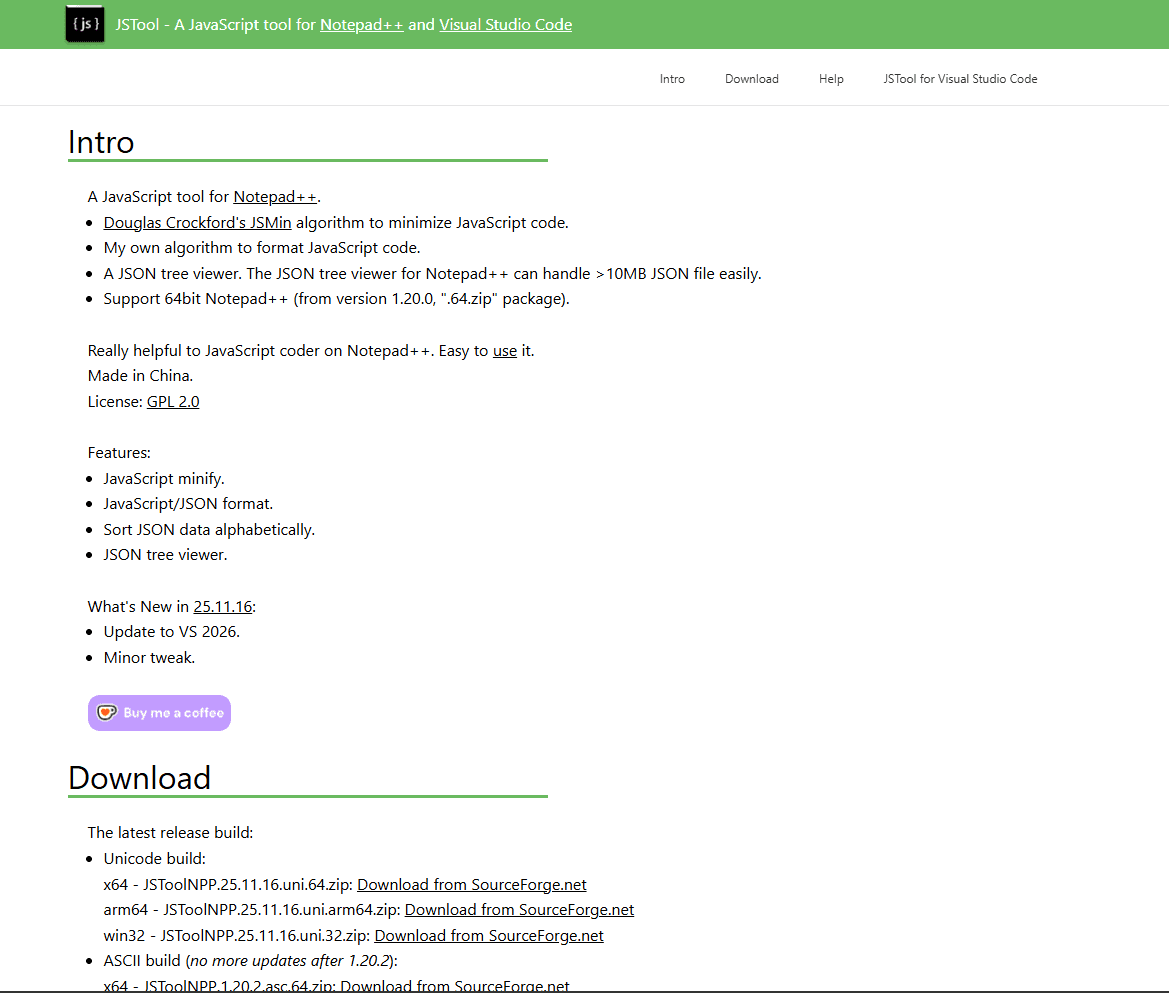
JSTool is the formatting plugin every Notepad++ user needs for JSON work. It takes minified single-line JSON and formats it into readable indented text with one keyboard shortcut.
Press Ctrl + Alt + M after installing JSTool. That's the JSFormat command. Single-line API responses become readable instantly. The plugin adds proper indentation, line breaks after each property, and consistent spacing around brackets and colons.
JSMin does the opposite. It compresses formatted JSON back to a single line with all whitespace removed. This is useful when you need compact output for API request bodies or when you're pasting JSON into a field with character limits. The keyboard shortcut is Ctrl + Alt + N.
The sort function alphabetizes object keys. This keeps Git diffs clean when multiple developers edit the same config file. Key order stays consistent instead of changing every time someone saves. Access it through Plugins → JSTool → JSON Sort or use the keyboard shortcut Ctrl + Alt + S.
How to install: Open Notepad. Go to Plugins → Plugins Admin. Wait for the plugin list to load (takes a few seconds). Type "JSTool" in the search box. Check the box next to JSTool in the results. Click Install. Notepad restarts automatically. After restart, the keyboard shortcuts work immediately on any JSON file.
Limitation: JSTool does not provide a tree view or schema validation. It only handles formatting, minification, and key sorting. For tree navigation, you need JSON Viewer. For validation, you need JSLint.
Install: JSTool for Notepad or via Plugins → Plugins Admin in Notepad (search "JSTool")
2. JSON Viewer
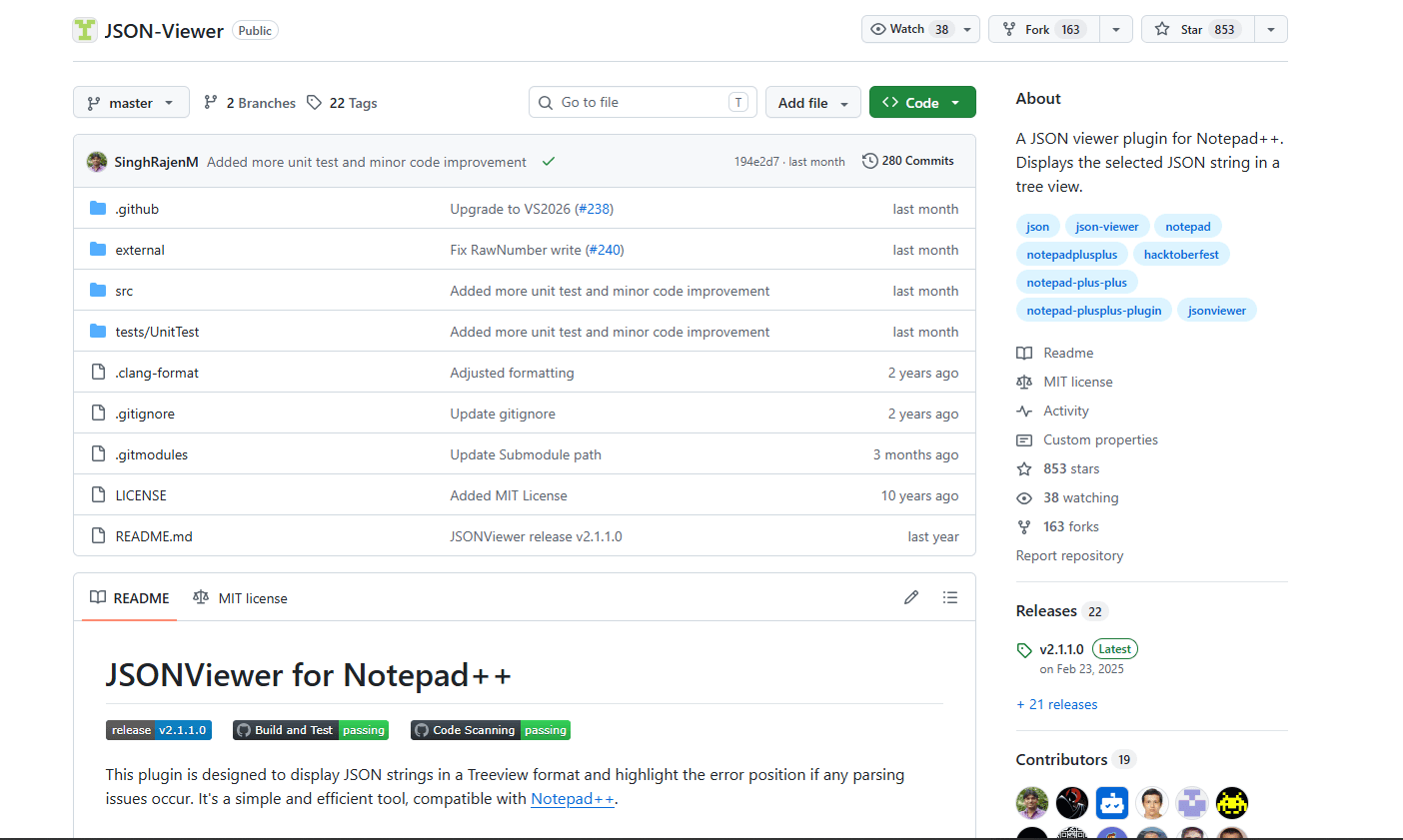
JSON Viewer adds a tree panel that shows your JSON structure as expandable nodes. Click a node to highlight the corresponding text in the editor. This is faster than scrolling through hundreds of lines to find a specific property.
The tree panel appears on the right side of Notepad after you open it. Go to Plugins → JSON Viewer → Show JSON Viewer. The panel parses your current JSON file and displays the hierarchy. Top-level keys appear at the root. Nested objects show as expandable items with plus icons. Arrays show with their index numbers.
Navigation works both ways. Click a node in the tree panel and the editor jumps to that line. Or click anywhere in the editor and the tree panel highlights the corresponding node. This helps when you're reading unfamiliar API responses and need to understand where you are in the structure.
Path copying is built in. Right-click any node in the tree and select "Copy Path". JSON Viewer copies the full JSON path to that property (like user.address.city). This is useful when you're writing code to access that property and need the exact path syntax.
How to install: Open Notepad. Go to Plugins → Plugins Admin. Type "JSON Viewer" in the search box. Check the box next to JSON Viewer. Click Install. Notepad restarts. After restart, go to Plugins → JSON Viewer → Show JSON Viewer to open the tree panel.
Limitation: The tree panel is read-only. You can navigate and copy paths, but you can't edit values directly from the tree. All edits happen in the main text editor. The tree updates when you reparse the file (Plugins → JSON Viewer → Format JSON).
Install: JSON Viewer on GitHub or via Plugins → Plugins Admin in Notepad
Plugin Comparison
| Plugin | Formatting | Tree view | Validation | Keyboard shortcut | Free? |
|---|---|---|---|---|---|
| JSTool | Yes | No | No | Ctrl + Alt + M | Yes |
| JSON Viewer | Yes (basic) | Yes | No | None (menu only) | Yes |
| JSLint | No | No | Yes | None (menu only) | Yes |
| XML Tools | Yes (generic) | No | No | Ctrl + Alt + Shift + B | Yes |
3. JSLint
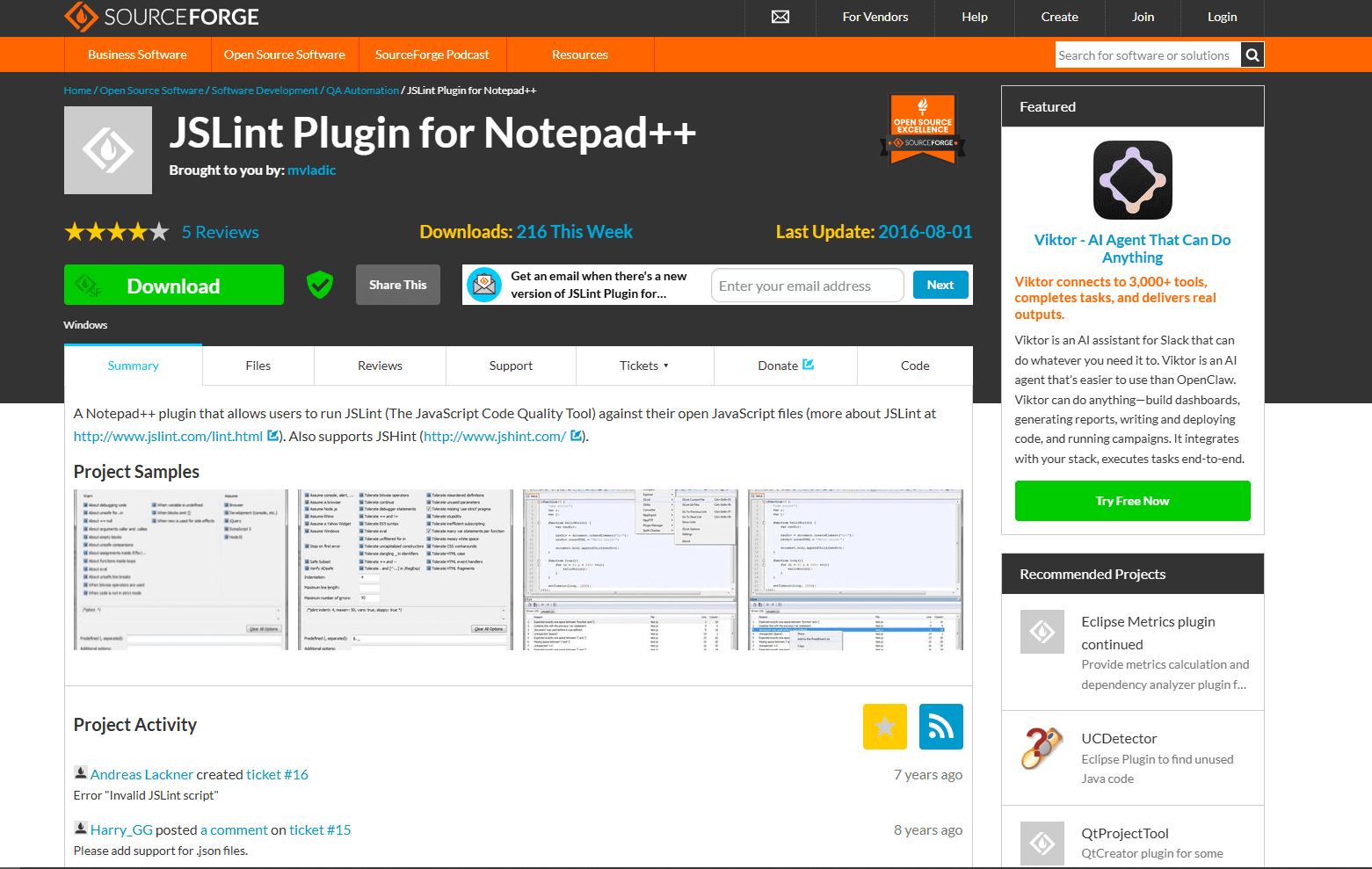
JSLint validates JSON syntax and shows errors in an output panel at the bottom of Notepad. Missing commas, trailing commas, unclosed brackets, duplicate keys. The error messages include line numbers so you can jump directly to the problem.
The validation runs on demand, not in real-time. Open your JSON file, go to Plugins → JSLint → JSLint. The plugin parses the file and displays results in the output panel. Valid JSON shows a success message. Invalid JSON lists each error with the line number and a description of what's wrong.
Error detection covers common syntax mistakes. Missing commas between properties. Trailing commas after the last item (valid in JavaScript but not JSON). Unclosed brackets or braces. Mismatched quotes. Duplicate keys in the same object. These are structural errors that break JSON parsing.
JSLint also flags style issues that are technically valid JSON but considered bad practice. Single quotes instead of double quotes (JSON spec requires double quotes). Unescaped control characters. Very long lines. Some developers find these warnings helpful. Others find them annoying because the JSON is technically valid.
How to install: Open Notepad. Go to Plugins → Plugins Admin. Type "JSLint" in the search box. Check the box next to JSLint. Click Install. Notepad restarts. After restart, open any JSON file and go to Plugins → JSLint → JSLint to run validation.
Limitation: JSLint applies opinionated linting rules that flag valid JSON in some edge cases. For example, it warns about very long lines even though JSON has no line length limit. It also doesn't validate against JSON schemas, only syntax. For schema validation, you need external tools or a different editor like VS Code.
Install: JSLint for Notepad or via Plugins → Plugins Admin in Notepad++ (search "JSLint")
4. XML Tools (Bonus for JSON Users)
XML Tools is not a dedicated JSON plugin, but some Notepad users rely on it for formatting structured data. The plugin was built for XML but its pretty-print function works on JSON files too.
The formatting is less sophisticated than JSTool. XML Tools adds indentation and line breaks but doesn't always handle nested JSON objects as cleanly. For simple JSON files, it works fine. For complex nested structures, JSTool produces better results.
Why mention it? Some developers already have XML Tools installed for XML work. If you're one of them, you can use it for quick JSON formatting without installing another plugin. But if you're starting fresh, install JSTool instead. It's built specifically for JSON and handles edge cases better.
How to install: Open Notepad. Go to Plugins → Plugins Admin. Type "XML Tools" in the search box. Check the box next to XML Tools. Click Install. Notepad++ restarts. After restart, open a JSON file and press Ctrl + Alt + Shift + B to format it.
When to use this: If you already have XML Tools installed and need quick JSON formatting. Or if you work with both XML and JSON and want one plugin for both. Otherwise, JSTool is the better choice for JSON-specific work.
Install: XML Tools on SourceForge or via Plugins → Plugins Admin in Notepad
Which Notepad JSON Plugins Should You Install?
For most Notepad users: install JSTool and JSON Viewer. JSTool for formatting (30 seconds to install, one shortcut to remember). JSON Viewer for when you need to navigate structure. If you also want error detection, add JSLint. That combination covers everything Notepad can do for JSON.
JSTool is the essential plugin. The Ctrl + Alt + M shortcut formats any minified JSON instantly. You'll use this constantly when working with API responses or minified config files. The minify and sort functions are bonuses that come in handy occasionally.
JSON Viewer makes sense if you regularly work with large nested JSON files. For small files under 100 lines, you don't need it. For files with hundreds of lines and multiple nesting levels, the tree panel saves time compared to scrolling and searching.
JSLint is optional. If you're building JSON from scratch and want real-time feedback on syntax errors, it helps. If you're just formatting API responses or editing existing config files, you probably don't need it. Most JSON syntax errors are obvious enough that you'll catch them when you try to parse the file.
Frequently Asked Questions
How do I format JSON in Notepad?
Install JSTool via Plugins → Plugins Admin. Search for "JSTool", install it, and restart Notepad. After installation, open any JSON file and press Ctrl + Alt + M. The plugin formats minified JSON into readable indented text instantly. To minify JSON back to a single line, press Ctrl + Alt + N. To sort object keys alphabetically, press Ctrl + Alt + S.
What is the best JSON plugin for Notepad++?
JSTool. It formats, minifies, and sorts JSON with keyboard shortcuts. Install it via Plugins → Plugins Admin, search "JSTool", install, and restart. The Ctrl + Alt + M shortcut formats any JSON file instantly. For tree navigation, add JSON Viewer. For validation, add JSLint. But if you only install one plugin, make it JSTool.
How do I install JSTool in Notepad?
Open Notepad. Go to Plugins → Plugins Admin. Type "JSTool" in the search box. Check the box next to JSTool in the results. Click Install. Notepad++ restarts automatically. After restart, open any JSON file and press Ctrl + Alt + M to format it. If Plugins Admin doesn't appear in your Plugins menu, update Notepad to version 7.6 or later.
Can Notepad validate JSON files?
Yes, with the JSLint plugin. Install it via Plugins → Plugins Admin, search "JSLint", install, and restart. Open your JSON file and go to Plugins → JSLint → JSLint. The output panel shows syntax errors with line numbers. JSLint catches missing commas, trailing commas, unclosed brackets, and duplicate keys. It does not validate against JSON schemas, only syntax.
Related Reading
If you're working across multiple editors or need to compare JSON tools on different platforms, these guides help:
Need to combine multiple JSON files first? Use the JSON merger tool.
Read More
All Articles
How JSON Powers Everything: APIs, Web Apps & Real-Time Data (2026)
Discover how JSON powers modern web applications, REST APIs, and real-time systems. Learn why JSON became the universal data format for web development, mobile apps, and cloud services.

How to Add Image in JSON: URL, Base64 & File Path Methods (2026)
Add images to JSON using URLs, base64 encoding, or file paths. Complete guide with code examples, size optimization tips, and best practices for each method in web and mobile apps.

How to Merge GPX Files: Free Tool + Python + GPSBabel Guide (2026)
Merge multiple GPX files into one using free online tool, Python, or GPSBabel. Complete guide for combining GPS tracks, waypoints, and routes from Garmin, Strava, Komoot, and other devices.