5 Best JSON Plugins for Sublime Text in 2026 (Ranked & Reviewed)
url: "/logo.png"
Sublime Text has built-in JSON syntax highlighting. It does not have formatting, validation, or tree view out of the box. These five plugins add what is missing, in order of how useful they are for most developers.
1. Pretty JSON
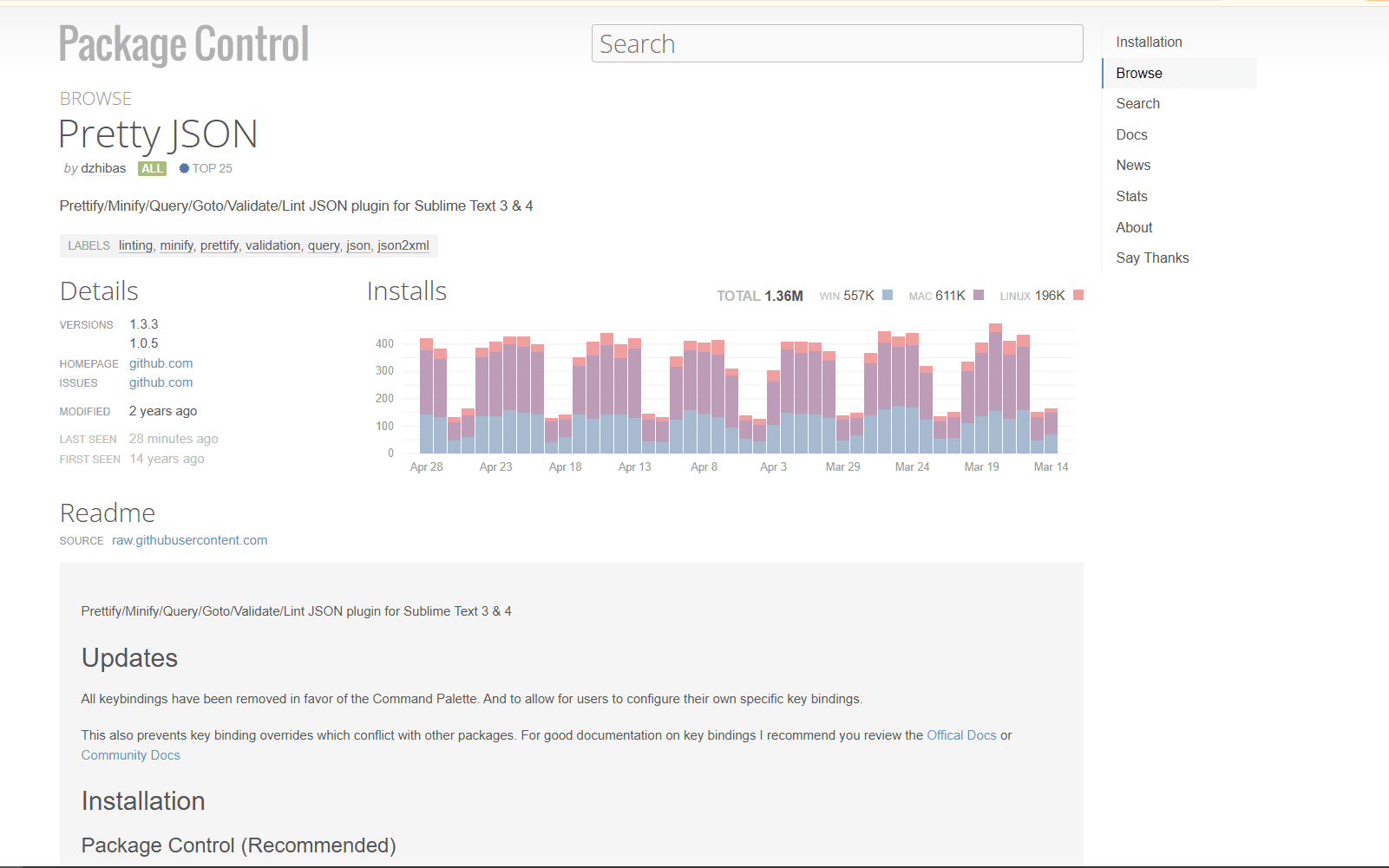
Pretty JSON is the first plugin you should install. It formats minified JSON into readable indented text with a single keyboard shortcut. Press Cmd + Ctrl + J on Mac or Ctrl + Alt + J on Windows/Linux. Single-line API responses become readable instantly.
The plugin does more than formatting. It minifies JSON back to a single line when you need compact output for API requests. It sorts object keys alphabetically, which keeps Git diffs clean when multiple developers edit the same config file. Key order stays consistent instead of changing every time someone saves.
Format conversion is built in. Pretty JSON converts JSON to XML or YAML without leaving Sublime. Open Command Palette (Cmd/Ctrl + Shift + P), type "Pretty JSON", and pick the conversion you need. The output replaces your current file content, so save a backup first if you need the original.
How to install: Open Command Palette (Cmd/Ctrl + Shift + P), type "Install Package", press Enter. Wait for the package list to load. Type "Pretty JSON" and press Enter. The plugin installs in seconds. After that, the keyboard shortcuts work immediately on any JSON file.
Limitation: Pretty JSON does not validate against JSON schemas. It catches syntax errors like missing commas or unclosed brackets, but it won't tell you if your data structure violates an expected schema. For schema validation, you need SublimeLinter-json.
Download: Install Pretty JSON via Package Control
2. SublimeLinter + SublimeLinter-json
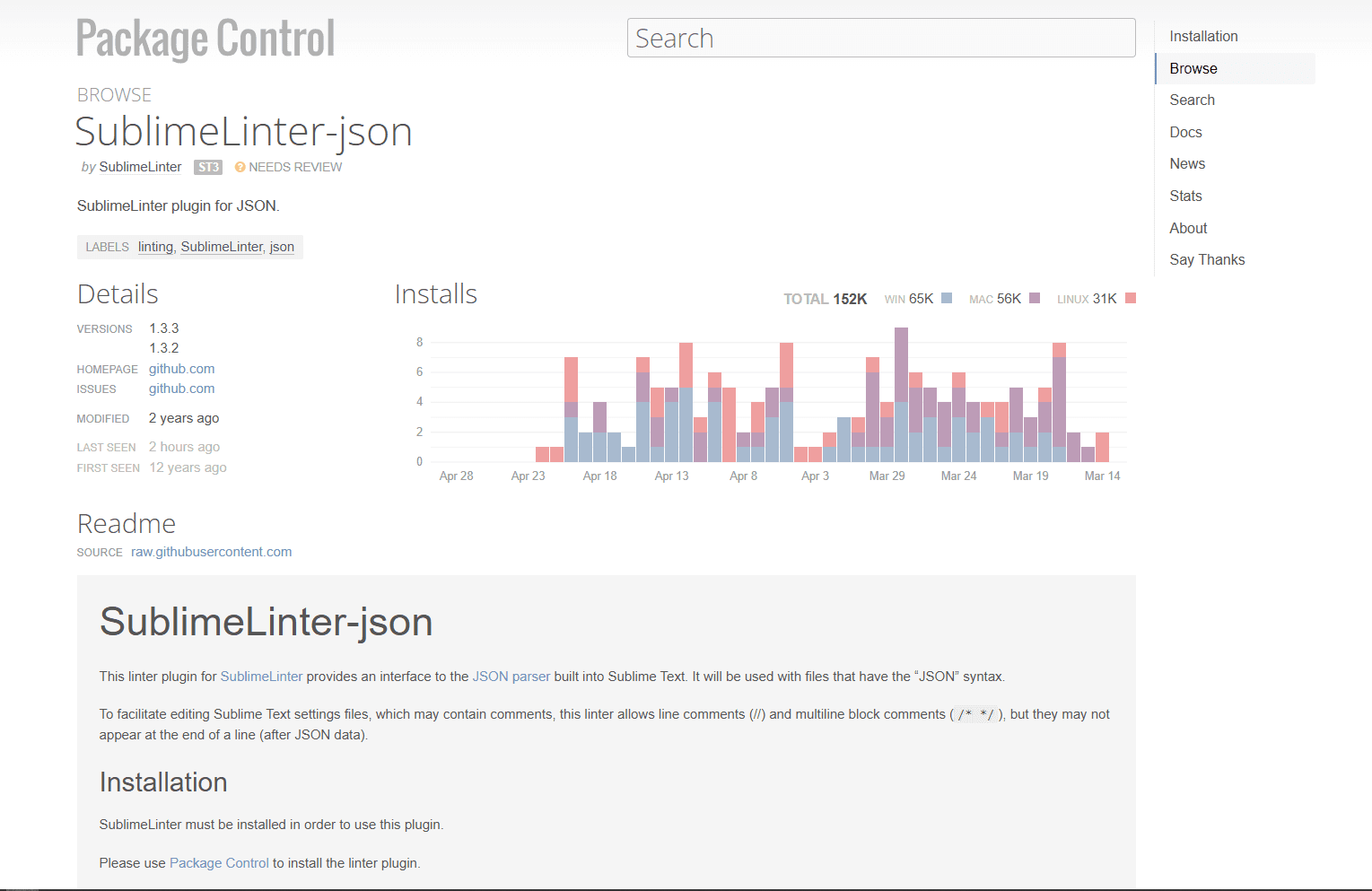
SublimeLinter-json catches JSON errors as you type. Red gutter marks appear next to lines with problems. Hover over the mark to see what's wrong. Missing comma, trailing comma, unclosed bracket, duplicate key. The error message tells you exactly what to fix.
This plugin requires two installs. First install SublimeLinter (the base framework), then install SublimeLinter-json (the JSON-specific linter). Both come from Package Control. Open Command Palette, type "Install Package", install SublimeLinter first. Wait for it to finish. Then repeat the process and install SublimeLinter-json.
Real-time validation means you see errors immediately instead of discovering them when you try to parse the file later. If you're building a JSON config file from scratch, the gutter marks guide you as you type. No need to save and test in another tool.
Error detection covers syntax only. Missing commas, trailing commas (valid in JavaScript but not JSON), unclosed brackets, duplicate keys in the same object. These are structural errors that break JSON parsing. The linter does not check if your data matches an expected schema. A file can be syntactically valid JSON but still fail schema validation.
How to install: Open Command Palette (Cmd/Ctrl + Shift + P), type "Install Package", press Enter. Type "SublimeLinter" and install it. After it finishes, open Command Palette again, type "Install Package", and install "SublimeLinter-json". Restart Sublime Text. Open any JSON file and syntax errors will show gutter marks automatically.
Limitation: SublimeLinter-json does not catch schema violations. It only validates JSON syntax. If your API expects specific field names or data types, this plugin won't flag mismatches. For schema validation, you need external tools or a different editor like VS Code.
Download: Install SublimeLinter and SublimeLinter-json
3. JSONLint
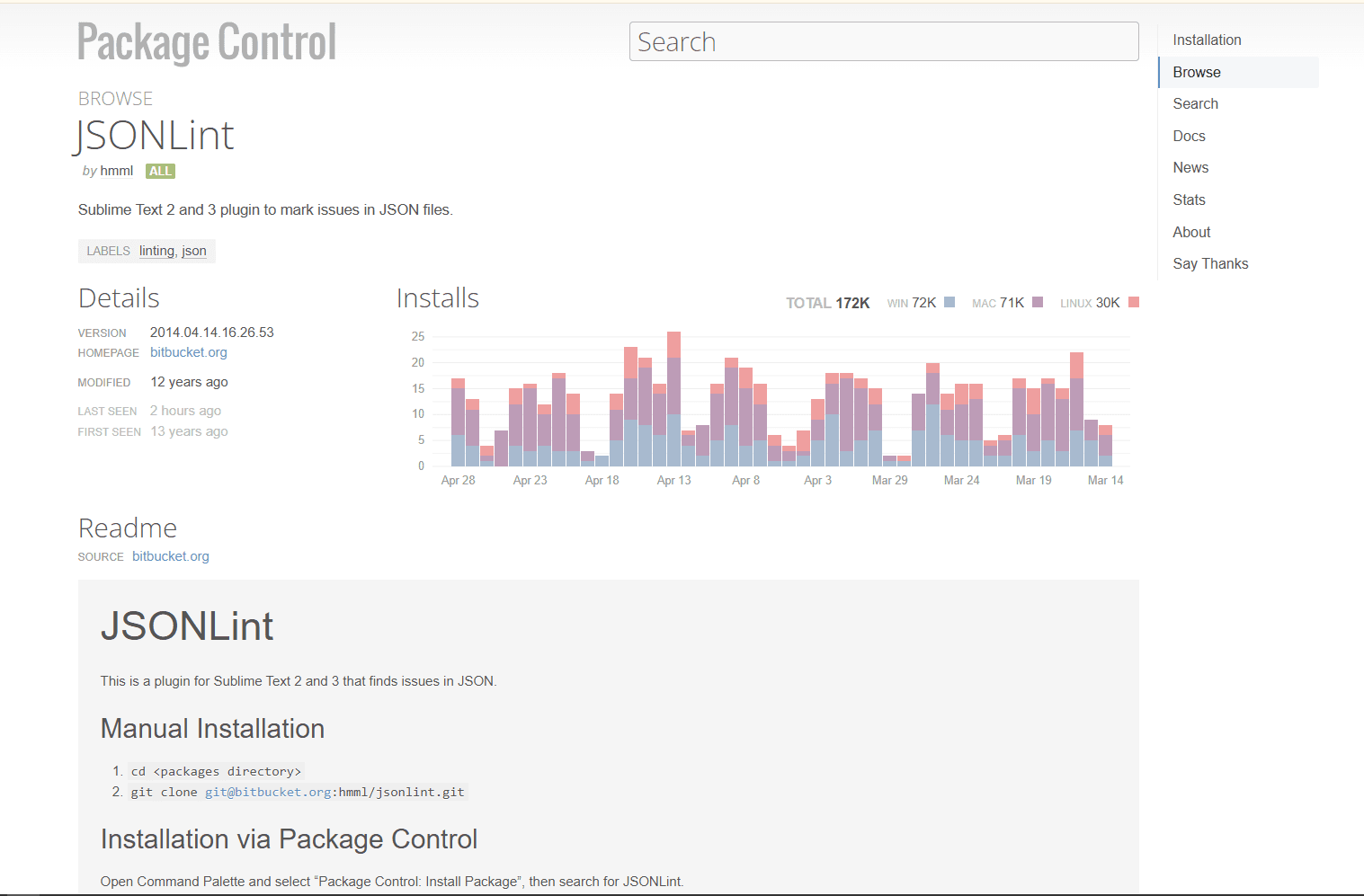
JSONLint validates JSON on demand instead of in real-time. Open Command Palette (Cmd/Ctrl + Shift + P), type "JSONLint", press Enter. The plugin checks your file and shows a popup with results. Valid JSON gets a success message. Invalid JSON shows the error with a line number.
This differs from SublimeLinter-json in timing. SublimeLinter runs continuously as you type. JSONLint runs once when you trigger it. For quick one-off validation before committing a config file or sending JSON to an API, JSONLint is faster than waiting for real-time linting to catch up.
The validation logic is the same as the JSONLint.com website but runs locally in Sublime. No internet connection needed. No data leaves your machine. This matters when you're validating JSON with credentials, API keys, or customer data.
How to install: Open Command Palette (Cmd/Ctrl + Shift + P), type "Install Package", press Enter. Type "JSONLint" and install it. After installation, open any JSON file, open Command Palette, type "JSONLint", and run the validation command. Results appear in a popup.
When to use this instead of SublimeLinter: If you only need validation occasionally and don't want continuous linting running in the background. Or if you're working on a slower machine where real-time linting causes lag. JSONLint uses zero resources until you explicitly run it.
Download: Install JSONLint via Package Control
Plugin Comparison
| Plugin | Formatting | Validation | Tree view | Key navigation | Free? |
|---|---|---|---|---|---|
| Pretty JSON | Yes | Syntax only | No | No | Yes |
| SublimeLinter-json | No | Real-time syntax | No | No | Yes |
| JSONLint | No | On-demand syntax | No | No | Yes |
| JSON Reindent | Yes (basic) | No | No | No | Yes |
| JSONComma | No | Trailing comma fix | No | No | Yes |
4. JSON Reindent
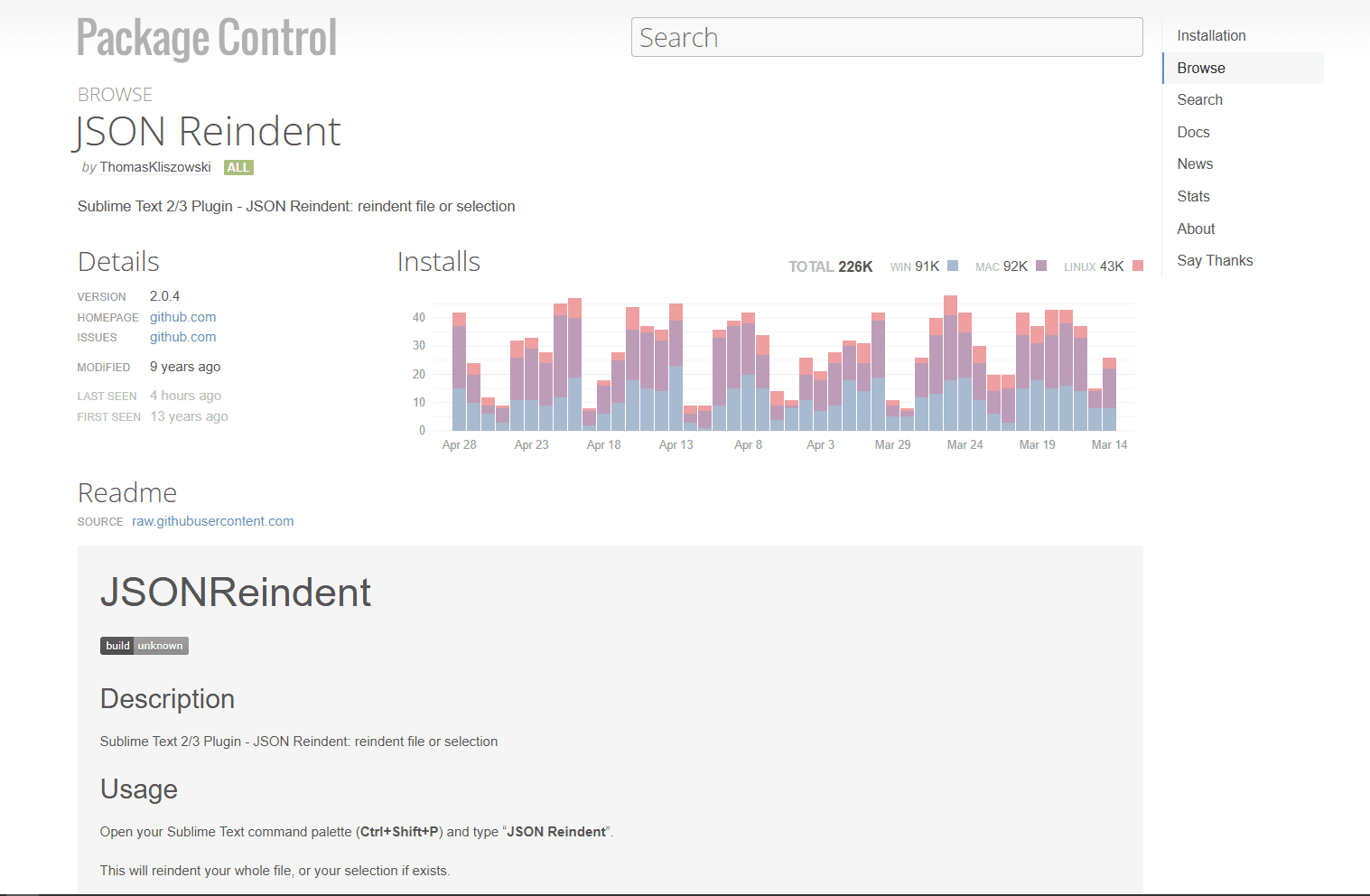
JSON Reindent is a lightweight alternative to Pretty JSON for basic formatting tasks. It reindents JSON files with proper spacing and indentation using Sublime Text's built-in indentation settings.
The plugin respects your editor's tab settings. If you use 2-space indentation, JSON Reindent formats with 2 spaces. If you use 4-space tabs, it formats with 4 spaces. This makes it useful when you need formatting that matches your project's style guide.
The command runs through the Command Palette. Open Command Palette (Cmd/Ctrl + Shift + P), type "JSON Reindent", press Enter. Your JSON file reformats according to your indentation settings. No keyboard shortcut by default, but you can add one in your key bindings.
How to install: Open Command Palette (Cmd/Ctrl + Shift + P), type "Install Package", press Enter. Type "JSON Reindent" and install it. After installation, open any JSON file, open Command Palette, type "JSON Reindent", and run the command.
When to use this instead of Pretty JSON: If you want formatting that matches your editor's indentation settings automatically. Or if you prefer a simpler plugin without the extra features like minification and format conversion. For most users, Pretty JSON is more feature-complete.
Install: JSON Reindent on Package Control
5. JSONComma
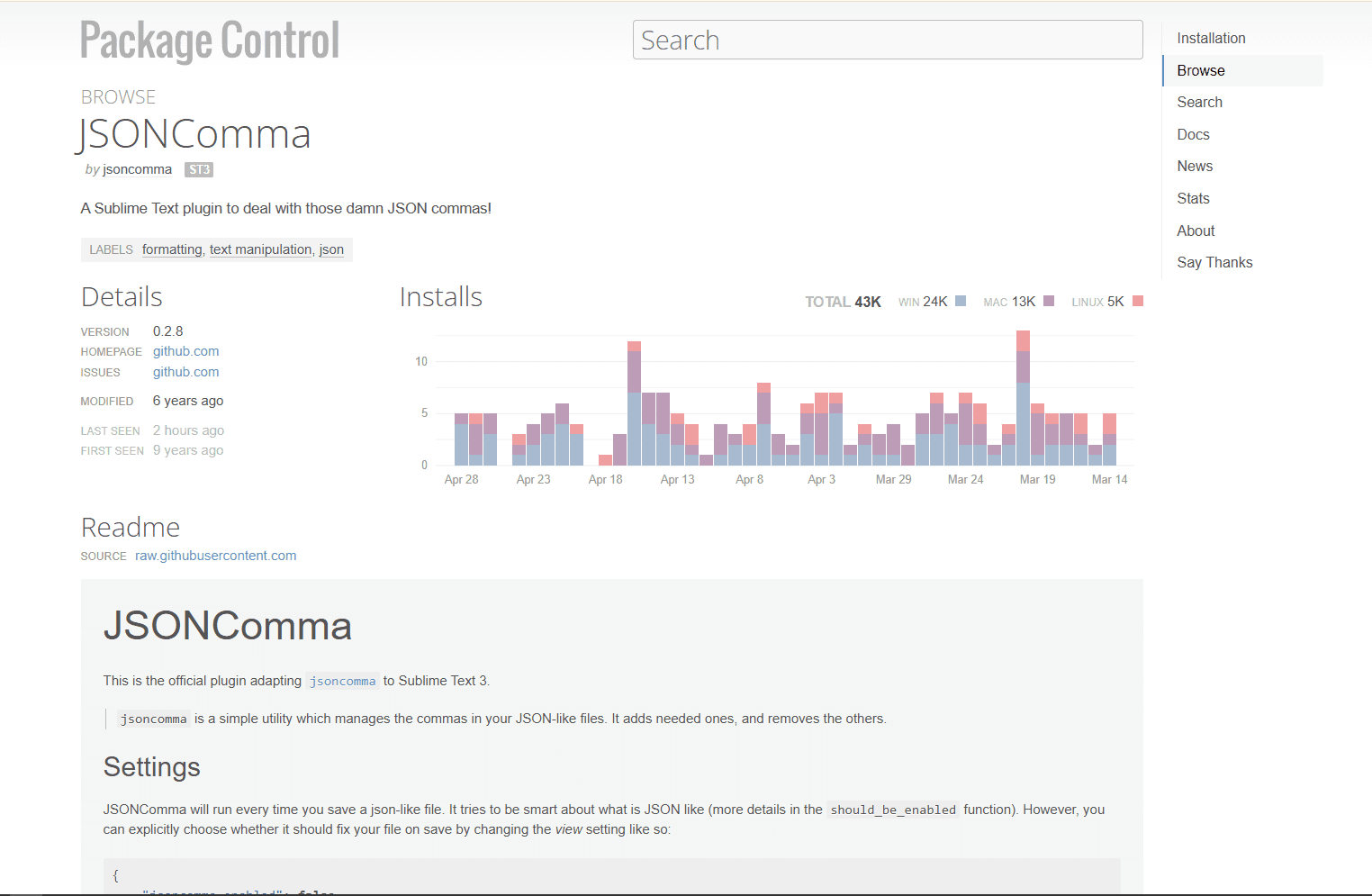
JSONComma fixes trailing comma errors automatically. Trailing commas are valid in JavaScript but break JSON parsing. This plugin detects them and removes them when you save.
The error happens when you copy JavaScript object literals into JSON files. Or when you're editing a JSON array and delete the last item but forget to remove the comma from the new last item. JSON parsers reject the file. JSONComma fixes it silently.
The plugin also adds trailing commas when you're working in JavaScript mode and want them for cleaner Git diffs. Toggle the behavior in settings. For JSON files, keep it in removal mode. For JavaScript files, switch to addition mode.
How to install: Open Command Palette (Cmd/Ctrl + Shift + P), type "Install Package", press Enter. Type "JSONComma" and install it. After installation, the plugin runs automatically when you save JSON files. No configuration needed for basic use.
Why trailing commas break JSON: The JSON spec does not allow commas after the last item in an array or object. JavaScript allows them (ES5+). When you paste JavaScript into a JSON file, the trailing commas cause parse errors. JSONComma prevents this by stripping them on save.
Download: Install JSONComma via Package Control
Which Sublime Text JSON Plugin Should You Install?
If you edit JSON occasionally, just Pretty JSON. It handles formatting, minification, and key sorting. That covers 80% of JSON tasks.
If you want real-time error catching, add SublimeLinter-json. Install SublimeLinter first, then SublimeLinter-json. Red gutter marks show syntax errors as you type.
If you need simpler formatting that respects your editor's indentation settings, JSON Reindent is a lightweight alternative to Pretty JSON. But Pretty JSON offers more features for the same effort.
All together, Pretty JSON for formatting, SublimeLinter-json for validation, and JSONComma for trailing comma cleanup cover everything most developers need. Install them once and forget about them.
Frequently Asked Questions
How do I format JSON in Sublime Text?
Install Pretty JSON via Package Control. Open Command Palette (Cmd/Ctrl + Shift + P), type "Install Package", install "Pretty JSON". After installation, open any JSON file and press Cmd + Ctrl + J on Mac or Ctrl + Alt + J on Windows/Linux. The plugin formats minified JSON into readable indented text instantly. It also minifies, sorts keys, and converts to XML or YAML through Command Palette commands.
What is the best JSON plugin for Sublime Text?
Pretty JSON. It formats, minifies, sorts keys, and converts JSON to XML or YAML. The keyboard shortcut (Cmd + Ctrl + J on Mac, Ctrl + Alt + J on Windows/Linux) works instantly on any JSON file. For real-time error detection, add SublimeLinter-json. For large file navigation, add Sublime JSON Nav. But if you only install one plugin, make it Pretty JSON.
Does Sublime Text have JSON validation?
Not built in. Sublime Text highlights JSON syntax but does not validate structure. Install SublimeLinter and SublimeLinter-json for real-time syntax validation. Red gutter marks appear next to lines with errors. Or install JSONLint for on-demand validation via Command Palette. Both plugins catch syntax errors like missing commas or unclosed brackets but do not validate against JSON schemas.
How do I install Pretty JSON in Sublime Text?
Open Command Palette with Cmd/Ctrl + Shift + P. Type "Install Package" and press Enter. Wait for the package list to load (takes a few seconds). Type "Pretty JSON" and press Enter. The plugin installs automatically. After installation, open any JSON file and press Cmd + Ctrl + J (Mac) or Ctrl + Alt + J (Windows/Linux) to format it. No restart needed.
Related Reading
If you're working across multiple editors or need to compare JSON tools on different platforms, these guides help:
Need to combine multiple JSON files first? Use the JSON merger tool.
Read More
All Articles
How JSON Powers Everything: APIs, Web Apps & Real-Time Data (2026)
Discover how JSON powers modern web applications, REST APIs, and real-time systems. Learn why JSON became the universal data format for web development, mobile apps, and cloud services.

How to Add Image in JSON: URL, Base64 & File Path Methods (2026)
Add images to JSON using URLs, base64 encoding, or file paths. Complete guide with code examples, size optimization tips, and best practices for each method in web and mobile apps.

How to Merge GPX Files: Free Tool + Python + GPSBabel Guide (2026)
Merge multiple GPX files into one using free online tool, Python, or GPSBabel. Complete guide for combining GPS tracks, waypoints, and routes from Garmin, Strava, Komoot, and other devices.