8 Best YAML Editors for Linux in 2026 (GUI & Terminal)
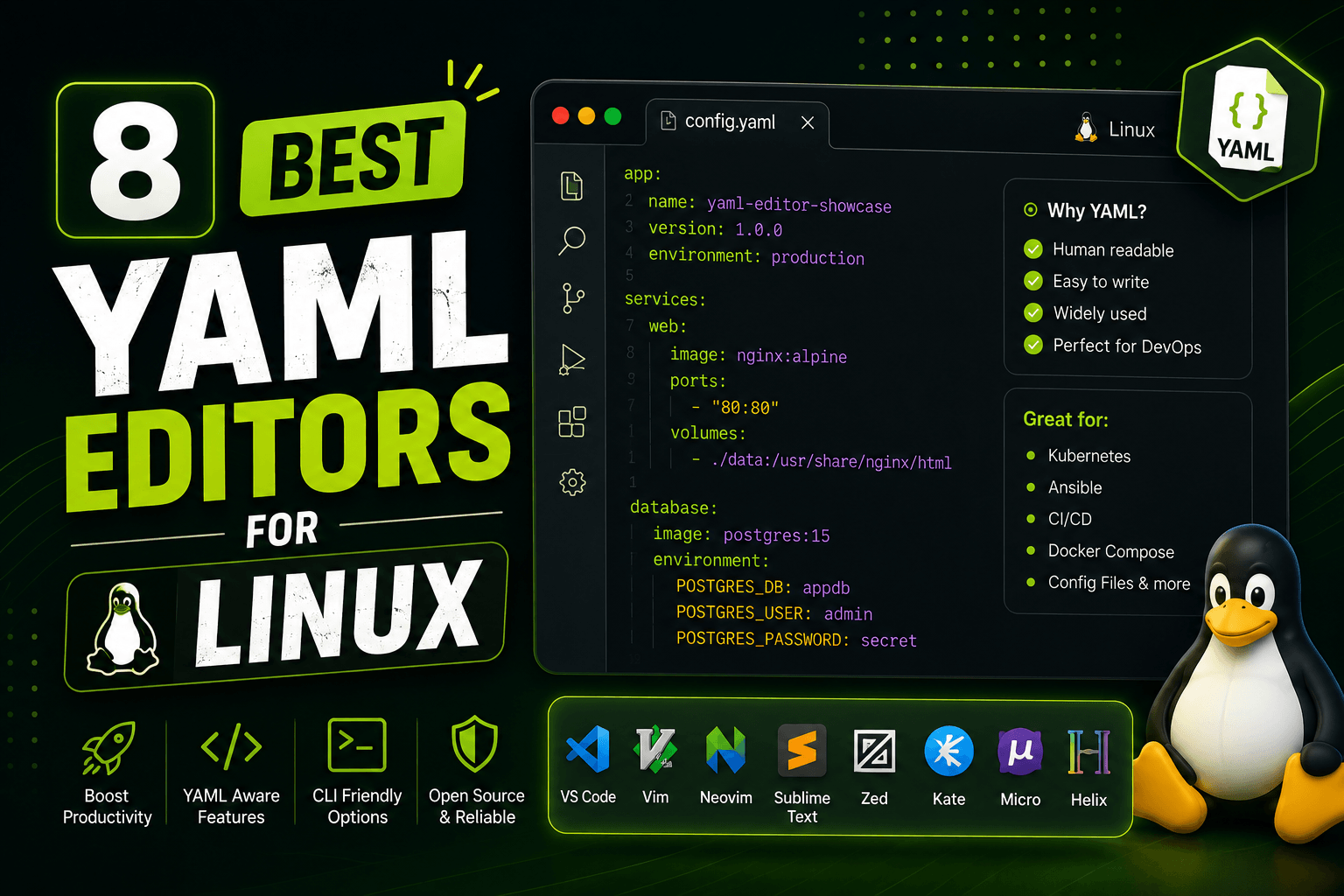
Linux workflows split between terminal and GUI. DevOps engineers SSH into remote clusters and edit Kubernetes manifests in Vim. Developers write Docker Compose files locally in VS Code with schema validation. Both approaches work, but the tools are completely different.
Terminal editors like Vim work over SSH, handle files of any size, and integrate with command-line tools like yamllint. GUI editors like VS Code provide schema validation and auto-completion but require a desktop environment. Native Linux apps like Kate sit in the middle - lightweight but with modern features.
This guide covers eight YAML editors tested on Ubuntu 24.04, Fedora 40, and Arch Linux. Some work in the terminal, some require a GUI, and some do both. Distribution-specific install commands included for apt, dnf, and pacman.
1. VS Code with YAML Extension (Best for Kubernetes)
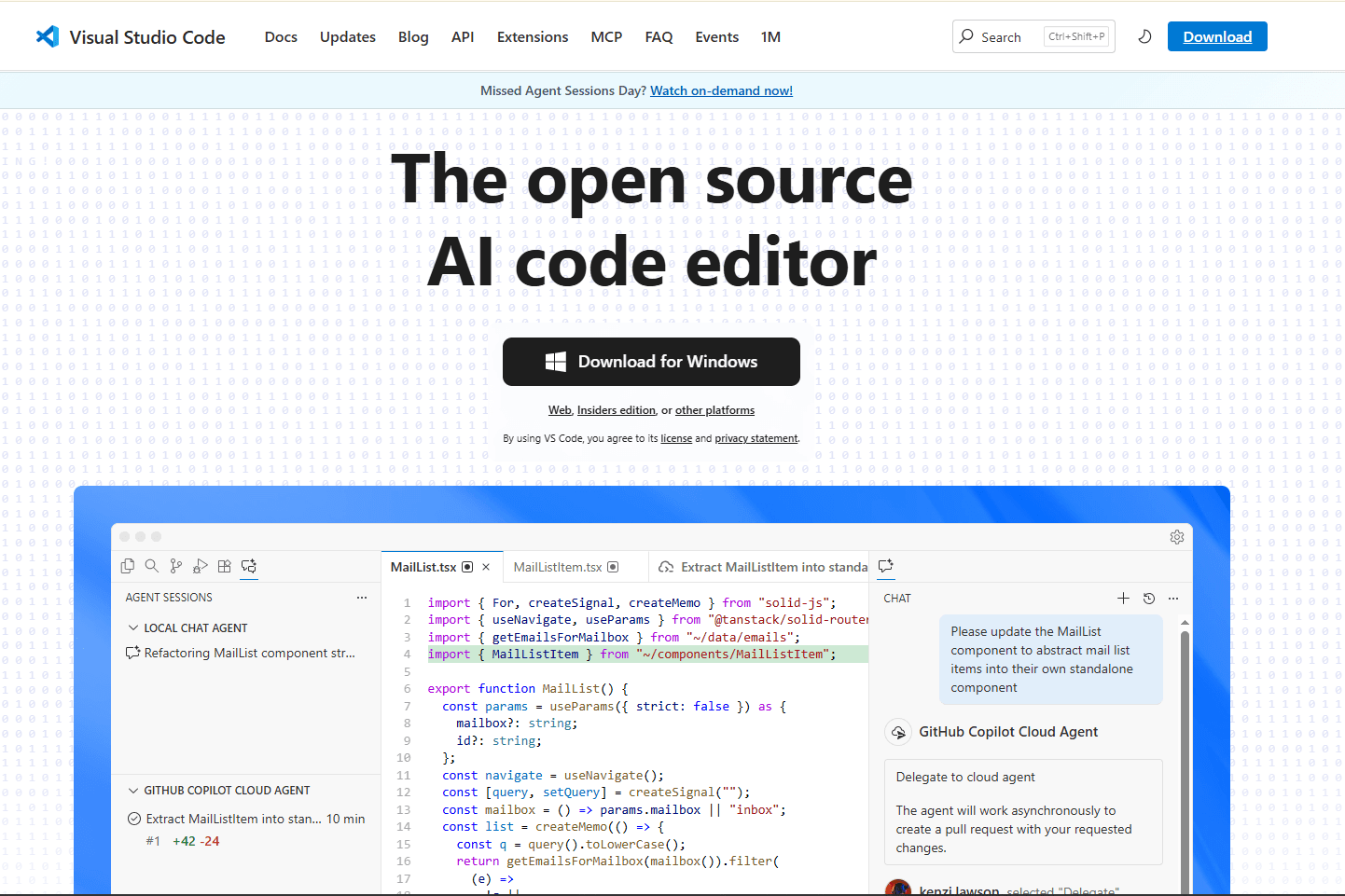
VS Code with the Red Hat YAML extension is the standard for editing Kubernetes manifests and schema-based YAML on Linux.
Microsoft releases official .deb, .rpm, and Snap packages. The .deb or .rpm packages work better than Snap (some users report file access permission issues with Snap).
Install VS Code: Download .deb or .rpm from code.visualstudio.com
Install YAML extension: Press Ctrl + Shift + X, search "YAML" by Red Hat, click Install.
What you get:
- Schema validation (Kubernetes, Docker Compose, GitHub Actions, GitLab CI)
- Auto-completion based on schema
- Error detection as you type
- Hover documentation for properties
- Multi-document support (--- separators)
- Formatting (Shift + Alt + F)
- Outline view for navigation
- Git integration
- Remote SSH editing (edit files on remote servers)
Schema configuration:
{
  "yaml.schemas": {
    "kubernetes": "/*.yaml",
    "https://json.schemastore.org/github-workflow.json": ".github/workflows/*.yml",
    "https://raw.githubusercontent.com/compose-spec/compose-spec/master/schema/compose-spec.json": "docker-compose*.yml"
  }
}
What you don't get:
- Heavy RAM usage (200-300MB)
- Not native Linux (Electron-based)
- Slower launch than native apps (2-3 seconds)
VS Code fits DevOps engineers working with Kubernetes, developers writing Docker Compose files, or anyone who needs schema validation. If you're already using VS Code, adding YAML support takes one extension install.
2. Vim / Neovim with YAML Plugin (Best for Terminal)

Vim is pre-installed on most Linux distributions. Neovim is a modern fork with better defaults and built-in LSP support.
For YAML work, add vim-yaml plugin for syntax highlighting and indentation. Add yaml-language-server via Neovim's built-in LSP for validation.
Setup for Neovim:
- Install Neovim: sudo apt install neovim (Ubuntu/Debian), sudo dnf install neovim (Fedora), sudo pacman -S neovim (Arch)
- Install yaml-language-server: npm install -g yaml-language-server
- Configure LSP in init.lua or use vim-yaml plugin
What you get:
- YAML syntax highlighting
- Auto-indentation (respects YAML's strict indentation rules)
- Code folding for nested structures
- LSP support for validation and auto-completion
- Works over SSH (no GUI needed)
- Extremely fast (launches instantly)
- Handles files of any size
- Memory usage <50MB
What you don't get:
- No visual preview
- Steep learning curve for beginners
- Requires plugin configuration
- No schema validation without LSP setup
Vim fits developers who live in the terminal, work on remote Kubernetes clusters via SSH, or prefer keyboard-driven editing. If you're already a Vim user, adding YAML support takes minutes.
3. Kate (Best Native KDE Editor)
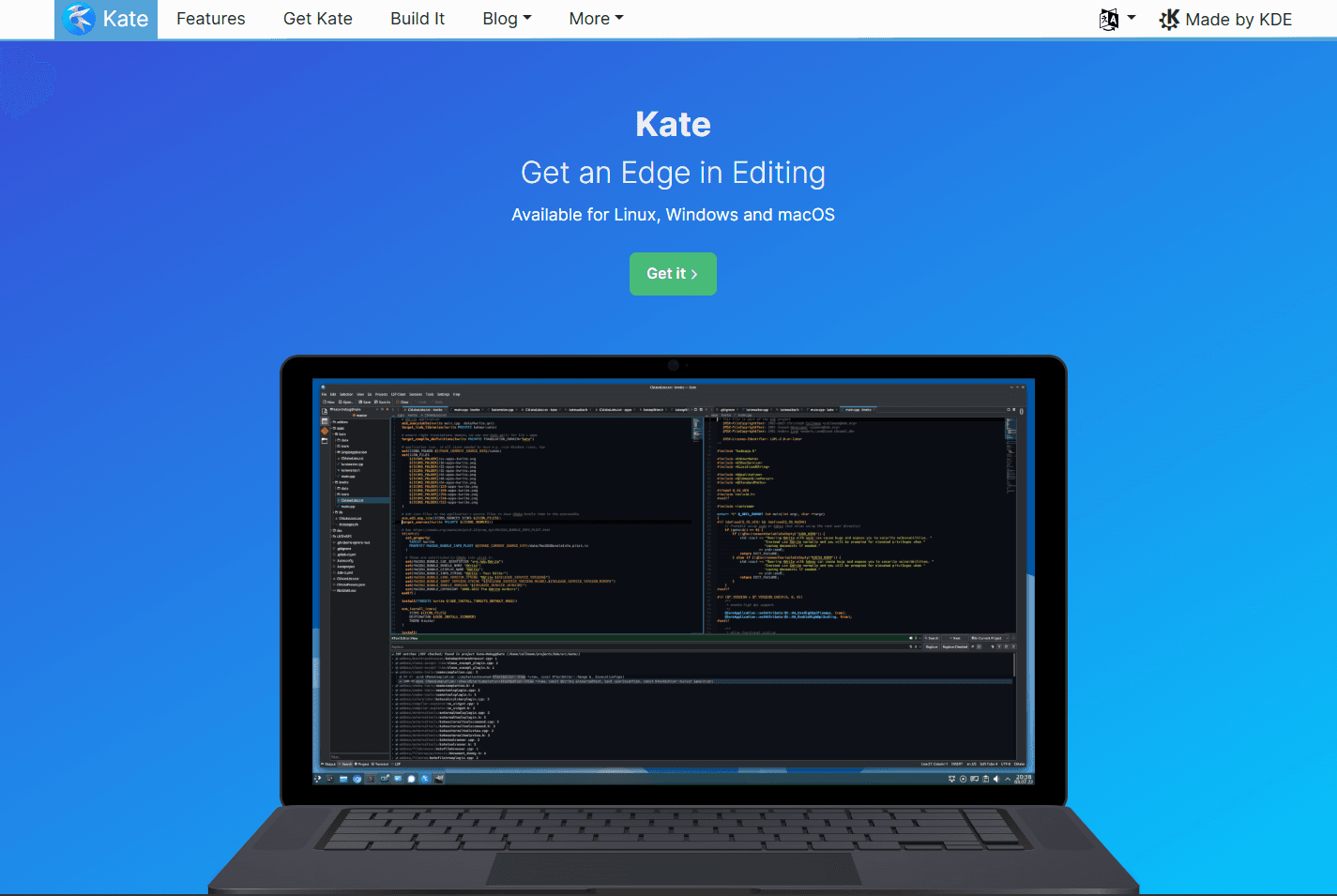
Kate is KDE's text editor and one of the most underrated YAML editors on Linux. On KDE Plasma (Kubuntu, KDE Neon, Manjaro KDE) it's often pre-installed. On GNOME or other desktops it installs cleanly.
Kate is a proper native Linux application with no Electron or JVM overhead. It launches fast and stays lightweight.
What you get:
- YAML syntax highlighting built-in
- Code folding for nested structures
- LSP client plugin for real-time validation
- Split view for editing multiple files
- Session management (save and restore workspace)
- Git integration via plugin
- Launch time under 1 second
- Memory usage 60-80MB
- Handles 100MB+ files smoothly
What you don't get:
- No schema validation (only syntax highlighting)
- No auto-completion without LSP
- Preview requires external tool
Install on Ubuntu/Debian: sudo apt install kate
Install on Fedora: sudo dnf install kate
Install on Arch: sudo pacman -S kate
Kate fits KDE users who want a native Linux text editor with YAML support. It's lighter than VS Code and more feature-rich than basic text editors.
4. yamllint (Best Command-Line Validator)
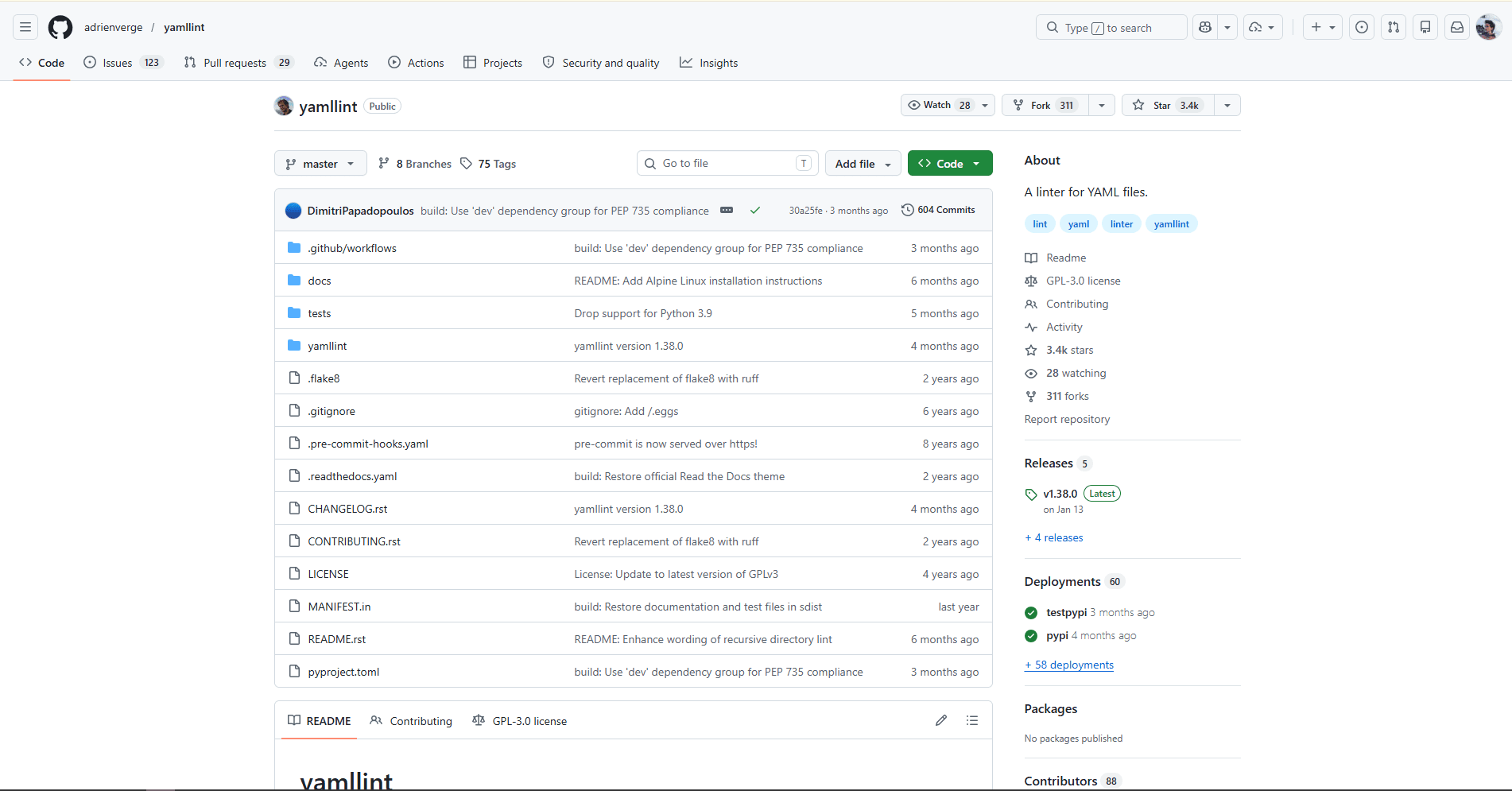
yamllint is not a text editor but a command-line YAML linter. It validates YAML syntax and style rules.
yamllint is essential for Linux YAML workflows. Edit in any editor, validate with yamllint. Use it in CI/CD pipelines, pre-commit hooks, and shell scripts.
What you get:
- Syntax validation (catches indentation errors, duplicate keys, invalid values)
- Style checking (line length, trailing spaces, empty lines)
- Configurable rules via .yamllint config file
- Colored output for errors and warnings
- Exit codes for scripting (0 = success, 1 = errors)
- Works with pipes and stdin
- Extremely fast validation
What you don't get:
- No editing (validator only)
- No schema validation (syntax only)
- No auto-completion
Install on Ubuntu/Debian: sudo apt install yamllint
Install on Fedora: sudo dnf install yamllint
Install on Arch: sudo pacman -S yamllint
Example usage:
- Validate file: yamllint file.yaml
- Validate directory: yamllint .
- Use in CI: yamllint -f parsable . | tee yamllint.log
yamllint fits DevOps engineers who need automated validation in CI/CD pipelines, developers who want pre-commit hooks, or anyone who needs command-line YAML validation.
5. Sublime Text with YAML Package (Best for Speed)

Sublime Text handles large YAML files without freezing. Launch time under 1 second.
Sublime Text provides official Linux packages (apt repository for Ubuntu/Debian, tarball for other distributions).
Setup:
- Install Sublime Text: Add apt repository or download tarball from sublimetext.com
- Install Package Control: Ctrl + Shift + P > "Install Package Control"
- Install YAML package: Ctrl + Shift + P > "Package Control: Install Package" > search "YAML"
What you get:
- Launch time under 1 second
- Syntax highlighting for YAML
- Code folding for nested structures
- Multi-cursor editing (Ctrl + D to select duplicates)
- Goto Anything (Ctrl + P for quick navigation)
- Handles 100MB+ files smoothly
- Memory usage 60-80MB
- Free version with full functionality ($99 removes prompts)
What you don't get:
- No schema validation
- No auto-completion
- No built-in preview
Sublime Text fits developers who need speed over validation. Large YAML files, quick edits, or when you know the schema and just need fast editing.
6. IntelliJ IDEA / PyCharm (Best for JetBrains Users)

IntelliJ IDEA and PyCharm have excellent YAML support built-in. Free Community editions available.
JetBrains provides official Linux packages (.tar.gz, Snap, Flatpak) with native performance.
What you get:
- Schema validation (Kubernetes, Docker Compose, etc.)
- Auto-completion based on schema
- Error detection and quick fixes
- Refactoring support (rename keys across files)
- Multi-file navigation
- Git integration
- Kubernetes plugin integration
- Launch time 5-10 seconds
- Memory usage 500MB-1GB
What you don't get:
- Very heavy (not suitable for quick edits)
- Expensive (paid versions $149-$249/year)
- Overkill for YAML-only editing
IntelliJ/PyCharm fits developers already using JetBrains IDEs. If you're writing Java, Python, or other languages in these IDEs, the YAML support is excellent. Don't install just for YAML editing.
7. gedit with YAML Plugin (Best Beginner-Friendly Option)
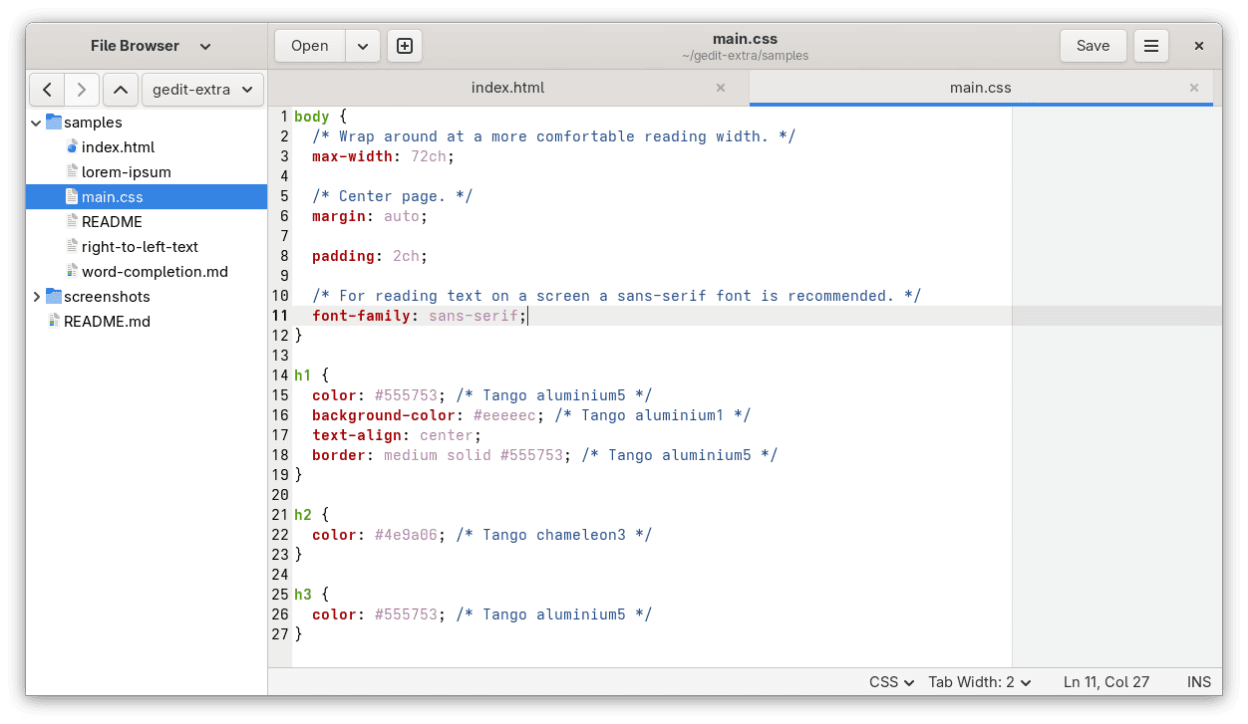
If you're on a GNOME-based distribution (Ubuntu, Fedora Workstation, Pop!_OS), gedit is your default text editor and it handles YAML better than its "simple notepad" reputation suggests.
Out of the box, gedit provides YAML syntax highlighting. To add more capability, enable the built-in plugins under Edit → Preferences → Plugins.
What you get:
- YAML syntax highlighting built-in
- Code Comment plugin for commenting blocks
- Smart Spaces plugin for indentation
- Launch time under 1 second
- Memory usage 40-60MB
- Pre-installed on GNOME systems
- Beginner-friendly interface
What you don't get:
- No schema validation
- No auto-completion
- No error detection
- No plugin ecosystem
gedit fits beginners on GNOME Linux who need basic YAML editing. It opens immediately without any setup and highlights structure clearly.
For validation, pipe YAML through yamllint: yamllint file.yaml
8. Emacs with yaml-mode (Best for Emacs Users)
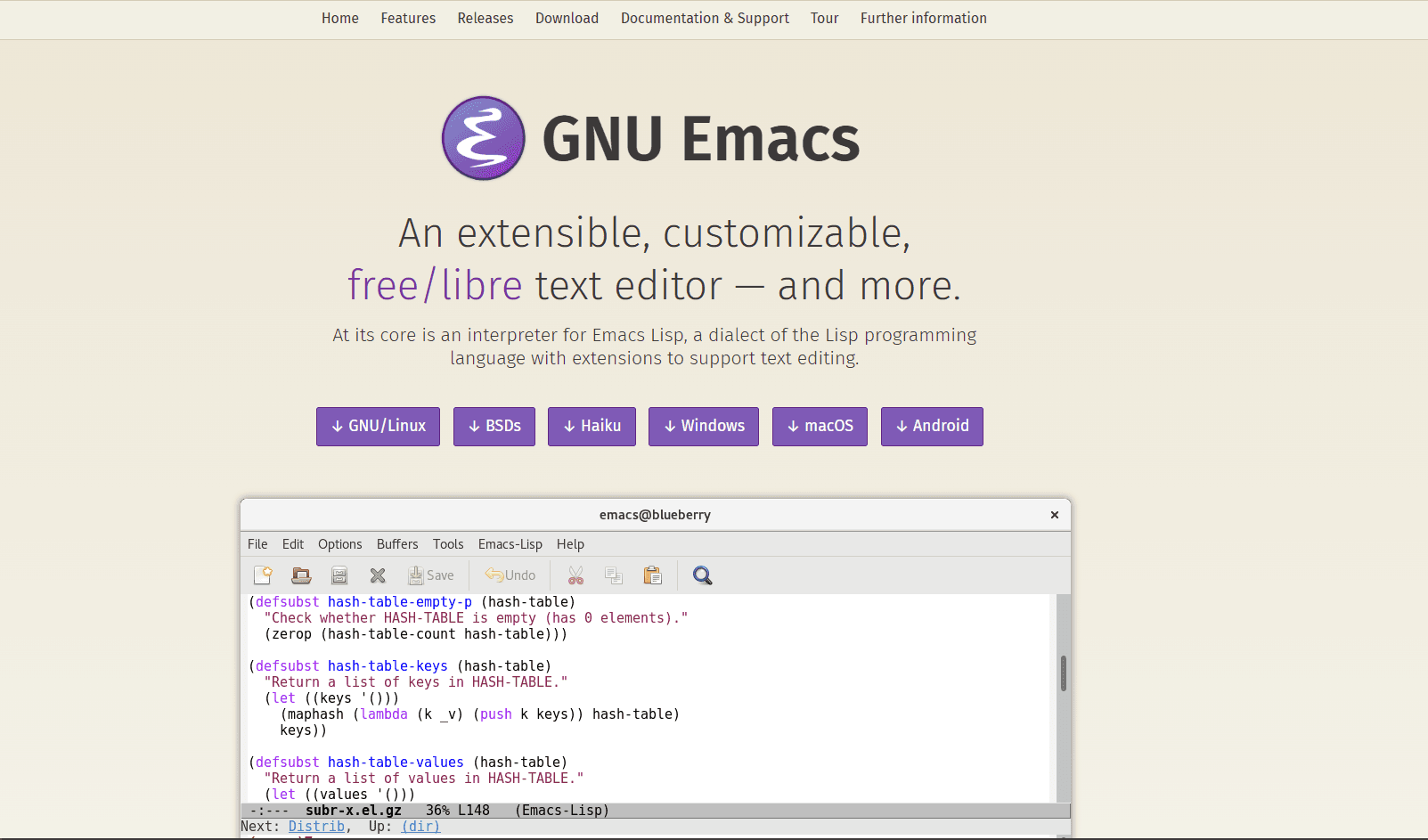
Emacs with yaml-mode provides excellent YAML support for Emacs users.
If you're already an Emacs user, adding YAML support is straightforward. If you're not, don't install Emacs just for YAML editing.
Setup:
- Install Emacs: sudo apt install emacs (Ubuntu/Debian), sudo dnf install emacs (Fedora), sudo pacman -S emacs (Arch)
- Install yaml-mode: Add to init.el via MELPA
- Optional: Add lsp-mode with yaml-language-server for validation
What you get:
- YAML syntax highlighting
- Auto-indentation
- Code folding
- LSP support for validation (with lsp-mode)
- Works in terminal or GUI
- Extremely customizable
- Handles files of any size
What you don't get:
- Steep learning curve for beginners
- Requires configuration
- Not suitable for quick edits
Emacs fits developers who already use Emacs for everything. If you're an Emacs user, yaml-mode is the natural choice.
YAML Editor Comparison Table
| Editor | Interface | Install method | RAM usage | Schema validation | Best for |
|---|---|---|---|---|---|
| VS Code | GUI (Electron) | .deb/.rpm/snap | 200-300MB | Yes | Kubernetes, Docker Compose |
| Vim/Neovim | Terminal | Pre-installed or package manager | <50MB | Via LSP | Terminal users and SSH |
| Kate | GUI (native Qt) | apt/dnf/pacman | 60-80MB | Via LSP | KDE users |
| yamllint | Command-line | apt/dnf/pacman | N/A | Syntax only | CI/CD validation |
| Sublime Text | GUI (native) | apt repo or tarball | 60-80MB | No | Speed, large files |
| IntelliJ/PyCharm | GUI (Java) | .tar.gz/snap/flatpak | 500MB-1GB | Yes | JetBrains users |
| gedit | GUI (GTK) | Pre-installed on GNOME | 40-60MB | No | Beginners |
| Emacs | Terminal/GUI | apt/dnf/pacman | 80-120MB | Via LSP | Emacs users |
Which YAML Editor Should You Actually Use?
If you're on Ubuntu/Debian and want a GUI with schema validation, VS Code is the path of least resistance. The .deb package installs cleanly and the YAML workflow is built-in.
If you're on KDE, Kate is worth using over VS Code for lighter YAML work. It's native, fast, and already installed on most KDE systems.
If you're already in the terminal all day, Vim or Neovim with plugins is the most efficient setup. You never leave the terminal and both tools handle large files better than any GUI.
For command-line validation in CI/CD pipelines, yamllint is essential. Install it and add it to your pre-commit hooks.
If you need speed with large files, Sublime Text launches instantly and handles 100MB+ YAML files without freezing.
For JetBrains IDE users, use the built-in YAML support. Don't install a separate editor.
For beginners on GNOME, gedit handles basic YAML editing without any setup.
Platform-Specific Tips
Ubuntu/Debian users:
- Use apt for most editors: sudo apt install kate vim neovim yamllint gedit
- Download .deb for VS Code from code.visualstudio.com
- Add Sublime Text apt repository for easy updates
- Avoid Snap for VS Code (file access issues reported)
Fedora users:
- Use dnf for most editors: sudo dnf install kate vim neovim yamllint gedit
- Download .rpm for VS Code from code.visualstudio.com
- Use Flatpak for JetBrains IDEs if preferred
Arch users:
- Use pacman for official repo packages: sudo pacman -S kate vim neovim yamllint gedit
- Use AUR for VS Code: yay -S visual-studio-code-bin
- Use AUR for Sublime Text: yay -S sublime-text-4
For remote editing:
- Use Vim over SSH (no GUI needed): ssh user@server then vim file.yaml
- Use VS Code Remote SSH extension (edit remote files with local GUI)
- Use rsync or Git to sync files between machines
For Kubernetes validation:
- Install kubectl: sudo snap install kubectl --classic
- Validate manifests: kubectl apply --dry-run=client -f manifest.yaml
- Use kubeval for offline validation: kubeval manifest.yaml
For Docker Compose validation:
- Install docker-compose: sudo apt install docker-compose
- Validate compose files: docker-compose -f docker-compose.yml config
For CI/CD integration:
- Add yamllint to pre-commit hooks
- Use yamllint in GitLab CI: yamllint -f parsable . | tee yamllint.log
- Use yamllint in GitHub Actions: yamllint .
Frequently Asked Questions
What's the best YAML editor for Linux?
VS Code with the Red Hat YAML extension. Install with your package manager or download .deb/.rpm from code.visualstudio.com. Add the YAML extension from the Extensions panel. You get schema validation for Kubernetes, Docker Compose, GitHub Actions, and more. Auto-completion and error detection work as you type. It's free and actively maintained. For a lighter native alternative, use Kate or Vim.
How do I validate YAML on Linux?
Use yamllint for command-line validation. Install with sudo apt install yamllint (Ubuntu/Debian), sudo dnf install yamllint (Fedora), or sudo pacman -S yamllint (Arch). Run yamllint file.yaml to validate. For Kubernetes-specific validation, use kubectl: kubectl apply --dry-run=client -f file.yaml. For Docker Compose, use docker-compose -f file.yml config.
Does VS Code work well for YAML on Linux?
Yes. VS Code on Linux has the same YAML features as Windows and Mac: schema validation, auto-completion, error detection, and formatting. The .deb and .rpm packages work better than the Snap version (some users report file access issues with Snap). Install from Microsoft's official repository for the best experience. Memory usage is higher than native editors (200-300MB) but acceptable on modern systems.
What's the best YAML editor for Kubernetes on Linux?
VS Code with the Red Hat YAML extension. It validates Kubernetes manifests against the official schema, provides auto-completion for resource types and properties, and shows errors as you type. Install the Kubernetes extension for additional features like cluster management and pod logs. For command-line validation, use kubectl: kubectl apply --dry-run=client -f manifest.yaml or kubeval: kubeval manifest.yaml.
How do I edit YAML in the terminal on Linux?
Use Vim or Neovim with YAML plugins. Install vim-yaml for syntax highlighting and indentation. For validation, use Neovim's built-in LSP with yaml-language-server. Install on Ubuntu: sudo apt install vim or sudo apt install neovim. This works over SSH and handles files of any size. For quick validation, pipe to yamllint: cat file.yaml | yamllint -.
What's the best lightweight YAML editor for Linux?
Kate if you're on KDE, gedit if you're on GNOME. Both are native applications that launch instantly and use minimal RAM (40-80MB). Kate has better YAML support with LSP integration available. gedit is simpler but works fine for basic editing. If you want something even lighter, Vim with basic syntax highlighting uses almost no resources and handles files of any size.
Is there a native Linux YAML editor?
Yes. Kate (KDE) and gedit (GNOME) are both native Linux applications with YAML support. Kate is a Qt app with advanced features. gedit is a GTK app with basic features. Both launch faster and use less RAM than Electron-based editors like VS Code. The tradeoff is less advanced YAML features (no schema validation in most cases). Install Kate: sudo apt install kate. gedit is pre-installed on GNOME systems.
How do I edit Docker Compose files on Linux?
Use VS Code with the Red Hat YAML extension. Configure Docker Compose schema in settings.json: "yaml.schemas": {"https://raw.githubusercontent.com/compose-spec/compose-spec/master/schema/compose-spec.json": "docker-compose*.yml"}. The extension validates your compose file and provides auto-completion for services, volumes, and networks. For quick edits, Kate or Vim work well. Validate with docker-compose -f docker-compose.yml config.
Related Reading
For YAML editing on other platforms:
For other file formats on Linux:
Read More
All Articles
8 Best Markdown Editors for Linux in 2026 (GUI & Terminal)
Compare 8 best Markdown editors for Linux including VS Code, Kate, Vim, ghostwriter, and terminal tools. Covers GUI and CLI options for Ubuntu, Fedora, and Arch Linux users.

7 Best YAML Editors for Mac in 2026 (Free & Paid)
Find the best YAML editor for macOS with validation and syntax highlighting. Compare VS Code, Sublime Text, BBEdit, and more for Kubernetes, Docker, and CI/CD configs.
8 Best YAML Editors for Windows in 2026 (Free & Paid)
Find the best YAML editor for Windows 11 and 10 with validation and syntax highlighting. Compare VS Code, Notepad++, Sublime Text, and more for Kubernetes and Docker configs.