How to Format JSON in IntelliJ IDEA: Complete Code Formatting & Validation Guide 2026
Imad Uddin
Full Stack Developer
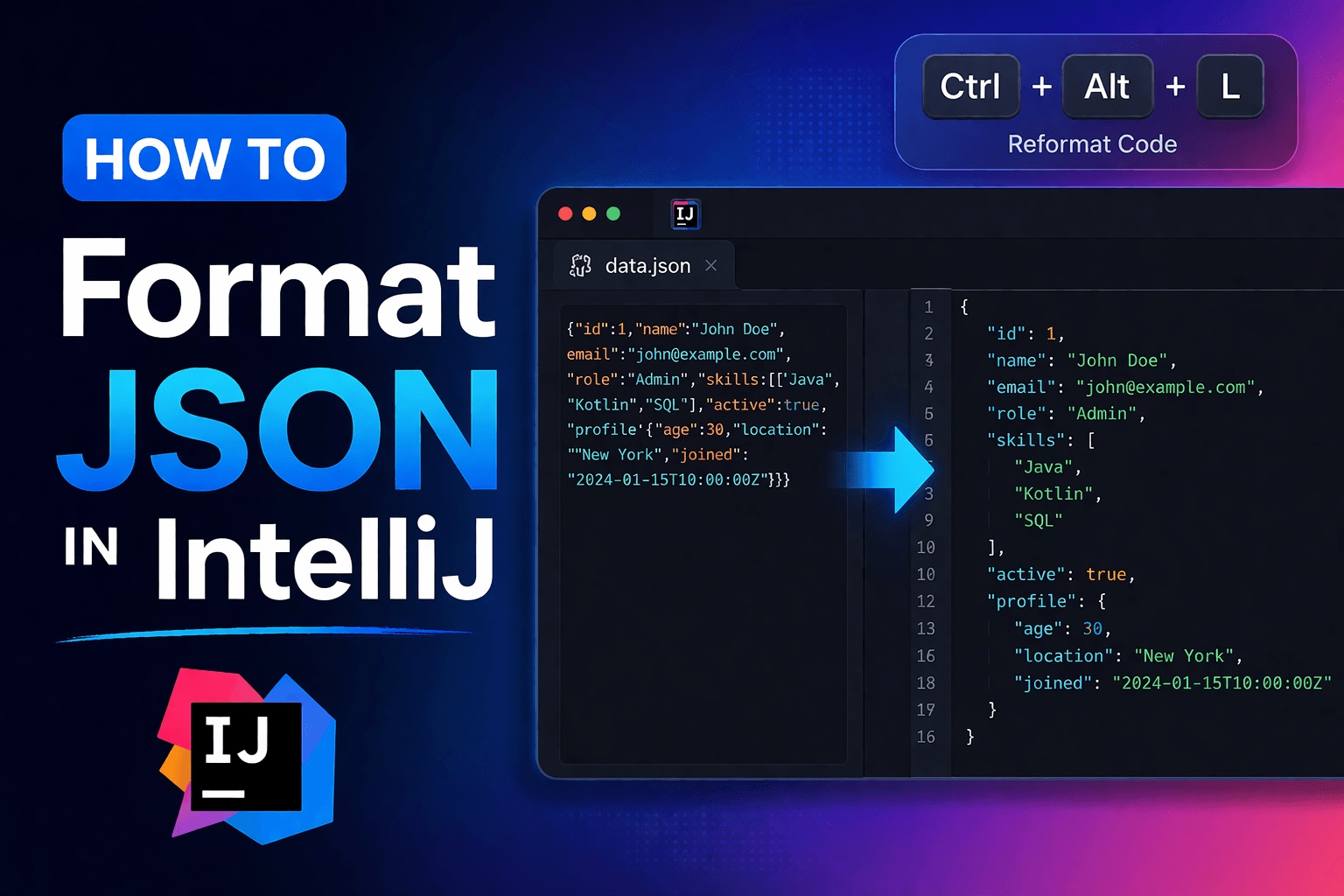
JSON formatting in IntelliJ IDEA significantly impacts API development productivity, configuration file management, and data processing workflows. Proper JSON formatting enhances code readability, enables efficient debugging, and prevents syntax errors that consume development time during REST API development, configuration management, and data integration projects.
IntelliJ IDEA provides comprehensive JSON support through native formatting capabilities, advanced validation features, and plugin ecosystem integration that transforms raw JSON data into properly structured, readable code. Understanding formatting techniques, validation workflows, and automation strategies helps developers maintain consistent JSON standards across projects and team environments.
Quick Start: Format JSON in 3 Steps
Step 1: Open your JSON file in IntelliJ IDEA
Step 2: Press the formatting keyboard shortcut:
- Windows/Linux: Ctrl + Alt + L
- macOS: Cmd + Option + L
Step 3: Your JSON is now formatted with proper indentation and structure
Quick Example:
// Before: Unformatted
{"name":"John","items":[1,2,3],"active":true}

// After Ctrl+Alt+L: Formatted
{
  "name": "John",
  "items": [
    1,
    2,
    3
  ],
  "active": true
}
Common Keyboard Shortcuts:
- Ctrl+Alt+L / Cmd+Option+L → Format entire file
- Ctrl+Shift+Alt+L / Cmd+Shift+Option+L → Format with options dialog
- Alt+Enter → Quick fix for JSON errors
- F2 → Navigate to next error
IntelliJ JSON Support Architecture
Native JSON Integration: JetBrains built comprehensive JSON support directly into IntelliJ IDEA's core functionality, providing syntax highlighting, error detection, and formatting capabilities without requiring external plugins for basic JSON development workflows.
Language Server Integration: IntelliJ leverages JSON Language Server Protocol implementation for advanced features including schema validation, auto-completion, and real-time error detection that exceeds simple text editor capabilities.
File Type Recognition: IntelliJ automatically recognizes .json files and applies appropriate syntax highlighting, formatting rules, and validation based on file extension and content analysis, enabling seamless JSON development workflow integration.
Performance Optimization: The IDE handles large JSON files efficiently through intelligent parsing and progressive loading, maintaining responsive performance even with multi-megabyte configuration files or API response data.
Built-in JSON Formatting Methods
Keyboard Shortcuts and Quick Actions
Primary Formatting Shortcuts:
- Ctrl+Alt+L (Windows/Linux) or Cmd+Option+L (macOS): Format entire JSON document with current code style settings
- Ctrl+Shift+Alt+L (Windows/Linux) or Cmd+Shift+Option+L (macOS): Open format dialog with advanced options
- Ctrl+Alt+I (Windows/Linux) or Cmd+Option+I (macOS): Auto-indent selected JSON blocks
- Alt+Enter: Quick fix menu for JSON validation errors and formatting suggestions
Selection-Based Formatting: Highlight specific JSON objects or arrays and use formatting shortcuts to apply formatting rules only to selected portions, preserving formatting in other document sections when working with mixed content files.
Real-Time Formatting: Enable "Reformat code on paste" in Editor settings to automatically format JSON content when pasting from external sources like API documentation, debugging tools, or configuration examples.
Before Formatting (unformatted JSON from API response):
{"userId":123,"name":"John Doe","email":"john@example.com","preferences":{"theme":"dark","notifications":true,"language":"en"},"tags":["premium","active","verified"],"metadata":{"createdAt":"2026-01-15T10:30:00Z","lastLogin":"2026-04-05T08:15:22Z"}}
After Ctrl+Alt+L (formatted with proper indentation):
{
  "userId": 123,
  "name": "John Doe",
  "email": "john@example.com",
  "preferences": {
    "theme": "dark",
    "notifications": true,
    "language": "en"
  },
  "tags": [
    "premium",
    "active",
    "verified"
  ],
  "metadata": {
    "createdAt": "2026-01-15T10:30:00Z",
    "lastLogin": "2026-04-05T08:15:22Z"
  }
}
Code Style Configuration
JSON Code Style Settings: Navigate to File → Settings → Editor → Code Style → JSON to configure comprehensive formatting rules that ensure consistent JSON structure across all project files and team development environments.
Indentation and Spacing Configuration:
- Tab Size: Set to 2 or 4 spaces based on team coding standards and project requirements
- Indent: Configure space-based or tab-based indentation with consistent application across nested objects
- Continuation Indent: Set additional indentation for wrapped lines and complex nested structures
- Align: Configure alignment for object properties and array elements for improved readability
Wrapping and Braces Options:
- Object Wrapping: Configure when to wrap object properties (always, if long, never) based on line length limits
- Array Wrapping: Set array element wrapping behavior for readability vs compactness trade-offs
- Brace Placement: Control opening and closing brace positioning for objects and arrays
- Trailing Commas: Configure trailing comma handling for improved version control diff readability
Advanced Formatting Rules:
- Quote Style: Enforce double quotes for JSON standard compliance or configure quote consistency
- Space Around Colons: Control spacing around property-value separators for visual consistency
- Blank Lines: Configure blank line insertion around major JSON sections for improved document structure
- Comment Handling: Configure JSON5 comment formatting when working with extended JSON formats
Automatic Formatting Integration
Format on Save: Enable "Reformat code" in File → Settings → Tools → Actions on Save to automatically format JSON files when saving, ensuring consistent formatting without manual intervention.
Import Optimization: Configure automatic import organization and unused import removal for JSON schema files and configuration files that reference external resources.
Live Templates Integration: Create custom live templates for common JSON structures like API responses, configuration blocks, and data schemas with automatic formatting application.
Version Control Integration: Configure pre-commit formatting hooks to ensure all JSON files meet formatting standards before commits, preventing style inconsistencies in team development environments.
Advanced JSON Validation and Schema Support
JSON Schema Integration
Schema Validation Configuration: Configure JSON schema validation through File → Settings → Languages & Frameworks → Schemas and DTDs → JSON Schema Mappings to enable real-time validation against API specifications and configuration schemas.
Remote Schema Support: Reference remote JSON schemas from URLs for API development workflows where schemas are maintained separately from application code, enabling automatic validation against evolving API specifications.
Custom Schema Creation: Develop custom JSON schemas for application-specific configuration files, API request/response validation, and data structure documentation with IntelliJ's schema editing capabilities.
Validation Error Handling: IntelliJ highlights schema violations with detailed error descriptions, quick fixes, and suggestions for correcting validation errors during development workflows.
JSON Schema Example (user-schema.json):
{
  "$schema": "http://json-schema.org/draft-07/schema#",
  "type": "object",
  "required": ["userId", "email"],
  "properties": {
    "userId": {
      "type": "integer",
      "minimum": 1
    },
    "email": {
      "type": "string",
      "format": "email"
    },
    "role": {
      "type": "string",
      "enum": ["admin", "user", "guest"]
    }
  }
}
Valid JSON (passes schema validation):
{
  "userId": 123,
  "email": "john@example.com",
  "role": "admin"
}
Invalid JSON (IntelliJ highlights errors):
{
  "userId": "not-a-number",
  "email": "invalid-email",
  "role": "superadmin"
}
IntelliJ will underline:
- - Expected integer, got string
"not-a-number" - - Invalid email format
"invalid-email" - - Not in enum values [admin, user, guest]
"superadmin"
Real-Time Validation Features
Syntax Error Detection: IntelliJ provides instant feedback for JSON syntax errors including missing commas, incorrect quote usage, and malformed object structures with precise error location highlighting.
Semantic Validation: Beyond syntax checking, IntelliJ validates JSON structure against schema requirements including required properties, data type constraints, and enumeration values.
Quick Fix Suggestions: When validation errors occur, IntelliJ provides intelligent quick fixes including adding missing properties, correcting data types, and fixing structural issues with one-click resolution.
Error Navigation: Use F2 or Shift+F2 to navigate between validation errors in large JSON files, enabling efficient error resolution in complex configuration files and API response data.
Plugin Ecosystem and Extensions
Essential JSON Plugins
JSON Helper Plugin: Enhances IntelliJ's JSON capabilities with additional formatting options, conversion utilities, and advanced editing features for complex JSON manipulation workflows.
Key Features:
- JSON to Java Class Generation: Automatically generate Java POJO classes from JSON structures for API development
- JSON Path Expression Testing: Test JSON path expressions directly within the editor for data extraction workflows
- Base64 Encoding/Decoding: Handle Base64-encoded JSON content with integrated encoding utilities
- JSON Minification: Compress JSON for production deployment while maintaining readable development versions
REST Client Integration: The built-in HTTP Client tool integrates with JSON formatting for API testing workflows, automatically formatting request and response JSON data for improved debugging and development productivity.
Database Integration: When working with JSON columns in databases like PostgreSQL or MySQL, IntelliJ provides JSON formatting and validation for database query results and JSON field manipulation.
Plugin Configuration and Optimization
Performance Tuning: Configure JSON plugins for optimal performance with large files by adjusting validation frequency, caching settings, and background processing options to maintain IDE responsiveness.
Custom Shortcuts: Create custom keyboard shortcuts for frequently used JSON operations including formatting, validation, and conversion tasks to streamline development workflows.
Integration Settings: Configure plugin integration with version control systems, build tools, and deployment pipelines for automated JSON processing and validation in CI/CD workflows.
Development Workflow Integration
API Development and Testing
OpenAPI Integration: IntelliJ provides excellent integration with OpenAPI specifications, automatically formatting JSON examples, request bodies, and response schemas during API development workflows.
Request/Response Formatting: When testing APIs using IntelliJ's HTTP Client, JSON request bodies and responses are automatically formatted for improved readability during debugging and development.
API Request Example (IntelliJ HTTP Client):
POST https://api.example.com/users
Content-Type: application/json

{
  "username": "johndoe",
  "email": "john@example.com",
  "profile": {
    "firstName": "John",
    "lastName": "Doe",
    "age": 30
  },
  "permissions": [
    "read",
    "write"
  ]
}
API Response (automatically formatted by IntelliJ):
{
  "success": true,
  "data": {
    "userId": 12345,
    "username": "johndoe",
    "createdAt": "2026-04-05T22:00:00Z",
    "token": "eyJhbGciOiJIUzI1NiIsInR5cCI6IkpXVCJ9..."
  },
  "metadata": {
    "requestId": "req_abc123",
    "timestamp": 1712354400000
  }
}
Mock Data Generation: Generate formatted JSON mock data for API testing using IntelliJ's built-in tools and plugins, ensuring consistent data structure and formatting standards.
Documentation Generation: Create API documentation with properly formatted JSON examples using IntelliJ's documentation tools and markdown integration capabilities.
Configuration File Management
Application Configuration: Format JSON configuration files for Spring Boot, Node.js, and other frameworks with consistent indentation and structure that improves maintainability and reduces configuration errors.
Spring Boot Configuration Example (application.json):
{
  "server": {
    "port": 8080,
    "servlet": {
      "context-path": "/api"
    }
  },
  "spring": {
    "datasource": {
      "url": "jdbc:postgresql://localhost:5432/mydb",
      "username": "${DB_USER}",
      "password": "${DB_PASSWORD}",
      "driver-class-name": "org.postgresql.Driver"
    },
    "jpa": {
      "hibernate": {
        "ddl-auto": "validate"
      },
      "show-sql": false
    }
  },
  "logging": {
    "level": {
      "root": "INFO",
      "com.example": "DEBUG"
    }
  }
}
Node.js Package Configuration (package.json):
{
  "name": "my-application",
  "version": "1.0.0",
  "description": "Application description",
  "main": "index.js",
  "scripts": {
    "start": "node index.js",
    "dev": "nodemon index.js",
    "test": "jest --coverage",
    "lint": "eslint ."
  },
  "dependencies": {
    "express": "^4.18.0",
    "dotenv": "^16.0.0"
  },
  "devDependencies": {
    "jest": "^29.0.0",
    "nodemon": "^2.0.0"
  }
}
Environment-Specific Configuration: Manage multiple JSON configuration files across development, staging, and production environments with consistent formatting and validation rules.
Deployment Configuration: Format JSON files for Docker Compose, Kubernetes manifests, and CI/CD pipeline configurations with proper structure and validation support.
Build Tool Integration: Integrate JSON formatting with Maven, Gradle, and npm build processes for automated configuration validation and formatting during build workflows.
Version Control and Collaboration
Git Integration: JSON formatting helps create cleaner git diffs by ensuring consistent indentation and structure, making code reviews more effective and merge conflicts easier to resolve.
Code Review Optimization: Properly formatted JSON files improve code review efficiency by presenting data in readable format with consistent spacing and indentation patterns.
Team Standardization: Establish team-wide JSON formatting standards through shared IntelliJ code style configurations that ensure consistency across all project contributors.
Merge Conflict Resolution: IntelliJ's JSON formatting tools help resolve merge conflicts in configuration files by providing structured view of differences and automatic conflict resolution suggestions.
Large File Handling and Performance
Optimization Strategies for Large JSON Files
Progressive Loading: IntelliJ handles large JSON files through progressive loading techniques that maintain IDE responsiveness while providing full editing capabilities for multi-megabyte files.
Memory Management: Configure JVM settings for optimal JSON file handling including heap size allocation and garbage collection optimization for development environments working with large datasets.
Selective Formatting: Apply formatting to specific sections of large JSON files rather than entire documents to improve performance and reduce processing time during active development workflows.
Background Processing: Utilize IntelliJ's background processing capabilities for JSON validation and formatting tasks that don't require immediate user interaction, maintaining IDE responsiveness during heavy operations.
Performance Monitoring and Optimization
Resource Usage Monitoring: Monitor IntelliJ memory usage and CPU consumption when working with large JSON files to identify performance bottlenecks and optimization opportunities.
Caching Configuration: Optimize JSON parsing and validation caching to improve repeated file access performance without consuming excessive system memory.
Plugin Impact Assessment: Evaluate JSON plugin performance impact and disable unnecessary features for large file workflows to maintain optimal IDE performance.
File Size Thresholds: Establish file size thresholds for different JSON formatting approaches, using external tools for extremely large files while maintaining IntelliJ integration for standard development workflows.
Troubleshooting Common JSON Issues
Syntax Error Resolution
Common Formatting Errors: IntelliJ helps identify and resolve frequent JSON syntax issues including trailing commas, single quotes instead of double quotes, and missing brackets or braces.
Common Syntax Errors and Fixes:
Error 1: Trailing Comma (invalid JSON):
{
  "name": "John",
  "age": 30,
  "city": "New York",
}
IntelliJ highlights the trailing comma after "New York" with error: "Trailing comma not allowed"
Fix (Alt+Enter quick fix):
{
  "name": "John",
  "age": 30,
  "city": "New York"
}
Error 2: Single Quotes (invalid JSON):
{
  'name': 'John',
  'age': 30
}
IntelliJ highlights single quotes with error: "Expected double-quoted property name"
Fix (Alt+Enter converts to double quotes):
{
  "name": "John",
  "age": 30
}
Error 3: Missing Comma:
{
  "name": "John"
  "age": 30
}
IntelliJ shows: "Comma or closing brace expected"
Fix:
{
  "name": "John",
  "age": 30
}
Validation Error Patterns: Recognize common validation error patterns and use IntelliJ's quick fix suggestions to resolve schema violations, type mismatches, and structural issues efficiently.
Character Encoding Issues: Handle UTF-8 and other character encoding problems that can cause JSON parsing errors, with IntelliJ providing encoding detection and conversion capabilities.
Large Number Handling: Address precision issues with large numbers in JSON data, understanding JavaScript number limitations and using string representation when necessary for financial and scientific data.
Performance Troubleshooting
Memory Issues: Resolve out-of-memory errors when working with large JSON files by optimizing JVM settings and utilizing streaming processing approaches for extremely large datasets.
Parsing Performance: Optimize JSON parsing performance for complex nested structures through configuration adjustments and selective validation to maintain development productivity.
Plugin Conflicts: Identify and resolve conflicts between JSON-related plugins that can cause performance degradation or functionality issues in IntelliJ development environments.
File Association Problems: Resolve file association issues where IntelliJ doesn't recognize JSON files correctly, ensuring proper syntax highlighting and formatting capabilities are activated.
Advanced JSON Manipulation Techniques
Data Transformation and Processing
JSON Path Integration: Use IntelliJ's integrated JSON Path support for complex data extraction and manipulation tasks during API development and data processing workflows.
Regular Expression Support: Leverage IntelliJ's regex capabilities for pattern-based JSON content replacement and validation, enabling complex data transformation operations.
Multi-Cursor Editing: Utilize IntelliJ's multi-cursor functionality for simultaneous editing of similar JSON structures, improving productivity when working with repetitive data patterns.
Structural Search and Replace: Use IntelliJ's structural search functionality to find and replace JSON patterns based on structure rather than simple text matching, enabling sophisticated refactoring operations.
Code Generation and Templates
Live Template Creation: Develop custom live templates for common JSON structures including API responses, configuration blocks, and data schemas with automatic formatting and validation.
Custom Live Template Example (Create in Settings → Editor → Live Templates):
Template abbreviation: apiresponse
Template text:
{
  "success": $SUCCESS$,
  "data": {
    $DATA$
  },
  "metadata": {
    "timestamp": "$TIMESTAMP$",
    "requestId": "$UUID$"
  },
  "errors": []
}
Usage: Type apiresponse and press Tab to expand into:
{
  "success": true,
  "data": {
    // cursor here for data entry
  },
  "metadata": {
    "timestamp": "2026-04-05T22:00:00Z",
    "requestId": "abc-123-def"
  },
  "errors": []
}
Template abbreviation: configblock Template text:
{
  "environment": "$ENV$",
  "database": {
    "host": "$DB_HOST$",
    "port": $DB_PORT$,
    "name": "$DB_NAME$"
  },
  "features": {
    "$FEATURE_NAME$": $FEATURE_ENABLED$
  }
}
Code Generation Integration: Generate JSON from Java classes, database schemas, and other data sources using IntelliJ's code generation capabilities with consistent formatting application.
Template Sharing: Share JSON templates and formatting configurations across development teams through IntelliJ's configuration export and import functionality.
Dynamic Template Variables: Create templates with dynamic variables for generating JSON with context-appropriate values based on project settings and development environment configuration.
Integration with External Tools and Services
Build System Integration
Maven Integration: Configure Maven plugins for JSON validation and formatting during build processes, ensuring production deployments maintain JSON quality standards.
Gradle Integration: Integrate JSON formatting and validation tasks into Gradle build workflows for automated quality assurance and consistent formatting across project artifacts.
npm Script Integration: Configure npm scripts for JSON formatting and validation in Node.js projects, leveraging IntelliJ's task runner integration for seamless development workflow.
CI/CD Pipeline Integration: Integrate JSON formatting checks into continuous integration pipelines using IntelliJ's configuration export capabilities for team-wide standard enforcement.
External Validation Services
Schema Registry Integration: Connect to external schema registries for dynamic schema validation and formatting rules that evolve with API specifications and data requirements.
API Testing Integration: Integrate with external API testing tools and services, using IntelliJ's JSON formatting capabilities to prepare test data and validate response formats.
Database Integration: Format JSON data for database storage and retrieval operations, particularly with NoSQL databases and SQL JSON columns that require structured data formats.
Documentation Integration: Generate formatted JSON examples for API documentation tools including Swagger, Postman collections, and custom documentation systems.
JSON formatting in IntelliJ IDEA provides comprehensive capabilities for modern development workflows requiring structured data handling, API development, and configuration management. The IDE's native JSON support, combined with advanced validation features and plugin ecosystem integration, creates a powerful environment for JSON-based development tasks.
Best Practices for JSON Formatting in IntelliJ:
- Configure consistent code style settings across development teams for uniform JSON structure
- Enable automatic formatting on save to maintain standards without manual intervention
- Utilize schema validation for API development and configuration file management
- Leverage keyboard shortcuts and quick fixes for efficient error resolution and formatting operations
- Integrate JSON formatting with version control and build processes for automated quality assurance
Understanding IntelliJ's JSON capabilities enables developers to maintain high-quality, readable JSON code that supports effective debugging, collaboration, and maintenance across complex software projects.
Related Resources:
- VS Code vs IntelliJ IDEA - Complete IDE comparison for development environment selection
- How to Parse JSON in Python - JSON processing techniques for data analysis workflows
- Best JSON Editor for Windows - JSON editing tool comparison across Windows development environments
Read More
All Articles
How JSON Powers Everything: The Hidden Force Behind Modern Web Applications
Learn how JSON powers modern web applications, APIs, and online tools. Discover why JSON became the universal data format and how it enables everything from file converters to real-time applications.
How to Add an Image in JSON: A Comprehensive Guide
Learn how to add an image to a JSON object using URLs, file paths, or base64 encoding. This guide provides examples and best practices for each method.
How to Format JSON in Notepad++: Simple Step-by-Step Guide
Learn how to format JSON in Notepad++ using easy, beginner-friendly steps. This guide covers plugin installation, formatting shortcuts, troubleshooting tips, and real-life examples for developers and non-tech users alike.